EasyManua.ls Logo

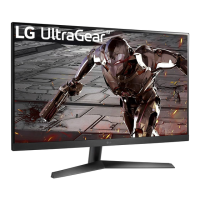
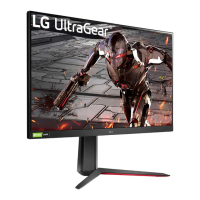
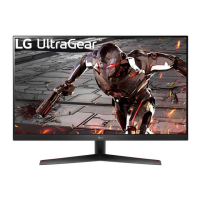
LG UltraGear 32GN50R-B - User Manual

LG UltraGear 32GN50R-B
44 pages
Print Icon
To Next Page IconTo Next Page
Loading...
LED Monitor*
Owners Manual
* LG LED Monitor applies LCD screen with LED backlights.
Please read this manual carefully before operating your set and retain it for future reference.
24GN60R
27GN60R
32GN50R
www.lg.com
Copyright © 2022 LG Electronics Inc. All Rights Reserved.
Questo manuale d’istruzione è fornito da trovaprezzi.it. Scopri tutte le offerte per LG 32GN50R-B o
cerca il tuo prodotto tra le migliori offerte di Monitor

Questions and Answers

  • J
    Janet HenryAug 19, 2025
    What to do if nothing is displayed on my LG UltraGear 32GN50R-B screen?
    • T
      Todd SmithAug 19, 2025
      If your LG Monitor screen is blank, start by checking if the power cord is securely plugged into the power outlet. Ensure the power cable is properly connected and press the power button. Also, verify that the connected input source is enabled via Menu > Input. If the monitor is in sleep mode, try moving the mouse or pressing a key on the keyboard. Confirm that your computer is turned on. If the problem persists, the signal cable between the PC and the monitor might be missing or disconnected; check the cable and reconnect it. Finally, ensure that the display driver is installed from the LG website and that your graphics card supports Plug and Play.
  • J
    Jose StephensAug 21, 2025
    What to do if there is no sound from the headphone port on my LG UltraGear 32GN50R-B?
    • L
      Lisa Thompson PhDAug 21, 2025
      If you're not getting any sound from the headphone port on your LG Monitor, first, make sure that the headphone port connections are properly made. Next, try increasing the volume using the joystick. Finally, set the audio output of your PC to the monitor you are using by going to Control Panel > Hardware and Sound > Sound on Microsoft Windows and setting the Monitor as the default device.
  • E
    Erin MccannAug 23, 2025
    How to fix no sound from the headphone port on LG UltraGear 32GN50R-B?
    • A
      Angela MirandaAug 23, 2025
      If there is no sound from the headphone port on your LG Monitor, first ensure that the headphone port connections are properly made. Then, try increasing the volume using the joystick. Finally, set the audio output of the PC to the monitor by going to Control Panel > Hardware and Sound > Sound and setting the Monitor as the default device on Microsoft Windows.
  • J
    Julie LeeAug 26, 2025
    Why is nothing displayed on my LG UltraGear 32GN50R-B Monitor screen?
    • J
      jjensenAug 26, 2025
      If your LG Monitor screen is blank, try these steps: First, ensure the power cord is securely plugged into the outlet. Next, verify the power cable connection and press the power button. Also, confirm that the correct input is enabled by going to Menu > Input. If the monitor is in sleep mode, move the mouse or press a key. Check that your computer is turned on. If you see a message about the signal cable, inspect the cable between the PC and monitor, and reconnect it if necessary. Finally, install the display driver from LG's website and check that your graphics card supports Plug and Play.
  • H
    Holly RomanAug 28, 2025
    How to troubleshoot no sound from the headphone port on LG Monitor?
    • C
      Courtney GonzalesAug 28, 2025
      If you're not getting any sound from the headphone port on your LG Monitor, first ensure that the headphone connections are properly made. Next, try increasing the volume using the joystick. Finally, set the audio output of your PC to the monitor by going to Control Panel > Hardware and Sound > Sound and setting the Monitor as the default device.
  • L
    Leah BarrettAug 30, 2025
    Why is my LG Monitor display color abnormal?
    • J
      Joseph SweeneyAug 30, 2025
      If the display color on your LG Monitor appears abnormal, first, set the color to 24 bit (true color) or higher via Control Panel > Display > Menu > Color Quality in Windows. Then, check the signal cable connection and reconnect it, or reinsert the PC's graphics card. It's also worth noting that pixilated spots (red, green, blue, white, or black) may appear on the screen, which is normal for an LCD screen and not an error.
  • P
    Paul NguyenSep 1, 2025
    How to fix unstable and shaky screen display on LG Monitor?
    • H
      Heather TrujilloSep 2, 2025
      If your LG Monitor's screen display is unstable, shaky, or images leave shadow trails, and the selected resolution is HDMI 1080i 60/50 Hz (interlaced), the screen may be flickering. Try changing the resolution to 1080p or the recommended resolution.
  • M
    Matthew CochranSep 4, 2025
    What to do if the display color is abnormal on my LG Monitor?
    • R
      Robert WilliamsSep 4, 2025
      If the display color on your LG Monitor seems off, try setting the color to 24 bit (true color) or higher via Control Panel > Display > Menu > Color Quality in Windows. Also, check the signal cable connection, reconnecting it or reinserting the PC's graphics card. Note that some pixilated spots (red, green, blue, white, or black) may appear – this is normal and not a defect.
  • D
    Derrick BradySep 6, 2025
    Why are some features disabled on my LG Monitor?
    • K
      Kimberly DelgadoSep 6, 2025
      Some features on your LG Monitor might be disabled because the OSD is locked. To unlock it, go to Menu > General and set OSD Lock to Off.
  • L
    Lawrence ParksSep 8, 2025
    How to prevent image retention on my LG Monitor screen?
    • A
      Anthony PetersSep 8, 2025
      Displaying a still image for a prolonged time may cause damage to the screen of your LG Monitor, resulting in image retention. To extend the monitor's lifetime, use a screensaver.

LG UltraGear 32GN50R-B Specifications

General IconGeneral
BrandLG
ModelUltraGear 32GN50R-B
CategoryMonitor
LanguageEnglish

Related product manuals