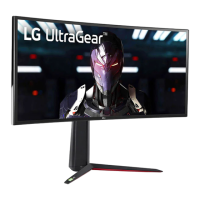
EasyManua.ls Logo

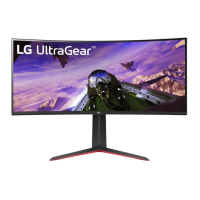
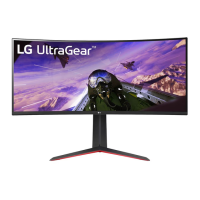
LG UltraGear 34GP63AP - User Manual

LG UltraGear 34GP63AP
33 pages
Print Icon
To Next Page IconTo Next Page
Loading...
(LED Monitor)
User Manual
* LG LED Monitor applies LCD screen with LED backlights.
Please read this manual carefully before operating your set and retain it for future reference.
34GP63A
34GP63AP
www.lg.com
Copyright © 2022 LG Electronics Inc. All Rights Reserved.

Questions and Answers

  • L
    Lance MurrayAug 8, 2025
    What to do if nothing is displayed on my LG UltraGear 34GP63AP screen?
    • A
      Autumn StevensAug 8, 2025
      If nothing is displayed on your LG monitor screen, try the following: First, ensure the power cord is correctly plugged into the power outlet. Next, check the power cable connection and press the power button. Then, verify that the connected input is enabled in the monitor's settings under Input. If the monitor is in sleep mode, move the mouse or press any key on the keyboard. Also, confirm that your computer is turned on. Check the signal cable and reconnect it. Finally, make sure to install the display driver from the LG website and verify that your graphics card supports the Plug and Play function.
  • S
    sarahrodriguezAug 13, 2025
    What to do if there is no sound from the headphone port on my LG UltraGear 34GP63AP Monitor?
    • M
      Mary DanielAug 13, 2025
      If there is no sound from the headphone port on your LG monitor, first ensure that the headphone port connections are properly made. Next, try increasing the volume using the joystick on the monitor. Lastly, set the audio output of your PC to the monitor you are using by going to Control Panel > Hardware and Sound > Sound on Microsoft Windows and setting the Monitor as the default device.
  • K
    Kevin KellyAug 18, 2025
    How to fix unstable and shaky screen display with shadow trails on LG UltraGear 34GP63AP?
    • C
      calderonevelynAug 18, 2025
      If your LG monitor's screen display is unstable, shaky, and images leave shadow trails, it might be due to the selected resolution. If the resolution is HDMI 1080i 60/50 Hz (interlaced), the screen may flicker. Change the resolution to 1080p or the recommended resolution to resolve this issue.
  • D
    Dr. Gabriella AguirreAug 23, 2025
    Why does my LG Monitor screen retain an image?
    • S
      spencerrobertAug 23, 2025
      Displaying a still image on your LG monitor for a prolonged time may cause damage to the screen, resulting in image retention. To extend the lifetime of the monitor, use a screensaver.
  • U
    uburgessAug 29, 2025
    Why is the display color abnormal on my LG UltraGear 34GP63AP Monitor?
    • C
      Charles GibsonAug 29, 2025
      If the display color on your LG monitor is abnormal, set the color to 24 bit (true color) or higher by navigating to Control Panel > Display > Menu > Color Quality in Windows. Also, check if the signal cable is connected properly; try reconnecting it or reinserting the PC's graphics card. Note that pixilated spots (red, green, blue, white, or black) may appear; this is normal for an LCD screen and not an error.
  • L
    Lori AllenSep 3, 2025
    How to enable disabled features on LG UltraGear 34GP63AP?
    • B
      Brian MurphySep 3, 2025
      If some features are disabled on your LG monitor, go to Settings > General and set OSD Lock to Off. This should enable the disabled features.

Summary

Using Your Monitor

Connecting Your Monitor to a PC

Connect your monitor to a computer for display output.

HDMI Connection for PC

Transmits digital video and audio signals from your PC to the monitor.

DisplayPort Connection

User Settings Overview

Activating the Main Menu

Learn how to access and navigate the monitor's main menu.

Monitor Settings Menu Categories

Game Mode Settings

Select and configure game-specific display modes.

Game Adjustments

Adjust game-related settings for optimal performance.

Picture Adjustments

Customize screen settings like brightness, contrast, and color.

Game Mode Settings (SDR)

SDR Game Mode Options

Customize game-related options for SDR signals.

Game Mode Settings (HDR)

HDR Game Mode Options

Customize game-related options for HDR signals.

Game Adjustments: Motion Blur Reduction

1 ms Motion Blur Reduction

Minimize motion blur in fast-moving videos for clearer images.

Game Adjustments: Sync and Stabilizer

FreeSync Premium

Enable seamless and natural images by synchronizing refresh rates.

Game Adjustments: Response Time & Crosshair

Response Time Settings

Set the response time for displayed pictures based on screen speed.

Picture Adjustments: Brightness & Contrast

Brightness and Contrast Control

Adjust screen brightness and contrast levels.

Sharpness and Gamma Settings

Adjust screen sharpness and gamma settings for image clarity.

Troubleshooting: Screen Display Issues

Resolving No Signal or Flickering

Resolve problems with no screen display, flickering, or no signal.

Troubleshooting: Image Retention

Troubleshooting: Color & Sound Issues

Product Specifications: LCD Screen

LG UltraGear 34GP63AP Specifications

General IconGeneral
BrandLG
ModelUltraGear 34GP63AP
CategoryMonitor
LanguageEnglish

Related product manuals