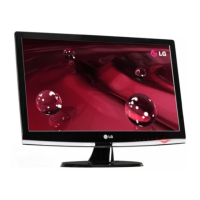
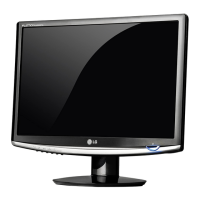
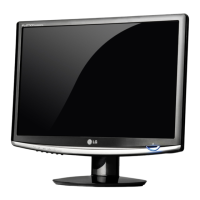
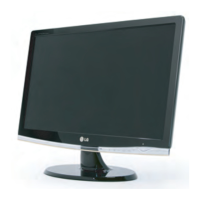
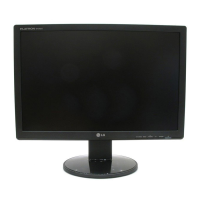
This document describes the LG W1954TQ and W2254TQ Flat Panel Active Matrix-TFT LCD monitors, providing details on their function, technical specifications, usage, and maintenance.
Function Description
These devices are flat panel active matrix-TFT LCD monitors designed for displaying visual content from a computer system. They support both analog (D-Sub) and digital (DVI-D) input signals, allowing connection to various types of graphics cards. The monitors offer a range of on-screen display (OSD) controls for adjusting image settings, color, position, and other environmental factors to optimize the viewing experience. Key features include automatic image adjustment, various picture modes (Cinema Mode, Photo Effect), and power-saving options.
Important Technical Specifications
W1954TQ (19-inch monitor):
- Display: 19 inches (48.1 cm) Flat Panel Active matrix-TFT LCD with Anti-Glare coating.
- Visible diagonal size: 48.1 cm.
- Pixel pitch: 0.284*0.284 mm.
- Horizontal Frequency: Analog: 30 - 83 kHz (Automatic), Digital: 30 - 83 kHz (Automatic).
- Vertical Frequency: 56 - 75 Hz (Automatic).
- Input Form: Separate TTL, Positive/Negative, SOG (Sync On Green), Digital (HDCP).
- Signal Input: 15 pin D-Sub Connector, DVI-D connector (Digital).
- Input Form (RGB Analog): 0.7 Vp-p/ 75 ohm, Digital.
- Max Resolution: Analog: VESA 1440 x 900 @75 Hz, Digital: VESA 1440 x 900 @60 Hz.
- Recommended Resolution: VESA 1440 x 900 @60 Hz.
- Plug&Play: DDC 2B (Digital), DDC 2AB (Analog).
- Power Consumption: On Mode: 36 W(Typ.), Sleep Mode: < 1 W, Off Mode: < 1 W.
- Dimensions & Weight (With Stand): Width: 45.05 cm / 17.73 inches, Height: 38.09 cm / 14.99 inches, Depth: 18.30 cm / 7.20 inches.
- Net Weight (With Stand): 3.33 kg (7.34 lbs).
- Dimensions & Weight (Without Stand): Width: 45.05 cm / 17.73 inches, Height: 32.67 cm / 12.86 inches, Depth: 6.00 cm / 2.36 inches.
- Tilt Range: -5°~15°.
- Power Input: AC 100-240V~50/60Hz 0.8A.
- Operating Conditions: Temperature: 10°C to 35°C, Humidity: 10% to 80% non-Condensing.
- Storage Conditions: Temperature: -20°C to 60°C, Humidity: 5% to 90% non-Condensing.
- Stand Base: Attached(), Detached (O).
- Signal cable: Attached(), Detached (O).
- Power cord: Wall-outlet type or PC-outlet type.
W2254TQ (22-inch monitor):
- Display: 22 inches (55.8 cm) Flat Panel Active matrix-TFT LCD with Anti-Glare coating.
- Visible diagonal size: 55.8 cm.
- Pixel pitch: 0.282*0.282 mm.
- Horizontal Frequency: Analog: 30 - 83 kHz (Automatic), Digital: 30 - 83 kHz (Automatic).
- Vertical Frequency: 56 - 75 Hz (Automatic).
- Input Form: Separate TTL, Positive/Negative, SOG (Sync On Green), Digital (HDCP).
- Signal Input: 15 pin D-Sub Connector, DVI-D connector (Digital).
- Input Form (RGB Analog): 0.7 Vp-p/ 75 ohm, Digital.
- Max Resolution: Analog: VESA 1680 x 1050 @60 Hz, Digital: VESA 1680 x 1050 @60 Hz.
- Recommended Resolution: VESA 1680 x 1050 @60 Hz.
- Plug&Play: DDC 2B (Digital), DDC 2AB (Analog).
- Power Consumption: On Mode: 40 W(Typ.), Sleep Mode: < 1 W, Off Mode: < 1 W.
- Dimensions & Weight (With Stand): Width: 51.78 cm / 20.38 inches, Height: 42.41 cm / 16.69 inches, Depth: 19.80 cm / 7.79 inches.
- Net Weight (With Stand): 4.16 kg (9.17 lbs).
- Dimensions & Weight (Without Stand): Width: 51.78 cm / 20.38 inches, Height: 36.93 cm / 14.53 inches, Depth: 6.30 cm / 2.48 inches.
- Tilt Range: -5°~15°.
- Power Input: AC 100-240V~50/60Hz 1.0A.
- Operating Conditions: Temperature: 10°C to 35°C, Humidity: 10% to 80% non-Condensing.
- Storage Conditions: Temperature: -20°C to 60°C, Humidity: 5% to 90% non-Condensing.
- Stand Base: Attached(), Detached (O).
- Signal cable: Attached(), Detached (O).
- Power cord: Wall-outlet type or PC-outlet type.
Usage Features
Installation:
- Stand Assembly: The monitor stand is assembled by placing the monitor face down on a soft cloth, then inserting the Stand Base (Front, Rear) into the Stand Body. The base lock is then tied down perpendicularly. Once assembled, the monitor can be carefully lifted and faced forward. It is important not to carry the product upside down holding only the stand base, as this may cause damage or injury.
- Stand Disassembly: To disassemble, place the monitor face down on a soft cloth. Change the lock on the product as it follows and turn it in the arrow direction. If the stand base cannot be released, push the indicated rib down and retry. Finally, pull out the stand to remove it.
- Positioning: The monitor allows for tilt adjustment from -5° to 15° for ergonomic viewing. It is recommended that the forward tilt angle not exceed 5 degrees for optimal ergonomics.
- Connecting to Computer: Ensure all devices are turned off before connecting. The monitor supports DVI and D-Sub cables. Connect the appropriate cable to the monitor and the computer. For Macintosh users, a separate plug adapter might be needed for D-sub VGA connection.
Control Panel Functions:
The front panel includes several buttons for OSD control:
- Smart Button: Accesses CINEMA MODE, AUTO BRIGHT, TIME CONTROL, and LIVE SENSOR settings.
- Fun Button: Accesses EZ ZOOMING, 4:3 IN WIDE, and PHOTO EFFECT settings.
- MENU Button: Enters or exits the OSD. Holding it for several seconds locks/unlocks OSD settings, displaying "OSD LOCKED" or "OSD UNLOCKED."
- Up/Down Buttons: Select or adjust functions in the OSD.
- Source Button: Switches between D-Sub and DVI inputs when two computers are connected. Default is D-Sub.
- AUTO/SET Button: Selects an icon in the OSD. Pressing it before entering OSD performs an automatic image adjustment to ideal settings for the current screen resolution.
- Power Button: Turns the display on or off.
- Power Indicator: Lights red during normal operation, flickers in Sleep Mode (Energy Saving).
- Light Sensor: Detects outside luminance for AUTO BRIGHT function.
On Screen Display (OSD) Adjustment:
- Accessing OSD: Press the MENU Button.
- Navigation: Use the Up/Down buttons to select items, AUTO/SET to enter sub-menus, and MENU to exit or return to the main menu.
- Picture Settings: Adjust Brightness, Contrast, and Gamma.
- Color Settings: Choose from sRGB, 6500K, 9300K presets, or manually adjust Red, Green, and Blue levels.
- Tracking Settings: Adjust Horizontal and Vertical position, Clock, Phase, and Sharpness to improve image clarity and stability.
- Setup Settings:
- Language: Select OSD language.
- OSD Position: Adjust OSD window position.
- White Balance: Adjusts signal level for optimal image quality, especially when input signal differs from specifications (enabled only for analog input).
- RTC (Response Time Control): Enables or disables the Response Time Control function.
- Power Indicator: Sets the power indicator light to ON or OFF.
- Factory Reset: Restores all factory default settings except "LANGUAGE."
- Smart Features (accessed via Smart Button):
- CINEMA MODE: Focuses on moving pictures (requires forteManager).
- AUTO BRIGHT: Automatically controls screen brightness based on ambient light (requires forteManager).
- TIME CONTROL: Reminds user using time by showing alarm and flickering power LED (OFF/1HOUR/2HOUR).
- LIVE SENSOR: Turns on the button LED for comfortable pushing.
- SMART: Adjusts AUTO BRIGHT, TIME CONTROL, LIVE SENSOR.
- Fun Features (accessed via Fun Button):
- EZ ZOOMING: Lowers display resolution in single-step increments (requires forteManager).
- 4:3 IN WIDE: Selects image size (WIDE for full screen, 4:3 for 4:3 aspect ratio).
- PHOTO EFFECT: Applies various effects (NORMAL, GAUSSIAN BLUR, SEPIA, MONOCHROME).
- F-ENGINE Settings:
- MOVIE/INTERNET: Selects desired image conditions optimized for movies/videos or text/word processing.
- USER: Manually adjusts ACE (Adaptive Clarity Enhancer) and RCM (Real Color Management) for clarity and color.
- NORMAL: Standard operating conditions.
- DEMO: Advertising mode, screen divided in half with Movie mode settings.
Troubleshooting:
- No image appears: Check power cord connection, power button, and if the display is in power saving mode. If "OUT OF RANGE" or "CHECK SIGNAL CABLE" message appears, verify signal cable connection and frequency settings.
- Display image is incorrect:
- Display Position incorrect: Use AUTO/SET button for automatic adjustment. If unsatisfactory, adjust H position and V position in OSD.
- Vertical bars/stripes: Use AUTO/SET button. If unsatisfactory, decrease vertical bars/stripes using CLOCK in OSD.
- Horizontal noise: Use AUTO/SET button. If unsatisfactory, decrease horizontal bars using PHASE in OSD. Check Control Panel -> Display -> Settings for recommended resolution and color settings (higher than 24 bits).
- Screen color mono/abnormal: Check signal cable connection, video card insertion, and color setting (higher than 24 bits) in Control Panel - Settings.
- Screen blinks: Check if screen is set to interlace mode; change to recommended resolution if so.
- Display driver issues: Install display driver from CD or LG website. If "Unrecognized monitor, Plug&Play (VESA DDC) monitor found" message appears, ensure video card supports Plug&Play.
Maintenance Features
On Installation:
- Ensure proper ventilation. Do not block ventilation openings or place the display near heat sources to prevent overheating and fire hazards.
- Avoid placing heavy objects on the power cord.
- Do not use near water.
- Avoid pressing the LCD screen with fingers for extended periods to prevent afterimages.
- Some dot defects (red, green, blue spots) may appear but do not impact performance.
- Use recommended resolution for best image quality. Non-recommended resolutions may cause scaled or processed images.
- Use a screen saver to prevent image burn-in, as burn-in is not covered by warranty.
On Cleaning:
- Unplug the display before cleaning.
- Use a slightly damp (not wet) cloth.
- Do not spray aerosol directly on the display screen to avoid electrical shock.
On Repacking:
- Retain original carton and packing materials for safe transport of the unit.
On Disposal:
- The fluorescent lamp contains mercury.
- Do not dispose of with general household waste.
- Dispose of according to local authority regulations.

 Need help?

 To Next Page
 General