Operating44
Operating
4
Playing a file on a network
server
yui
This player can play video, audio and photo les
located in a DLNA server through your home
network.
1. Check the network connection and settings
(page 26).
2. Press HOME ( ).
3. Select [Movie], [Photo] or [Music] using
A/D
,
and press ENTER (
b
).
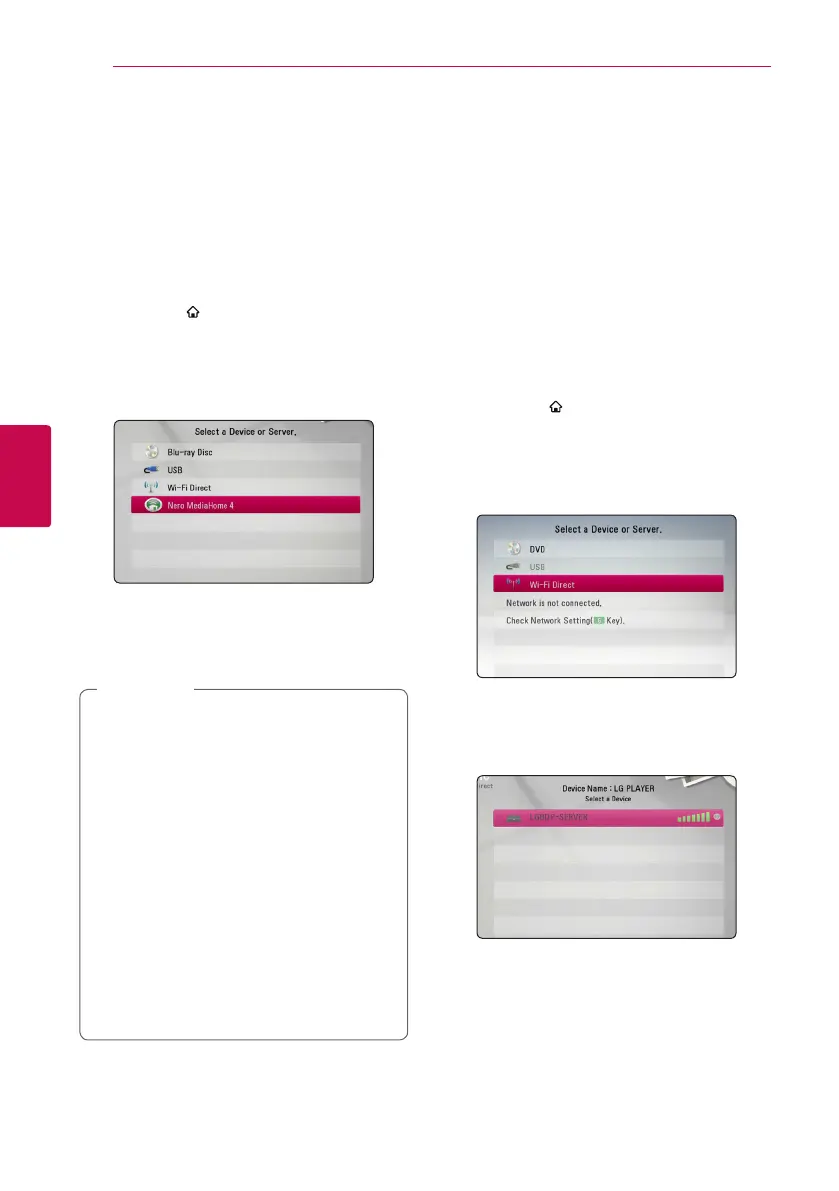
4. Select a DLNA media server on the list using
W/S
, and press ENTER (
b
).
If you want to rescan available media server,
press the green (G) colored button.
5. Select a le using
W/S/A/D
, and press
ENTER (
b
) to play the le.
y
The le requirements are described on page
10.
y
The thumbnail of the unplayable les can
be displayed, but those cannot be played
on this player.
y
The subtitle le name and movie le name
have to be the same and located at the
same folder.
y
The playback and operating quality may be
aected by your home network condition.
y
You may experience connection problems
depending on your server’s environment.
y
To set your PC as a DLNA server, install the
supplied Nero MediaHome 4 on your PC.
(see page 66)
,
Note
Wi-Fi Direct™ Connection
Connecting to a Wi-Fi Direct™
certified device
yui
This player can play movie, music and photo les
located in a Wi-Fi Direct™ certied device. The Wi-Fi
Direct™ technology make the player to be directely
connected to a Wi-Fi Direct™ certied device
without connecting to a network device such as an
access point.
1. Set the [Wi-Fi Direct] option on the [Setup]
menu to [On] (page 39).
2. Press HOME ( ).
3. Select [Movie], [Photo] or [Music] using
A/D
,
and press ENTER (
b
).
4. Select [Wi-Fi Direct] option using
W/S
, and
press ENTER (
b
).
5. Select a Wi-Fi Direct™ device on the list using
W/S
, and press ENTER (
b
).
Wi-Fi Direct™ connection will be automatically
proceeded.
If the Wi-Fi Direct™ device supports the PIN
Code configuration method based on WPS(Wi-
Fi Protected Setup), select a device on the list
and press yellow (Y) coloured button. Note the
PIN number on the screen. And then, enter the
PIN number on a setting menu of the device to
connect.
If you want to rescan available Wi-Fi Direct™
device, press the green (G) coloured button.



 To Next Page