6 7
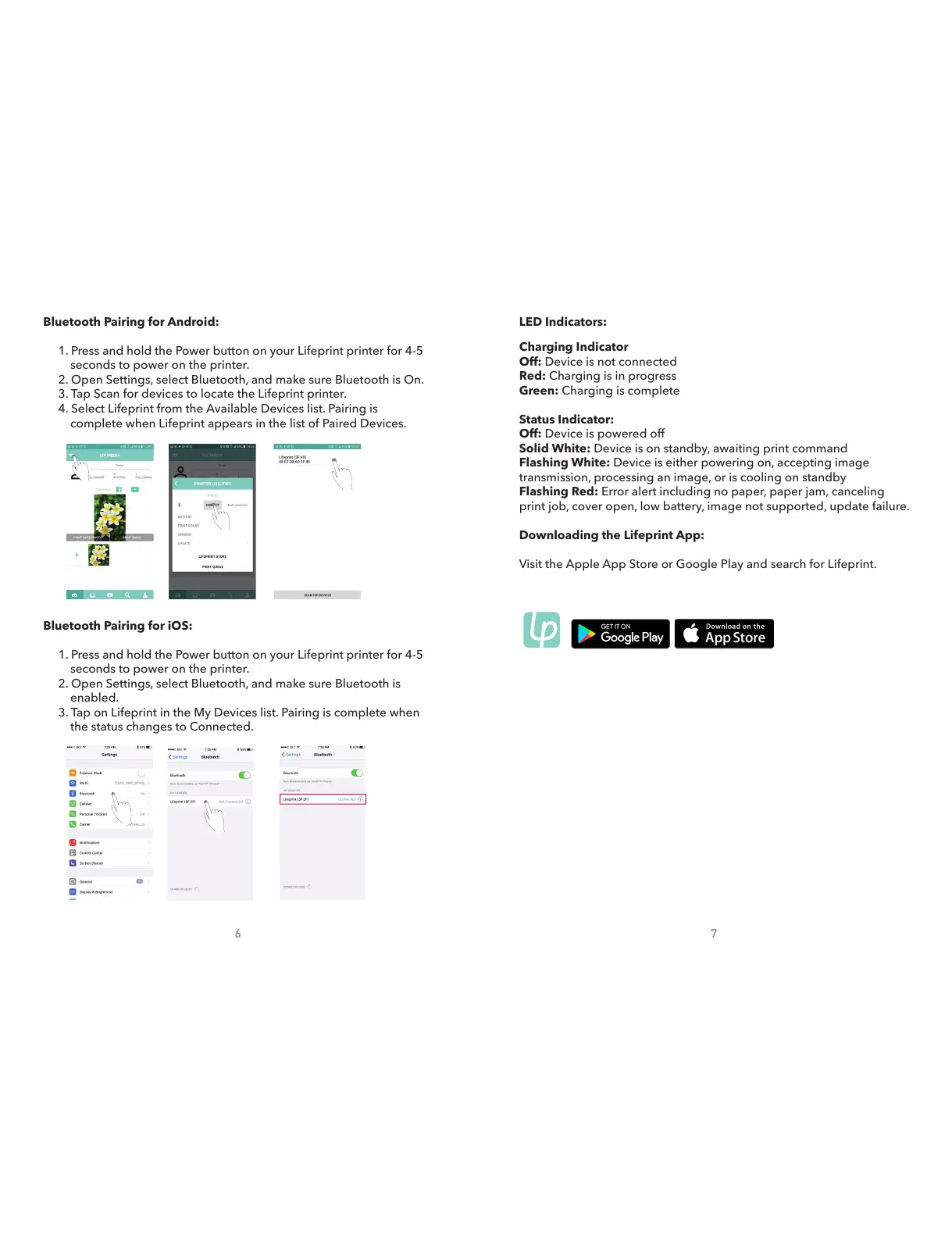
LED Indicators:
Charging Indicator
Off: Device is not connected
Red: Charging is in progress
Green: Charging is complete
Status Indicator:
Off: Device is powered off
Solid White: Device is on standby, awaiting print command
Flashing White: Device is either powering on, accepting image
transmission, processing an image, or is cooling on standby
Flashing Red: Error alert including no paper, paper jam, canceling
print job, cover open, low battery, image not supported, update failure.
Downloading the Lifeprint App:
Visit the Apple App Store or Google Play and search for Lifeprint.
Bluetooth Pairing for Android:
1. Press and hold the Power button on your Lifeprint printer for 4-5
seconds to power on the printer.
2. Open Settings, select Bluetooth, and make sure Bluetooth is On.
3. Tap Scan for devices to locate the Lifeprint printer.
4. Select Lifeprint from the Available Devices list. Pairing is
complete when Lifeprint appears in the list of Paired Devices.
Bluetooth Pairing for iOS:
1. Press and hold the Power button on your Lifeprint printer for 4-5
seconds to power on the printer.
2. Open Settings, select Bluetooth, and make sure Bluetooth is
enabled.
3. Tap on Lifeprint in the My Devices list. Pairing is complete when
the status changes to Connected.


 To Next Page
 Loading...