4 LifeSize Video Communications Systems User Guide
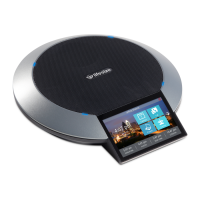
• LifeSize Phone for use with LifeSize Room
Note: Refer to the LifeSize Room documentation for details about installing,
configuring, and using the speakerphone with LifeSize Room.
Setup for IP Use
To set up the LifeSize Phone for use with IP in your environment, follow these steps:
Note: Refer to the quick reference card included in your product package for a visual
depiction of the proper setup.
1. Insert the Ethernet cable into the port on the underside of the phone closest to the
center; this port is marked with the LAN symbol . The exterior port is reserved for
future use. Ensure the cables are secured into the guides to avoid damage to them.
2. Insert the opposite end of the Ethernet cable into the PoE adapter or the PoE port on the
wall. If using a PoE adapter, plug the remaining end into the network port on the wall.
You must supply a power adapter that is IEEE 802.3af compliant where PoE is
unavailable.
3. The LifeSize Phone boots, and you are prompted to configure it the first time.
Configuring Your LifeSize Phone
Once you have set up your LifeSize Phone in your environment, you are prompted to
configure the system for your locale and network. You can change preferences such as the
display language, administrator password (for accessing advanced preferences), dialing
options for use with IP connectivity, and other preferences. You can also change the phone
name and number that appears in the phone display.
Note: For security reasons, LifeSize recommends you change the default
administrator password during the initial configuration.
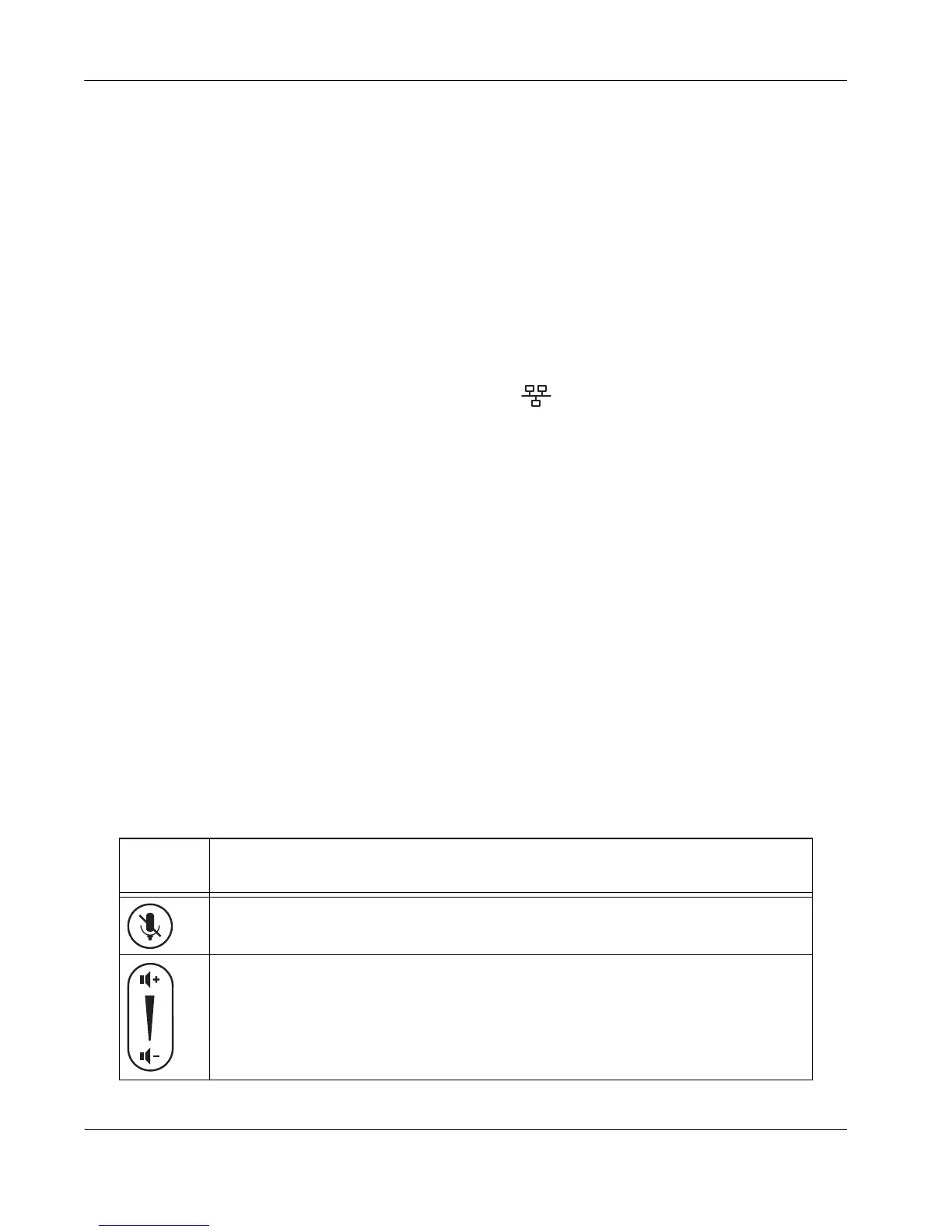
The following keys provide navigation during configuration:
Keypad
Key
Function
Toggles values, activates the cursor in a field, and accepts changes to a field.
Behaves as up and down keys when scrolling through preferences.
Volume Down also changes the text entry mode when editing a text field.


 To Next Page
 Loading...