EasyManua.ls Logo

Linear Logic ScanGauge III - User Manual

Linear Logic ScanGauge III
42 pages
Print Icon
To Next Page IconTo Next Page
Loading...
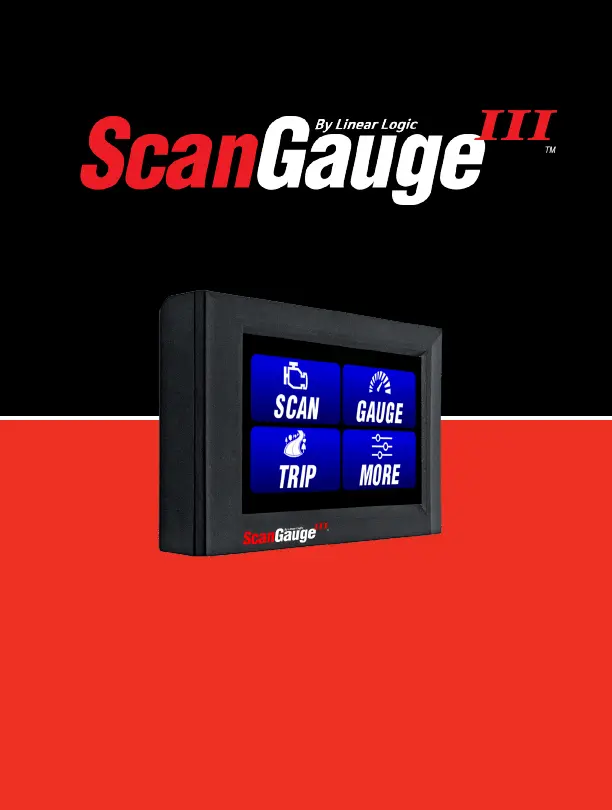
User Manual
Plugs into the diagnostic connector already
built into all 1996 or newer cars and light trucks.
www.ScanGauge.com
Version 1.0

Other manuals for Linear Logic ScanGauge III

Questions and Answers

Summary

WARNING

RIGHTS AND OBLIGATIONS

Installing the ScanGauge

ScanGauge Overview

An overview of the ScanGauge product, including package contents and general features.

Basic Operation and Features

Explains how to operate the ScanGauge, its buttons, and customizable gauge features.

Locating the OBDII Connector

Instructions on how to find the vehicle's OBDII diagnostic port for connection.

Mounting Your ScanGauge

Guidance on selecting a safe and visible location to mount the ScanGauge device.

Connecting Your ScanGauge

Steps for physically connecting the ScanGauge to the vehicle's OBDII socket.

Important Installation Considerations

Key factors to consider for a proper and safe installation of the ScanGauge.

Set Up and Calibrate Your ScanGauge

Initial Setup Overview

Introduces the basic setup parameters like engine size, fuel type, and units of measure.

Advanced Setup Overview and Adjustments

Details advanced setup parameters for customizing speed, fuel cutoff, and other functions.

Fillup Calibration

Explains how to calibrate the ScanGauge using fuel fill-up data for accurate readings.

Backlight Display Options

Customization options for the ScanGauge's backlight intensity and display colors.

Operating Your ScanGauge

Digital Gauges

Information on displaying and customizing up to 9 real-time digital gauges.

Trip Computers

Explains the use of 4 built-in trip computers to store and view trip information.

Scan Tool

How to use the Scan Tool feature to view and clear diagnostic trouble codes (DTCs).

Monitor and Alarm

Set the Monitor and Alarm Function

How to set up custom monitors and alerts for specific vehicle parameters.

Advanced Features

Program Custom Gauges with X-GAUGE

Using the XGauge feature to display vehicle-specific sensors and create custom gauges.

Auto Scan for XGauges

How to perform an automatic scan to identify available XGauge parameters for your vehicle.

Programming Your Own X-GAUGE

Manual entry process for custom XGauges using TXD, RXF, MTH, and NAME values.

Troubleshooting

Basic Troubleshooting

Common troubleshooting tips for issues like no display, connection problems, and sleep mode.

View Firmware Version

How to check the current firmware version and MAC ID of your ScanGauge.

Reset Your ScanGauge

Procedures for resetting the ScanGauge to factory defaults or specific settings.

ScanGauge Factory Reset

Method for performing a full factory reset using a button on the device.

Read or Set the Operating Mode

How to view and manually set the OBDII communication mode for your vehicle.

Limited Warranty

Linear Logic ScanGauge III Specifications

General IconGeneral
BrandLinear Logic
ModelScanGauge III
CategoryControl Systems
LanguageEnglish

Related product manuals