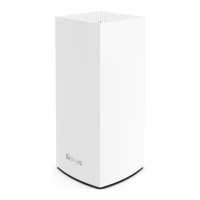
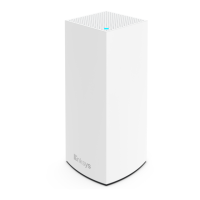
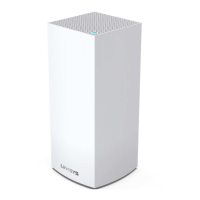
The Linksys HomeWRK for Business MX4300/MX4300S is a mesh Wi-Fi system designed to provide robust and secure internet connectivity for both personal and corporate networks within a home or small business environment. This user guide outlines the device's physical features, setup process, and various software functionalities, emphasizing ease of use and advanced network management.
Function Description
The Linksys HomeWRK system functions as a comprehensive Wi-Fi solution, capable of creating a mesh network that extends reliable internet coverage throughout a space. It supports both primary and child nodes, allowing for flexible network expansion. The system is designed to manage separate personal and corporate Wi-Fi networks, ensuring secure and distinct access for different user groups. Key functions include internet connectivity, local file sharing via USB, and wired device connections through Gigabit Ethernet ports. The device also integrates advanced security features, including antivirus protection and web content filtering, powered by Fortinet, to safeguard online activities. Prioritization of video calls for corporate networks is another core function, ensuring smooth remote meetings.
Usage Features
The Linksys HomeWRK system offers a range of features designed to enhance user experience and network control:
- Mesh Wi-Fi System: The core functionality revolves around creating a mesh network. Nodes can be set up as primary (connected to the modem) or child nodes (connected wirelessly or via Ethernet to another node), allowing for scalable and flexible Wi-Fi coverage.
- Dual Network Management: The system distinguishes between personal and corporate Wi-Fi networks. This allows for separate SSIDs, passwords, and potentially different security policies, catering to the needs of a home-based business user.
- Intuitive Setup Process: The setup is guided, starting with identifying the internet source (modem or modem-router) and connecting the primary node. Subsequent child nodes can be added to expand coverage. The setup is completed through a web browser using instructions provided in an email from the user's company.
- Home Dashboard: The "Home" screen provides a snapshot of the mesh system, displaying the connection status of both personal and corporate Wi-Fi networks, the total number of connected devices, and which node each device is connected to. It also shows bandwidth usage over time and current internet speed, with an option to run a speed test.
- Device Management: The "Devices" section allows users to view all connected devices, both online and offline. Users can access detailed information about each device's identity and connection, including the node it's connected to, channel, MAC address, IP address, manufacturer, model, and OS. Offline devices can be removed from the network list.
- Speed Monitoring: The "Speeds" feature enables users to run speed checks to verify internet performance against their ISP's promised speeds. It also provides a 30-day snapshot of the system's download and upload speeds, along with ping and server location.
- Wireless Settings: Users can view and modify their personal Wi-Fi network's name (SSID) and password. The system combines 2.4 GHz and 5 GHz bands for seamless roaming, but users have the option to separate them. Corporate network settings are also displayed. Wi-Fi Protected Setup (WPS) is available for easy device connection.
- Guest Network: A dedicated guest network can be enabled, allowing visitors to access the internet while restricting their access to other resources on the main Wi-Fi networks, enhancing security and privacy.
- Security Features (Fortinet Integration): The system offers robust security, including antivirus protection and web content filtering, powered by Fortinet.
- Antivirus: Blocks viruses and analyzes suspicious files, with a dashboard showing the number of blocked threats over the last 7 days.
- Web Content Filtering: Allows users to restrict or control internet access based on age-appropriate presets (e.g., PG-13) or by blocking specific categories (e.g., adult/mature content, bandwidth-consuming sites, security risks) and individual URLs.
- Priority for Video Calls: This feature allows users to prioritize devices using Zoom or Microsoft Teams video calls on the corporate network, ensuring optimal performance for remote meetings. This feature does not apply to the personal Wi-Fi network.
- System Settings: This section provides tools for managing the system's operational aspects.
- Time Zone: Allows setting the time zone and automatically adjusting for daylight saving time.
- VPN Details: Displays server, username, and password information for VPN connections.
- Firmware Update: The router automatically updates firmware overnight to ensure the latest features and fixes.
- Router Diagnostic Information: Users can share diagnostic information with Linksys and their company's IT team for troubleshooting.
- Advanced Settings: For experienced users, advanced settings allow changes to security type and Wi-Fi mode.
- Internet Settings: Configures how the Linksys HomeWRK connects to the internet, with Automatic Configuration - DHCP as the default. Options for cloning MAC addresses and setting MTU are available.
- Port Settings: Supports port forwarding for single, multiple, or a range of ports, and port range triggering, to direct inbound traffic to specific devices.
- Wi-Fi MAC Filters: Allows creating a list of MAC addresses to regulate how specific devices use the Wi-Fi network.
- Physical Ports and Buttons:
- USB 3.0 Port: For connecting and sharing USB drives for local file sharing (not for FTP, media server, or virtual USB, nor for peripherals like printers/scanners).
- Ethernet Ports: Gigabit Ethernet ports (10/100/1000) for connecting wired devices or other nodes in a mesh system.
- Internet Port: A yellow Gigabit Ethernet port for connecting to a broadband modem or modem-router. Can also be used for a wired connection to another node when functioning as a child node.
- Power Port: For connecting the included AC power adapter.
- Reset Button: Located on the bottom, used to restore factory defaults by pressing and holding until the top light turns red, fades, and flashes bright red.
- WPS Button: For connecting WPS-enabled network devices.
- Power Switch: To turn the node on or off.
- LED Indicator: A multicolored light on the top of the node provides visual status updates (e.g., blinking blue for starting up, solid blue for connected, blinking red for disconnected).
Maintenance Features
The Linksys HomeWRK system incorporates features that simplify maintenance and ensure optimal performance:
- Automatic Firmware Updates: The system automatically updates its firmware overnight when new versions are available, ensuring the device always has the latest features, security patches, and bug fixes without user intervention.
- Router Diagnostic Information Sharing: Users can share diagnostic data with Linksys and their company's IT team. This feature is crucial for troubleshooting network issues, allowing support personnel to quickly identify and resolve problems.
- Factory Reset Option: While generally not recommended due to its time-consuming nature and loss of settings, the reset button allows users to restore the node to its factory defaults. This can be a last resort for severe configuration issues. If a parent node is reset, child nodes also need to be reset, though they will automatically reconnect once the parent node is ready.
- Speed Trends Monitoring: The "Speeds" section provides a 30-day snapshot of internet speeds, allowing users to monitor performance over time and identify potential connectivity issues that may require attention from their ISP.
- Device Removal: The ability to remove offline devices from the network list helps keep the device management clean and relevant, potentially improving network efficiency by not tracking devices that are no longer in use.
- Environmental Considerations: The device is designed to operate within specific temperature and humidity ranges, ensuring reliability and longevity under typical indoor conditions.

 Need help?
 General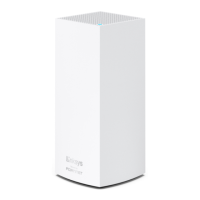

 To Next Page