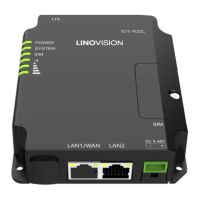
The LINOVISION IOT-R32 is an industrial cellular router designed for robust and reliable network connectivity in various environments. This Quick Start Guide provides essential information for installation, configuration, and basic operation.
Function Description:
The IOT-R32 functions as an industrial cellular router, enabling network connectivity via cellular (4G/LTE) and Ethernet (LAN/WAN) interfaces. It allows devices to connect to the internet or a private network, facilitating data transmission and remote management. The router supports both static IP and DHCP client configurations for its WAN port, offering flexibility in network integration. It also includes features for SIM card management, link failover, and various network protocols such as VPN, QoS, and VRRP. The device is managed through a web-based Graphical User Interface (GUI), providing comprehensive control over its settings and monitoring capabilities.
Important Technical Specifications:
- Power Input: 9-48 VDC, making it suitable for a wide range of industrial power supplies.
- Power Consumption: Typical 1.9W (Max 2.4 W), indicating energy efficiency.
- Operating Temperature: -40°C to 70°C (-40°F to 158°F), highlighting its suitability for harsh industrial environments.
- Relative Humidity: 0% to 95% (non-condensing) at 25°C/77°F, ensuring operation in varying humidity conditions.
- Connectors:
- Main Cellular Antenna Connector (1)
- GPS/WIFI Antenna Connector (2)
- AUX Cellular Antenna (3)
- Serial Port & I/O (5): Includes RS232 (RXD, TXD, GND), RS485 (A, B), Digital Input (IN), Digital Output (OUT), and Common Ground (COM).
- Ethernet LAN1/WAN Port (6)
- Ethernet LAN2 Port (7)
- Power Connector (8): DC 9-48V
- SIM and Reset Button Holder (9): Supports SIM card and Micro SD card installation.
- LED Indicators:
- POWER: Off (power switched off), On (power switched on).
- SYSTEM: Green Light (Static: Start-up; Blinking slowly: system running properly), Red Light (system goes wrong).
- SIM: Off (SIM1 or SIM2 registering/failed to register/no SIM cards), Green Light (Blinking slowly: SIM1 registered/ready for dial-up; Blinking rapidly: SIM1 dialing up; Static: SIM1 registered/dialed up successfully), Orange Light (Blinking slowly: SIM2 registered/ready for dial-up; Blinking rapidly: SIM2 dialing up; Static: SIM2 registered/dialed up successfully).
- Signal Strength (1/2/3): Off (no signal), Green Light (Static/Off/Off: weak signals 1-10 ASU; Static/Static/Off: normal signals 11-20 ASU; Static/Static/Static: strong signals 21-31 ASU).
- Link Indicator (Orange) for Ethernet Ports: On (connected), Blinking (transmitting data), Off (disconnected).
- Dimensions: 90mm (W) x 108mm (H) x 26mm (D).
- Mounting: Supports desktop placement, wall mounting (using 4 pcs M3 × 6 flat head Phillips screws, recommended torque 1.0 N·m, max 1.2 N·m), and DIN rail mounting (using 2 pcs M3 × 6 flat head Phillips screws, recommended torque 1.0 N·m, max 1.2 N·m).
Usage Features:
- Quick Start Guide: Provides step-by-step instructions for initial setup.
- Packing List: Ensures all necessary components are present upon unboxing, including the IOT-R32 unit, Ethernet cable, power adapter, magnetic cellular antennas, 6-pin pluggable terminal, DIN rail kit, setscrews, and a quick start guide. Optional items include Stubby Wi-Fi Antenna (Wi-Fi Version Only), GPS Antenna (GPS Version Only), and Stubby Cellular Antennas.
- SIM Card/Micro SD Card Installation: Easy installation by unscrewing the cover, inserting the cards, and screwing it back.
- Antenna Installation: Antennas are rotated into their respective connectors. External antennas should be installed vertically in a location with good signal strength.
- Web GUI Access: The router is configured via a web-based GUI.
- PC Configuration: Connect PC to a LAN port. PC can obtain an IP address automatically or be configured with a static IP (e.g., 192.168.1.20 with subnet mask 255.255.255.0 and default gateway 192.168.1.1).
- Default Login: IP Address: 192.168.1.1, Username: admin, Password: password.
- Password Change: Users are prompted to change the default password upon first login for security reasons.
- Ethernet WAN Configuration:
- Configure WAN parameters (Static IP, DHCP client, PPPoE) through "Network > Interface > WAN".
- Link Failover: Prioritize WAN connection over cellular by setting its priority to 1 in "Network > Interface > Link Failover".
- Verify connectivity by accessing a web address on a PC connected to the router.
- Cellular Connection Configuration:
- Configure cellular information (APN, Username, Password, Network Type) in "Network > Interface > Cellular > Cellular Setting".
- "Auto" setting can automatically obtain ISP information for well-known ISPs.
- Enable SIM1 and set its link priority in "Network > Interface > Link Failover".
- Ping Detection: Configure ICMP ping detection for connection monitoring.
- Status Monitoring: Check cellular connection status in "Status > Cellular" and through the SIM LED indicator. A "Connected" status and static green SIM light indicate successful dial-up.
- Reset Button: Located under the SIM slots. Press and hold for more than 5 seconds to reset to factory defaults.
Maintenance Features:
- Firmware Updates: The device supports firmware upgrades, as indicated by "Web interfaces upgrade" in the revision history.
- Troubleshooting: The LED indicators provide visual cues for power, system status, SIM card status, signal strength, and Ethernet link status, aiding in quick diagnosis of issues.
- Technical Support: Linovision offers technical support via email (sales@linovision.com) and phone (86-571-8678175).
- Documentation: Comprehensive documentation, including the IOT-R32 Datasheet and User Guide, is available on the Linovision website for advanced settings and functionality.
- Compliance: The IOT-R32 conforms to CE, FCC, and RoHS standards, ensuring environmental and safety compliance.
- Copyright Protection: All information in the guide is protected by copyright law, preventing unauthorized reproduction.

 Need help?
 General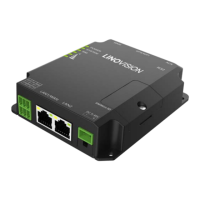

 To Next Page