41
Connecting the MP4 player
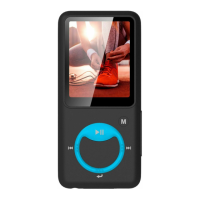
• ToconnecttheMP4playertoyourcomputer,plugtheUSBcableintoafreeUSBporton
your computer and plug the other end into the MP4 player.
• The connection screen then appears on the MP4 player. By selecting “Charge &
Transfer”mode,you’reabletotransfermultimedialesbetweentheMP4playerand
your computer while charging the MP4 player’s battery.
• Youcanthentransfermultimedialesusingyourcomputermouse,viadraganddropor
copy/paste between the MP4 player and your computer.
Disconnecting the MP4 player
• Ensure that the data transfer and synchronisation has taken place properly before
disconnecting the MP4 player. Eject the MP4 player before pulling out the cable.
• To do this,pressthe M (Menu) button once; the connection screen will switch to
the “Mainmenu” screen. Now you can safely disconnect the MP4 player from your
computer. Unplug the MP4’s USB cable.
• If you’re using a Windows PC, eject the MP4 player using the “Computer/My
Computer”menu,orclickonthe“Safelyremovehardware” icon on the Windows
statusbar,andthenselectthenameoftheMP4playertoejectit.
• Ifyou’reusingaMac,youcanejecttheMP4playerbyslidingtheMP4playericonon
the desktop towards the Trash.
• Now you can safely pull out the USB cable.
• IfyouaccidentallypulltheMP4player’scableoutwithoutejectingitrst,reconnectit
toyourcomputerandsynchroniseitagain.Somemultimedialesmayhoweverhave
been lost.
CONNECTING AND DISCONNECTING


 To Next Page