LITE-CHECK CERTIFIER SOFTWARE
(PC Graphical User Interface or “GUI”)
General:
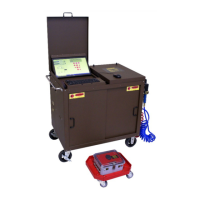
Your LITE-CHECK 1200 System includes the capability to operate the tester from the PC via the
CERTIFIER software GUI which is loaded onto a Windows PC. This software allows convenient
insertion of vehicle and work data such as VIN, Customer Name and Order Number into the test
record so this information becomes a permanent part of the record.
Once a test has been run (or a set of tests if more than one test was requested to run) the test results
are saved automatically in a report.
Saved data files (Reports) are stored on the PC’s hard drive and can be viewed and printed via
ADOBE or other PDF viewers. The user will specify a VIN Number into the Trailer Information Panel
just before the start of a test. (See page 24 for a sample of this Panel.) This VIN number will be
incorporated into part of the PDF file name of the Report. For example, if a user entered
“1234ABC” for the VIN number of a vehicle under test, the PDF file which will be generated when the
user saves the “Certifier Results” will be named “Report 1234ABC-[Date].PDF”.
Upgading your LITE-CHECK CERTIFIER Software:
The LITE-CHECK 1200 Certifier has the software already installed on the provided PC. Updates to
any of the software/firmware for the 1200 Certifier (GUI app, Tablet app or Hub firmware) should
ONLY be done if instructed to by LITE-CHECK Technical Support. Any needed files will be
provided by LITE-CHECK, and the process to install any updates will be provided to each customer
on an individual basis.
To start any update process, You must contact LITE-CHECK Technical Support at 800-343-8579,
7:00 am – 4:00 pm, Pacific Time, Monday through Friday.
Lite-Check CERTIFIER 1200 Operations Manual
17


 To Next Page
 Loading...