3. Configuring Your
Secure Link Wi-Fi Hub
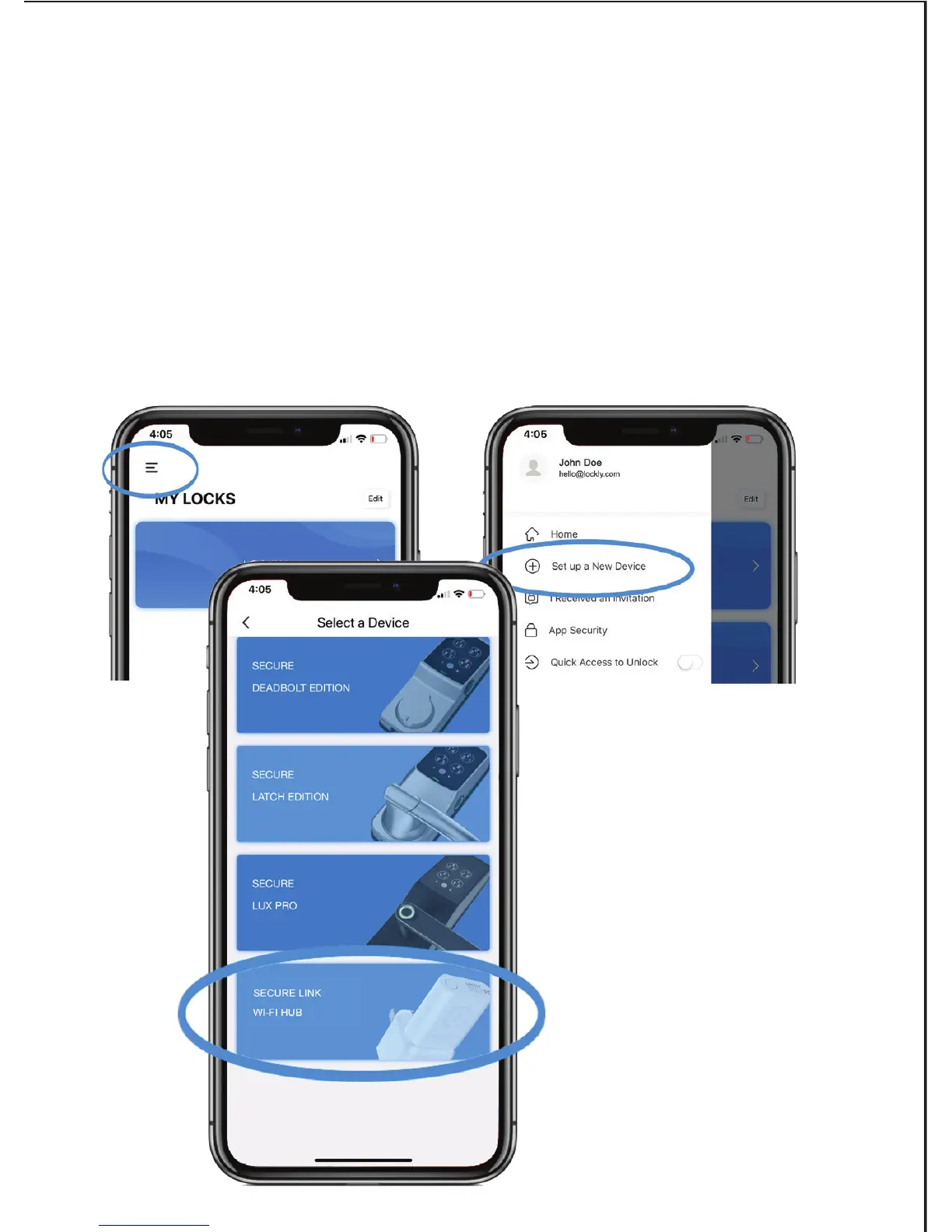
First, make sure the smartphone you are using to add the Wi-Fi
Hub is connected to your 2.4 GHz Wi-Fi Network. Next, open your
Lockly App and select the main menu from the upper left corner.
(Image shown with iOS demo). Once the menu opens go ahead
select “Set up a New Device”
Select the Secure Link
Wi-Fi Hub on the bottom
NEXT >


 To Next Page