14
SECTION 4.1
4.1 Configuring Access
The Default Access Code is
NOTICE
1 2 3 4 5 6
How to Use the Keypad
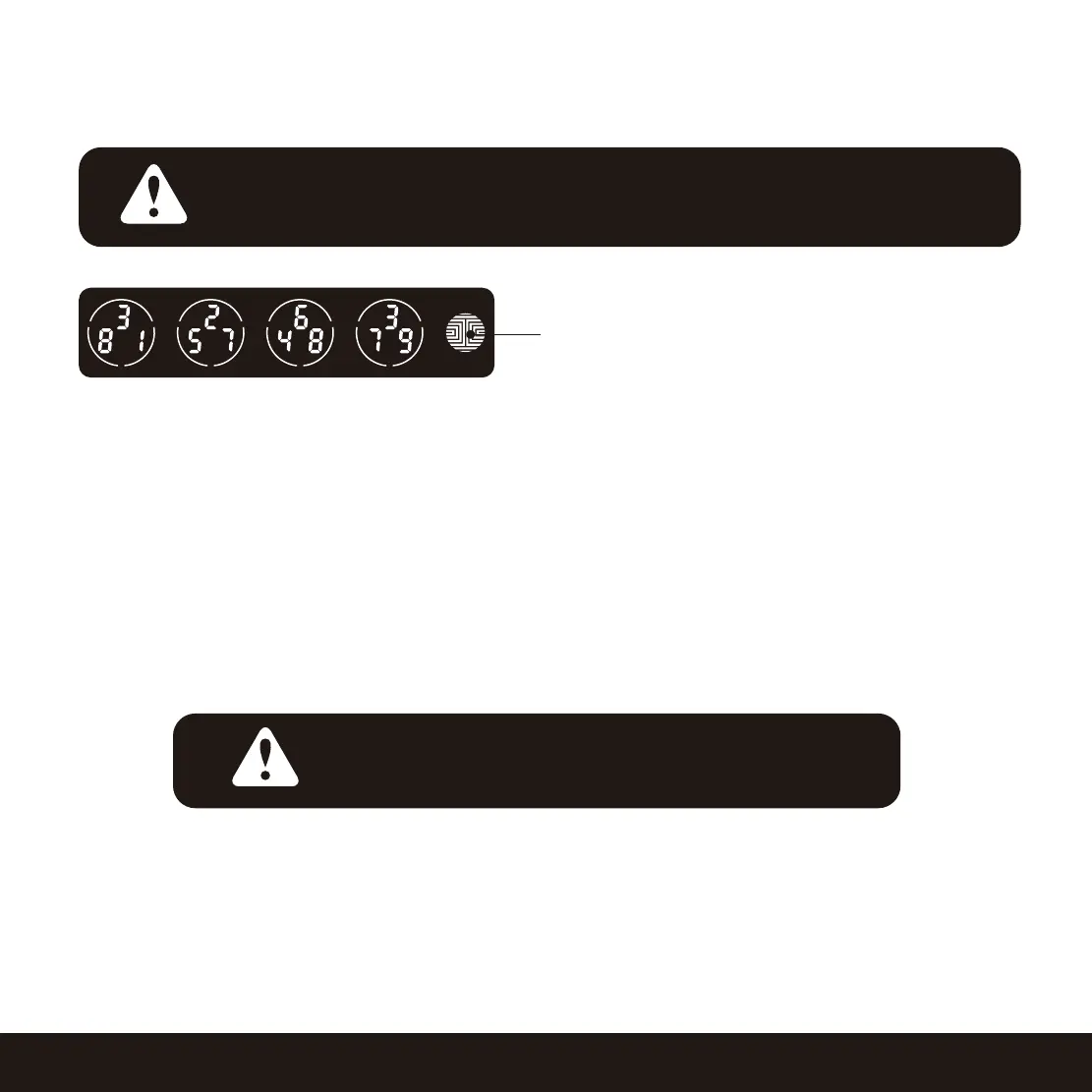
There are a total of five (5) buttons on the keypad as shown in the example image above. The numbers
in each button may differ from what is shown on your device than what is displayed here.
To enter your required digit, just simply press the circle where your number is shown. You do not need
to press the actual number as anywhere within the circle will suffice.
The last button on the right is the OK button. You will be pressing this button when you are done
entering your Access Code.
You must complete connecting your Lockly Smart Safe (Section
3.2-3.3) to manage your access codes. Follow the on screen
instructions to complete the setup.
There are different types of Access Codes that can be generated using the Lockly App. Each type
of access code have different levels of permission you can select for your guests, tenants, deliveries,
helpers, etc., Get the latest updates on access codes, visit: www.support.lockly.com/faq/access codes/
OK Button
NOTICE


 To Next Page
 Loading...