15 -
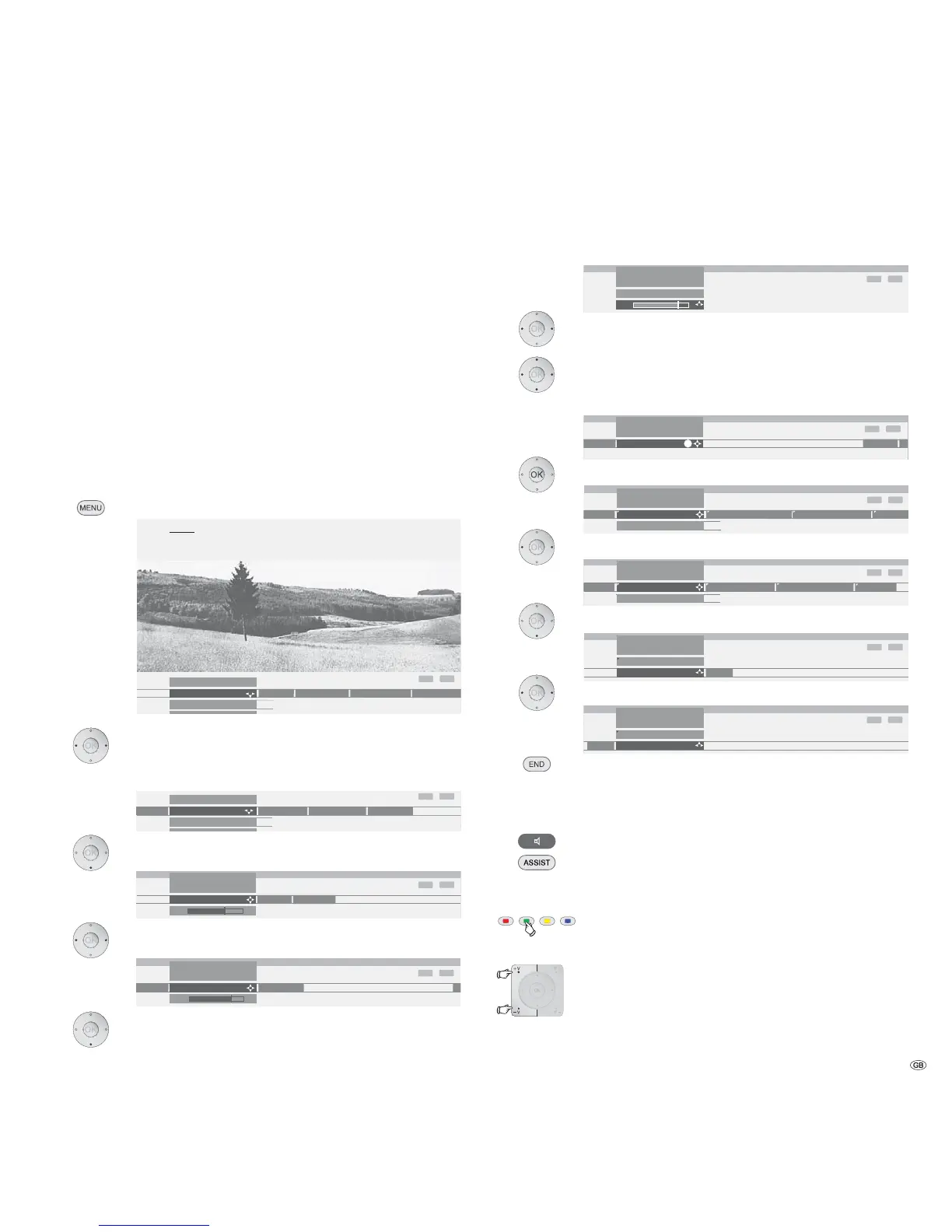
Basics about the menu operation
Menus are called via the MENU button or via the button for special menus and
can be hidden by using these buttons or by using the END button. The menu is
displayed in the bottom section of the screen. At the top, you can see additional
information for the menu point selected. In the menus, navigate by using the
cursor. You can make settings by using . When you exit the
menu, the settings are adopted.
Example of the menu operation
We shall demonstrate how to navigate with the menus using the TV menu as an
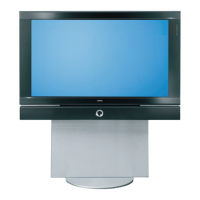
example. You can see which buttons you can use in the dark blue field on your
TV set.
Open TV menu (in TV mode).
Select the function in the TV menu, e.g. “Sound“ (for sound
settings). Use to move the menu points displayed on the
right into the dark blue field; use to move the menu points
displayed on the left.
Select the sound function below with or OK; you will then
see a list of the sound settings.
In the sound settings, also select the function with , e.g.
“Bass“ (for increasing or reducing the bass tones).
To set the bass tones, use or OK to select the setting bar
underneath.
Set the bass tones by using .
If you want to make other sound settings, move up with
to “Bass“ and select with , e.g. “more...“. You can also
move up further to “Sound“ by using and select other set-
tings in the TV menu (such as, picture settings).
Use OK to call additional sound settings.
Select the sound setting using , e.g. “Auto volume“ and ...
... use to select the auto volume option.
Use to select “on“ and activate the auto volume.
Press the END button to hide the menu.
Apart from the TV menu shown here, other menus can be opened in TV mode
as follows:
Call the Sound menu directly.
Quick calls for Image+
3
, teletext subtitles, personal text
pages, headphone volume, scan stations and to move the
picture up and down.
Green coloured key: Call standard settings for picture and
sound.
Using the volume control, you can also open other sound
settings, such as Sound via, Sound adjustment, Sound effects
and Loudness.
The key or OK must be pressed for the duration of the
volume display for this.
Daily operation
Treble ...
INFO
END
TV menu
Settings
Connections
Recording
Sound








 To Next Page