configurations for all applications/games on your computer. See Enable On-Board
Memory mode on your gaming mouse with Logitech Gaming Software for details.
Automatic Game Detection — The pointer settings, button configuration and lighting
settings are individually configured for every application and game on your computer.
This setting is recommended for advanced users, and for when you want to assign
specific commands for each application on your computer. See Enable Automatic Game
Detection mode on your gaming mouse with Logitech Gaming Software for details.
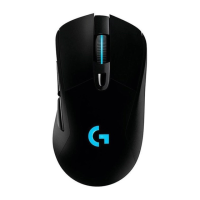
+Customize lighting settings on the G403 or G703 gaming mouse with Logitech Gaming
Software
You can use Logitech Gaming Software (LGS) 8.94 or later to customize lighting settings on
your G403 or G703 gaming mouse. If you don’t have Logitech Gaming Software, you can get
the latest version from this product’s Download page.
1. Make sure your mouse is connected to your computer using the supplied USB cable or
the wireless USB receiver.
2. Launch LGS.
3. In the mouse Home window, choose between the On-Board Memory or Automatic
Game Detection modes.
NOTE: For help choosing between the two, see Choose between gaming mouse On-
Board Memory and Automatic Game Detection modes.
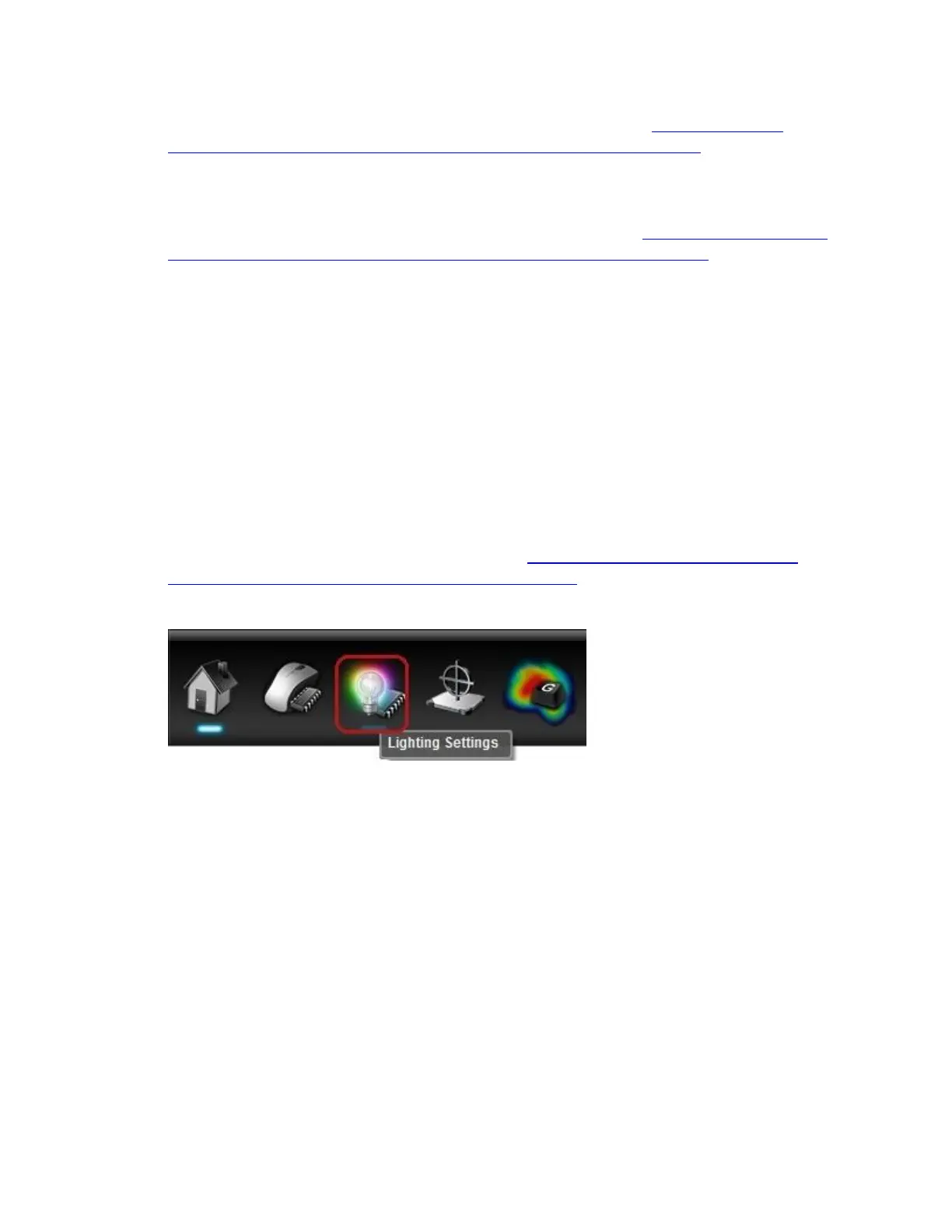
4. Click on the Lighting Settings icon.
Customize lighting settings in Automatic Game Detection mode





 To Next Page