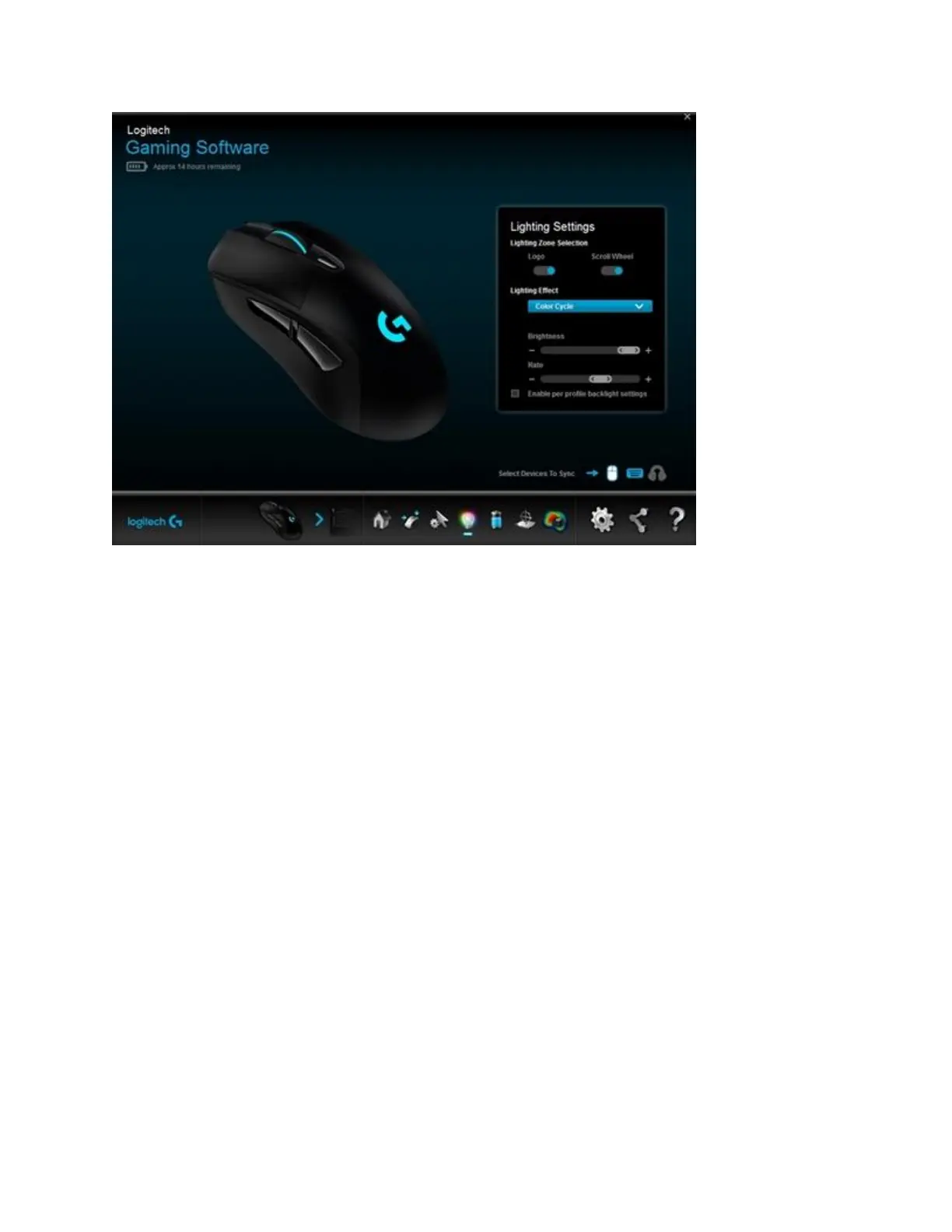
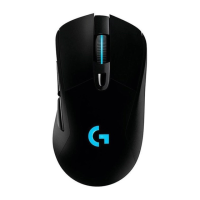
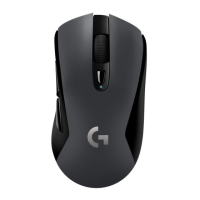
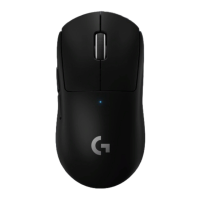
Lighting Zone Selection: The G403 and G703 gaming mouse has two lighting zones:
The G logo and scroll wheel. You can apply light settings to the logo, scroll wheel or
both. You can also disable the lighting.
Lighting Effect: Choose from the following options:
o Breathing Effect — Select this option to activate a pulsating effect that simulates
breathing. You can apply the breathing effect to the G logo, scroll wheel or both.
If you choose to apply the effect to only one zone, the other light will stay lit in a
solid color. You can adjust the breathing effect’s brightness and rate — click and
drag the slider to the right to increase and to the left to decrease. Use the color
selector on the left to assign a stock color, or create a custom color.
o Color Cycle — Set the speed for how quickly the colors cycle on the mouse. Use
the sliders to adjust the brightness and the speed.
o Enable per profile backlight settings (Automatic Game Detection mode
only) — The lighting customization options universally affect the mouse by
default. However, you can also configure lighting settings to be set on a per game
profile basis. Select a game from the list to begin configuring lighting settings for
that game's profile. Click “+” to add a new profile.
NOTE: To delete a profile, in the Profiles pane, right-click on the profile, then
select Delete.
If you have other Logitech G devices, you can sync them with your customized lighting
by clicking on the respective icon for that device.
Customize lighting settings in On-Board Memory mode





 To Next Page