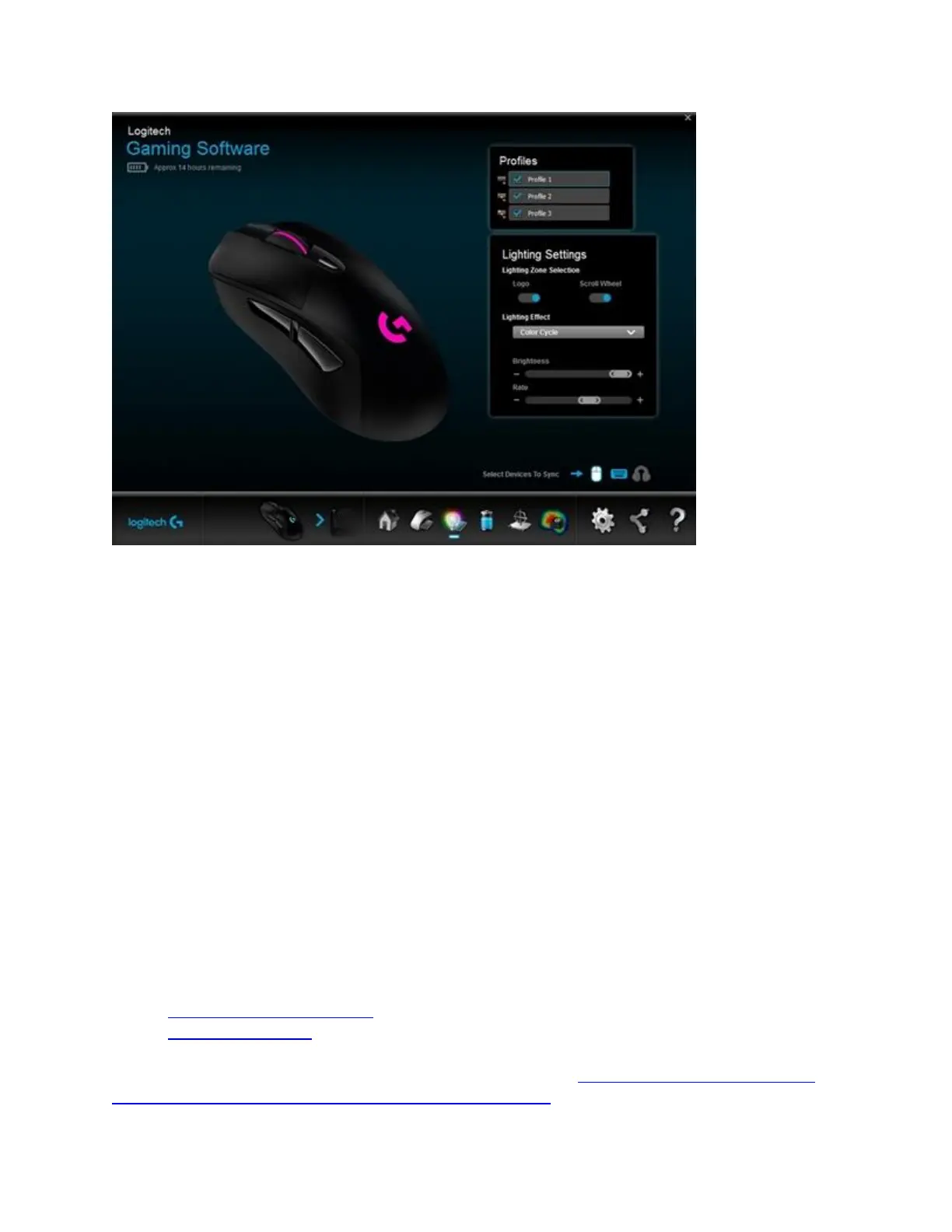
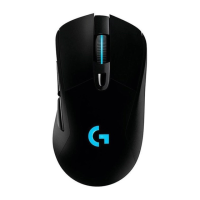
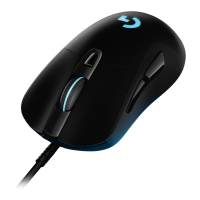
Lighting Zone Selection: Apply light settings to the G logo, scroll wheel or both. You
can also disable the lighting.
Lighting Effect: Choose from the following options:
o Breathing Effect — Select this option to activate a pulsating effect that simulates
breathing. You can apply the breathing effect to the G logo, scroll wheel or both.
If you choose to apply the effect to only one zone, the other light will stay lit in a
solid color. You can adjust the breathing effect’s brightness and rate — click and
drag the slider to the right to increase and to the left to decrease. Use the color
selector on the left to assign a stock color, or create a custom color.
o Color Cycle — Set the speed for how quickly the colors cycle on the mouse. Use
the sliders to adjust the brightness and speed.
If you have other Logitech G devices, you can sync them with your customized lighting
by clicking on the respective icon for that device.
+Customize pointer settings on the G403 or G703 gaming mouse with Logitech Gaming
Software
You can use Logitech Gaming Software (LGS) 8.94 or later to customize button configuration
on the G403 or G703 gaming mouse in two different modes:
Automatic Game Detection
On-Board Memory
NOTE: For help with choosing between these two modes, see Choose between gaming mouse
On-Board Memory and Automatic Game Detection modes.





 To Next Page