9 English
7 Copy SimConnect.msi from server machine and install. On server machine,
default location: C:\Program Files\Microsoft Games\Microsoft Flight Simulator X
SDK\SDK\Core Utilities Kit\SimConnect\SDK\lib\
8 Create le in My Documents, a text document, rename to SimConnect.cfg
This contains:
[SimConnect]
Protocol=IPv4
Address=SERVER_MACHINE_IP_ADDRESS
Port=SERVER_MACHINE_PORT_NUMBER
MaxReceiveSize=4096
DisableNagle=0
Note: Fill in the Server machine IP address and the port number selected from Step 4.
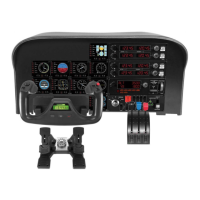
• To start the instrument panel, start FSX on the server. You may need to allow
FSX to act as a server in the Firewall settings. If you have trouble connecting to
this machine, temporarily disable the Firewall to see if a connection can be made.
• On the client PC, start LogiFlightSimX.exe Locate at:
C:\Program Files\Logitech\FSX Plugin\
Note: If nothing appears to happen, open Task Manager and check that LogiFlightSimX.exe is in the list
of running Processes. If SimConnect cannot nd or connect to the Server PC, LogiFlightSimX.exe will only
run very briey and will not display any gauges. If this is the case try disabling the Firewall.
Tip: If the client machine fails to connect, please check the Advanced Network
Settings. Navigate Control Panel > Network Connections > Local Area Connection.
Select Properties. Highlight Internet Protocol (TCP/IP) and Select Properties.
Select Advanced. Select WINS tab. Select Enable NetBIOS over TCP/IP. Select OK
or Close and all opened windows.
Please see www.fsdeveloper.com navigate to wiki > simconnect > remote_connection
for further details.
TECHNICAL SUPPORT
Online Support: support.logitech.com


 To Next Page