How to connect
1
Download Unifying software. You can download the software here.
2
Make sure your keyboard is turned on.
3
Press and hold one of the white Easy-Switch keys for three seconds.
(The LED on the selected channel will rapidly blink.)
4
Congure your keyboard according to your operating system:
For Mac OS: Press & hold fn + O for three seconds.
(The LED on selected channel will light up.)
For Windows, Chrome or Android: Press & hold fn + P.
for three seconds. (The LED on selected channel will light up.)
5
Plug in the Unifying receiver.
6
Open the Unifying software and follow the instructions on the screen.
Connect with
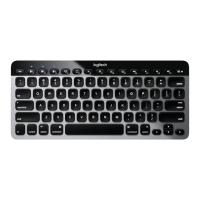
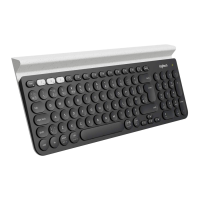
The K780 Multi-Device comes with a pre-paired receiver that provides a plug-and-play
connection to your computer or laptop.
You’ll need the following to use the Unifying receiver:
Requirements
A USB port
Unifying Software
Windows 7, Windows 8, Windows 10 or later
Mac OS X 10.10 or later
Chrome OS
If you want to pair a second time to the receiver in the box or pair to an existing
Unifying receiver, follow these steps.


 To Next Page