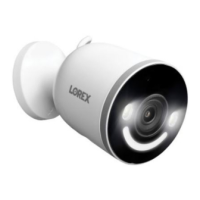
The following are some of the most common issues and troubleshooting tips for the 4K
How to reset 4K Wi-Fi Camera?
Ensure your camera is plugged in and powered ON throughout the reset process.
1
. Locate the reset button located at the side of the camera.
2. Press and hold the reset button for 10 seconds until the chime sounds to reset the
camera.
3
. Look for flashing green light below the lens to indicate that the camera has been
fully reset.
A solid or steady green light indicates that the camera has not been fully reset. You
may have to redo the process again.
The status indicator is not flashing green
If you don't hear a chime or if the status light is not flashing green, then your mobile
device is not connecting with your Wi-Fi network. Reboot your Wi-fi OR perform the
following steps to reset your device.
1
. Lift the panel on the top of the camera to access the Reset button.

 Need help?
 General






 To Next Page