Lorgar Trix-510 LRG-GP510 Gamepad
Firmware Update User Manual
© ASBISc Enterprises PLC. All rights reserved
Page 9 of 20
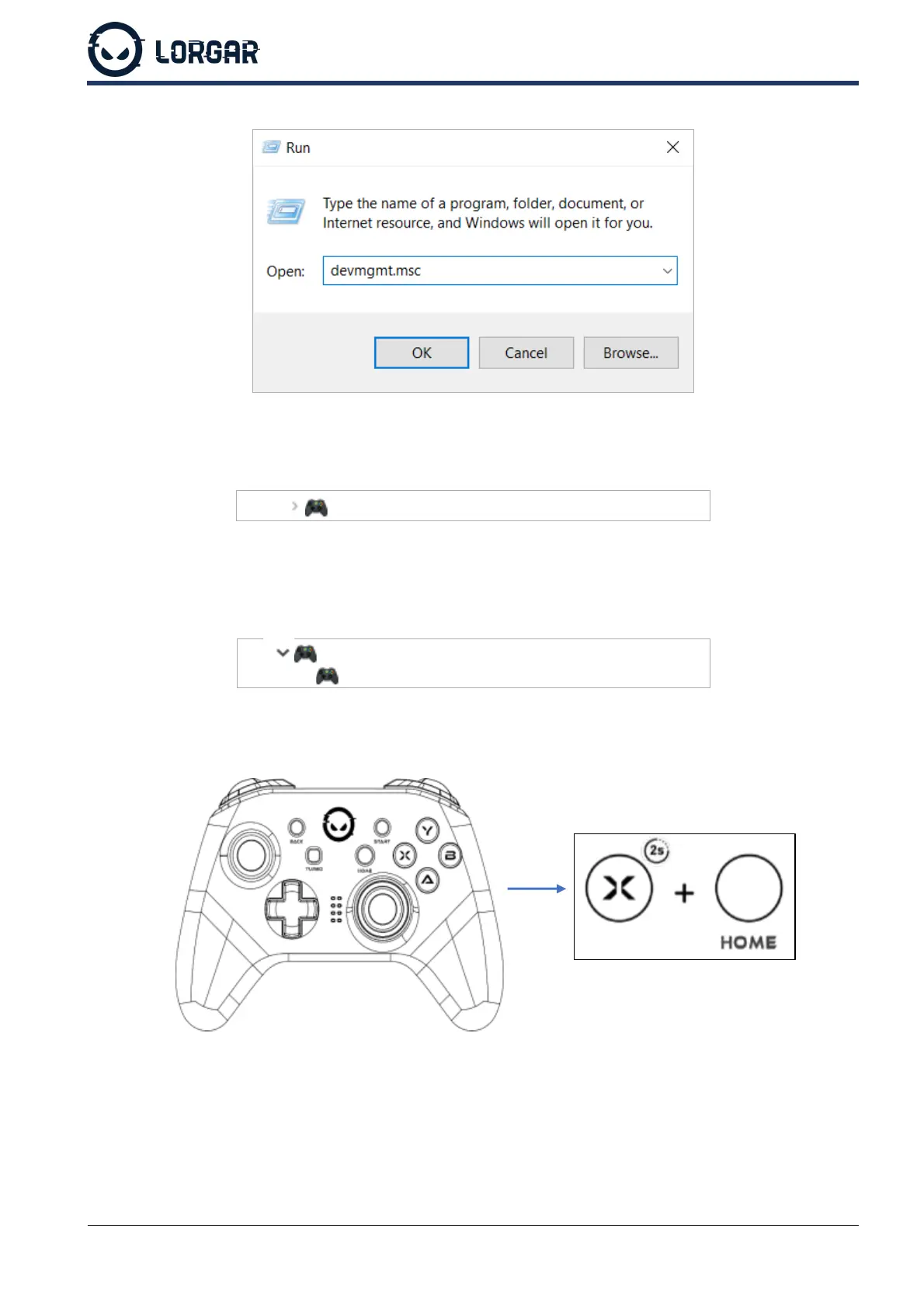
• Type in the following: “devmgmt.msc”.
• Click OK in the program or press Enter on the keyboard.
• In the “Device Manager” dialogue window that opens, locate the “Xbox 360 Peripherals”
line.
• Click the arrow next to the gamepad icon.
• Among the devices, find “Xbox 360 Controller for Windows” (see figure below). If the
connection is successful, the wireless adapter will be displayed under this name.
Xbox 360 Controller for Windows
3. Connect the gamepad to the wireless adapter. If you are connecting for the first time, press
the “HOME” and “X” buttons simultaneously.
If the gamepad has already been synchronized with the wireless adapter, press the
“HOME” button once. If the connection is successful, the indicator on the wireless adapter
will glow red continuously and the two lower indicators on the gamepad will glow blue (see
figure below).



 To Next Page