Page 8 of 20
WARNING! The firmware of both the gamepad itself and the wireless adapter must be updated.
If the firmware of one of the devices is not updated accordingly, correct operation may be
impaired and the warranty period will be voided. The company is not responsible for
malfunctions in the device operation caused by failure to comply with the firmware update
process described in this document.
WARNING! Strictly follow the firmware update order: first, update the firmware of the wireless
adapter, then update the firmware of the gamepad itself.
1.3 Updating the Wireless Adapter Firmware
To update the firmware of your Lorgar Trix-510 gamepad wireless adapter to the latest version,
follow the steps below:
1. Connect the wireless adapter to a USB Type A port on your computer.
Figure 2 – Connecting the wireless adapter to a USB Type A port
If the connection is successful, the indicator on the wireless adapter will flash
red.
2. Make sure that the wireless adapter is displayed correctly in the built-in “Device Manager”
program. To do this, follow the steps below:
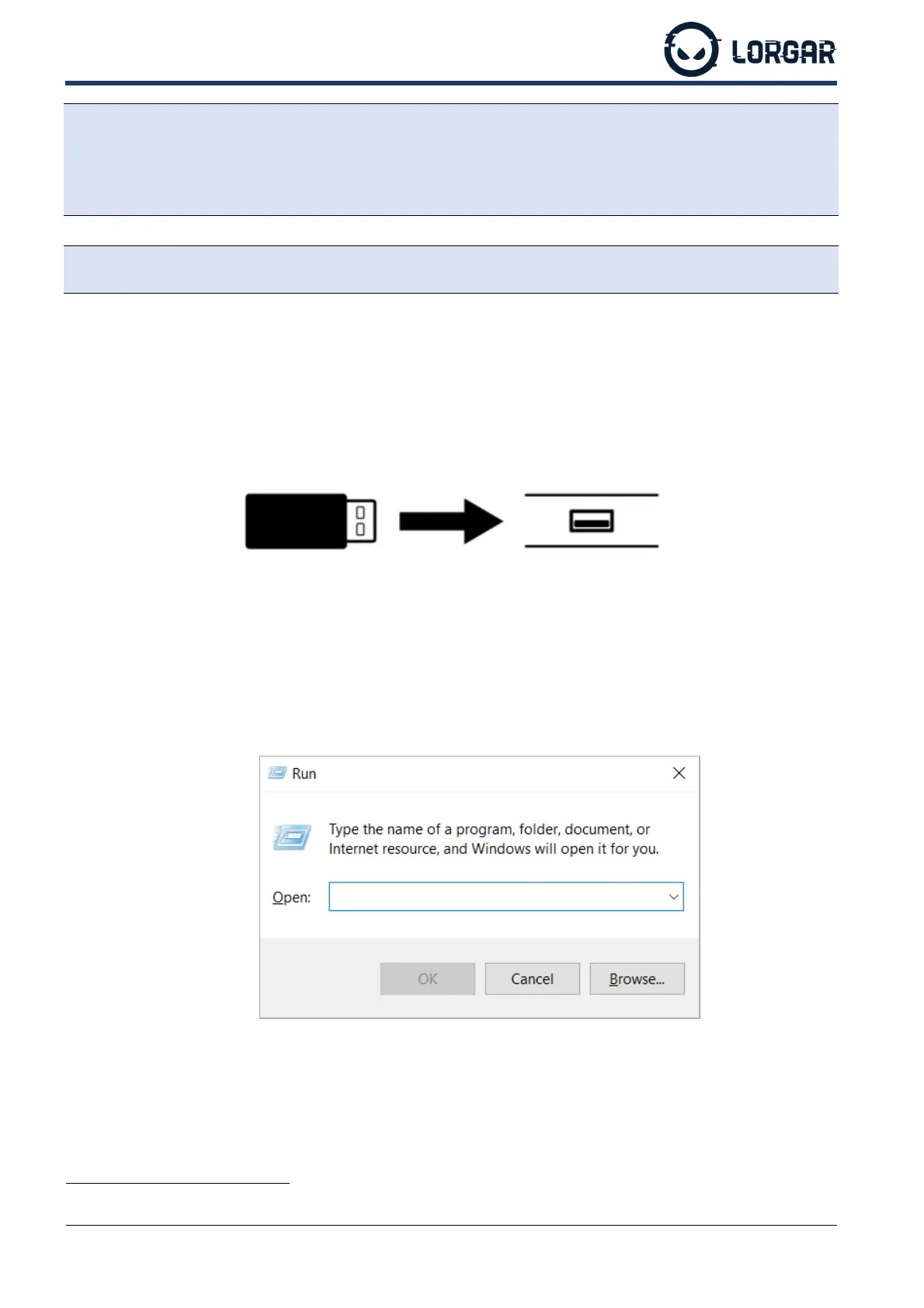
• Press Win and R on your keyboard at the same time. The “Run” dialogue window should
appear.
The indicator is on for 1 s, then off for 1 s.



 To Next Page