17
1.Click “Start Cleaning” to power on the robot.
2.Before the first use, the robot will scan the surroundings at home
and generate the map with smart area division.
2.Select the area to be cleaned on the map and click "Start Cleaning"
3.The robot will clean the designated area.
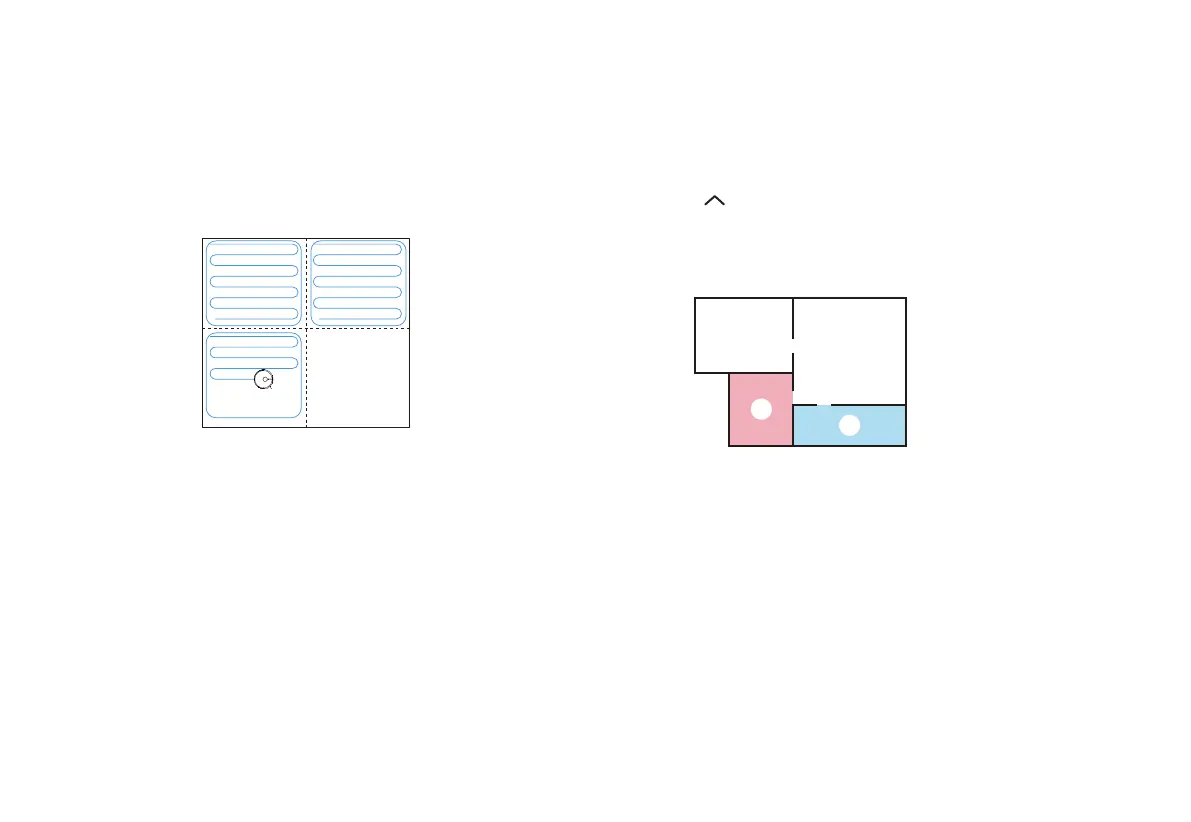
3.According to the existing area division, the robot will start cleaning
along the edges to form the sealing zones, then fill in the zones along
the Zigzag route and complete the remaining zones.
4.After the cleaning, the robot will return to the charge base for charging.
Note:
To generate the map better, it’s recommended to start from the charge base for the first use.
Do not move the robot arbitrarily when it’s working; otherwise, it may enter the repositioning state;
if the positioning fails, the robot will give up the previous task and may fail to return for charging.)
Function Module
House Cleaning (default)
1.Select “ Up Arrow” and switch to Room Clean in the APP.
Room Clean
•
•
•
•
Note:
Please clear the obstacles around the designated area to ensure the robot can access.
The map needs to be generated in the APP before use.
1
2
Cleaned area Cleaned area
Area to be cleaned
Area being cleaned



 To Next Page