18
Function Module
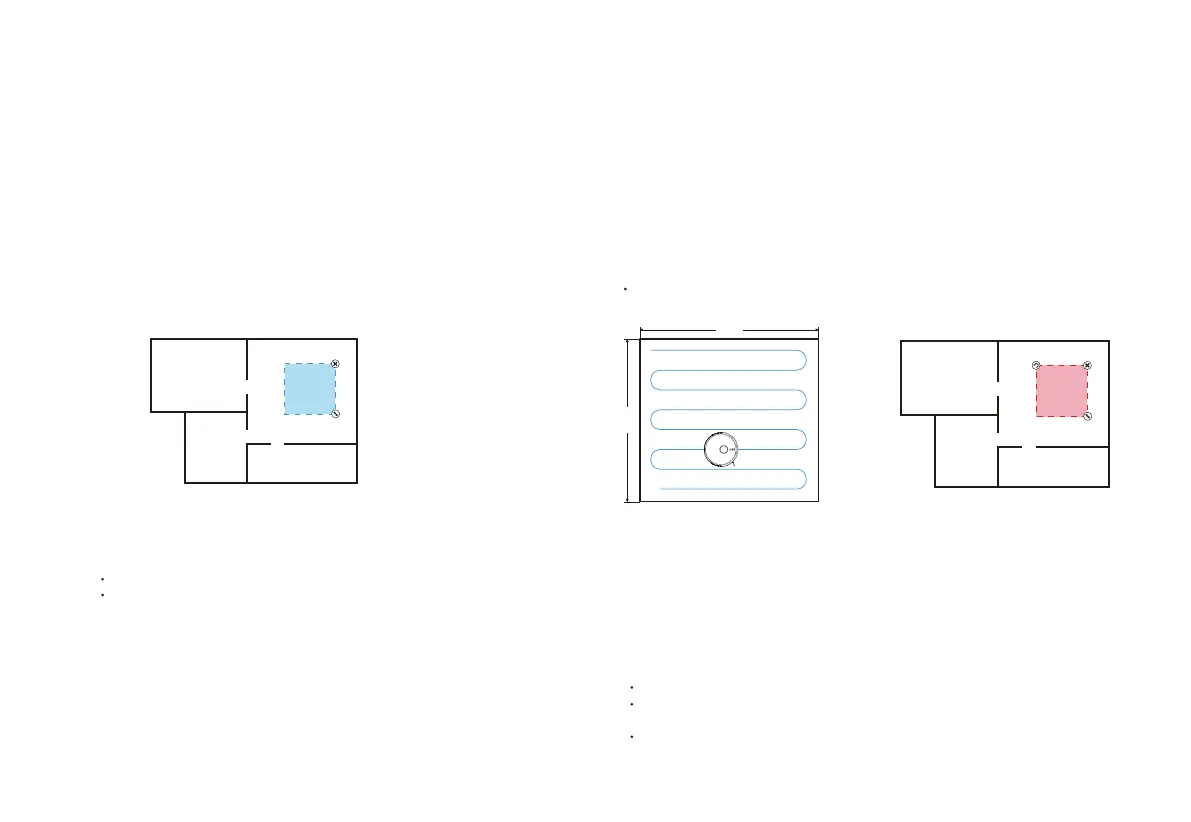
1.Select “Zone Clean” in the APP and click "+ Zone Clean" in the right.
Select an area to be cleaned on the map and click "Start”, the robot
will start the cleaning within the customized area.
1.Select "Point Clean” in the APP.
2.Select a point to be cleaned on the map, then click "Start Cleaning" to start cleaning.
3.The robot will move to the designated location and clean an area of 1.5m×1.5m square
with itself as the center, then return to the base for charging.
Note:
Please clear the obstacles around the designated area to ensure the robot can access.
The map needs to be generated in the APP before use.
Zone Clean
Point Clean
Select “Forbidden Area” in the APP and set the forbidden area, then save the settings
and the robot will not access to the set area for cleaning.
Forbidden Area
Note:
The map needs to be generated in the APP before use.
Zone Clean
Forbidden Area
Note:
The map needs to be generated in the APP before use.
The selected forbidden area should not be too close to the charging base; otherwise,
the robot and the APP will report error.
When robot Vacuum is moved or the domestic environment has significantly changed,
the map may become invalid and the restricted area may get lost.
1.5 m
1.5 m



 To Next Page