3. Make sure that the USB ports are not in "hibernation mode." Please go to your
Windows "Device Manager" and click the "+" sign next to "Universal Serial Bus
Controllers." Click on any "Root Hub" and select "Properties." Click the Power
Management tab and ensure that "Allow the computer to turn off this device to
save power" is enabled and proceed to do this under each "Root Hub." Also, from
the Control Panel and Power Options, select the Hibernation Tab and deselect
"Enable hibernate support."
● “My Gmail notifications are not working properly on Windows.”
or
● “There is a pop-up asking to log into my Gmail again. Is that safe?”
1. Make sure your IMAP is enabled. More information:
https://support.google.com/mail/answer/7126229?hl=en.
2. If you have set up a two-factor authorization, then you must generate App
Password. This is the password you must use in Luxafor configuration, not your
Gmail account password. More information:
https://support.google.com/accounts/answer/185833.
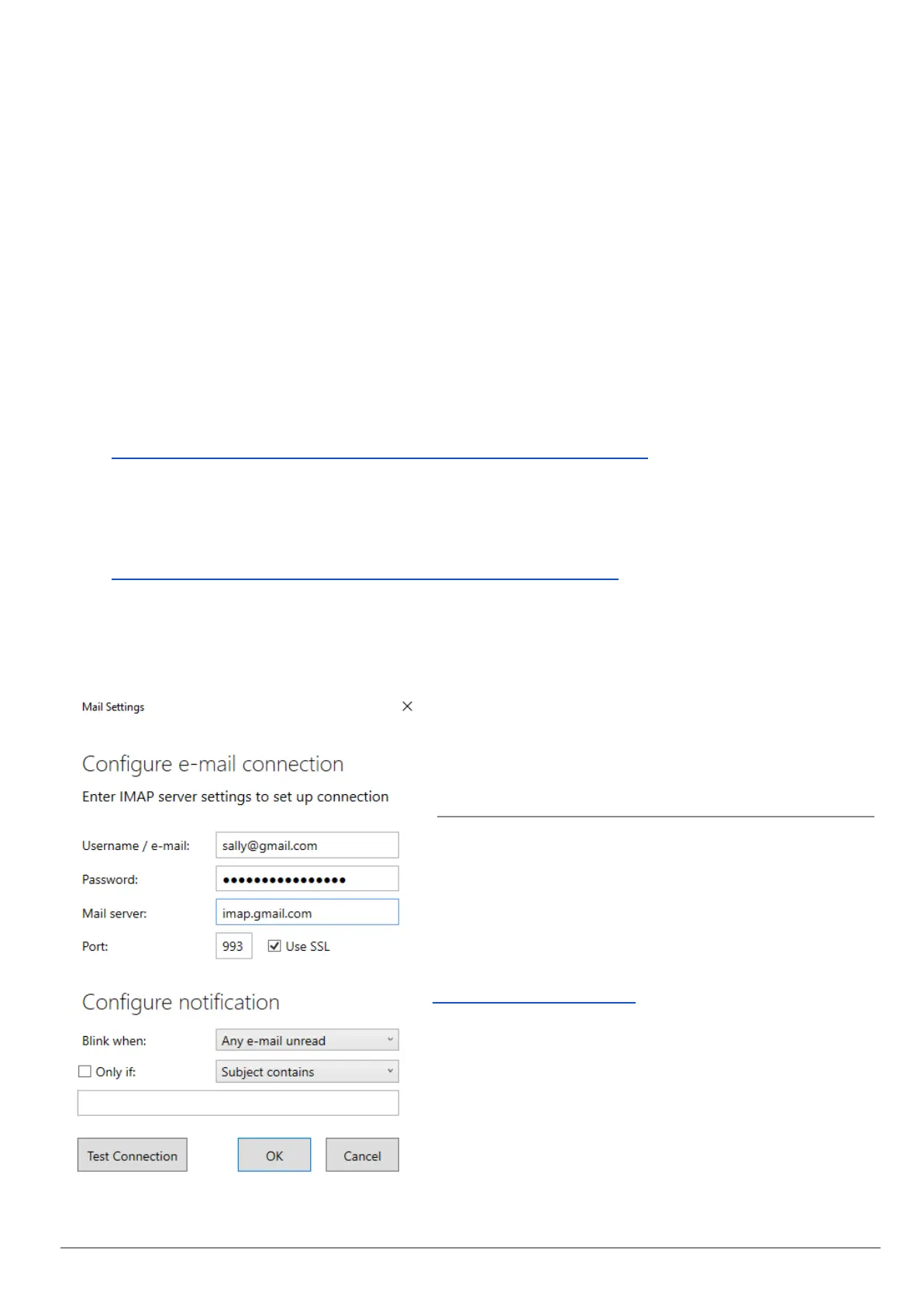
3. Make sure the Notifications tab in Luxafor Software is active and click “Mail”.
4. Fill the fields with the information as shown in the picture below and click “OK” or
Test the Connection if you wish:
If you were unable to resolve the issues you are
having with these troubleshooting steps, and
you feel your product is still not working
properly, please don't hesitate to contact us at
support@luxafor.com or call +371 27755544.
Send us a full report of the issue, explaining the
details of the situation, when the issue first
occurred, and if the issue persists throughout
the troubleshooting process. Don’t forget to
mention the OS you’re using and pictures/
videos to better explain the situation.
Contact us at support@luxafor.com or call +371 27755544
10



 To Previous Page
 Loading...