EasyManua.ls Logo

Lynxspring JENE PC-1000 Series User Manual

Lynxspring JENE PC-1000 Series
24 pages
To Next Page IconTo Next Page
Page #1 background imageLoading...
Page #1 background image
1
Lynxspring Wireless Thermostat Driver Guide
Wireless Thermostat Driver Guide
Used With VWG-APP-1020 Wireless Card
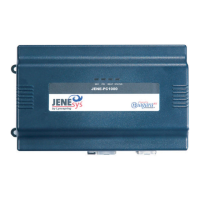
For Lynxspring® JENE PC-1000
& 6000
Series Product
(Issue Date: August 5, 2009 / ITG-VWG-AP-1020-LNX-E03)
Product Overview
The VWG-APP-1020 wireless communication card and related “WirelessStat” driver jar file have been specifically
designed to be used by Niagara AX
®
powered JENE controllers.
When utilized in conjunction with the VT7xxxXxxxxW series wireless thermostats they offer the integrator simple
integration to the Niagara AX
®
environment.
The application is targeted at retrofit applications where the addition of communicating field bus wiring within the
building space is prohibitive. The JENE communication card and associated Wireless Communicating
Thermostats encourage the use of existing wiring utilized by existing electronic thermostat type controls.
Additional documentation is available on www.lynxspring.com
Question and Answer IconNeed help?

Do you have a question about the Lynxspring JENE PC-1000 Series and is the answer not in the manual?

Lynxspring JENE PC-1000 Series Specifications

General IconGeneral
Communication ProtocolBACnet MS/TP
Power Supply24 VAC/DC
Operating Temperature0° to 50°C (32° to 122°F)
Humidity Rangenon-condensing
Outputs2 Relay Outputs, 2 Analog Outputs (0-10V or 4-20mA)

Summary

Product Overview

About Lynxspring Wireless Mesh Networks

Wireless Card Installation

Basic Initial Design And Deployment Considerations

To properly avoid network interference with 802.11 Wi-Fi devices

Avoid Wi-Fi interference by using 802.15.4 channels 25 and 26.

Maximum distance between each node (thermostat ) should be:

Clear line of sight distance between nodes should be under 100 feet (30 M).

JENE and Wireless Communication Card Configuration

Install the wireless communication card

Install the wireless communication card as stipulated by the provided instructions.

Copy the 'WirelessStatNetwork' jar file

Copy the 'WirelessStatNetwork' jar file to your local module folder.

Add 'WirelessStat' jar file to JENE

Use Software Manager to add the 'WirelessStat' jar file to the target JENE.

Re-boot Niagara AX interface and JENE

Re-boot both the Niagara AX interface and the JENE to load the jar module.

Drag & drop 'WirelessStatNetwork' driver

Use the 'WirelessStat' palette tool to drag & drop the 'WirelessStatNetwork' driver.

Rename the 'WirelessStatNetwork' driver extension

Rename the 'WirelessStatNetwork' driver extension name if required.

Load the property sheet

Load the property sheet by right-hand clicking the 'WirelessStatNetwork' driver.

Configure Serial Port Settings

Set Serial Port Configuration Port Name to 'COM1'.

Set ZigBee Wireless Communication Card Options

Configure ZigBee settings like PAN ID and Channel for the wireless card.

VWG ZigBee Settings

Gateway ZigBee PAN ID Configuration

Set the Personal Area Network Identification address (1-500).

Channel Select Configuration

Set the current Channel frequency used by the gateway (11-26).

Important Notes for ZigBee Settings

PAN ID and Channel Consistency

Ensure same PAN ID and Channel for gateway and thermostats for reliable communication.

RF Interference and Data Loss Avoidance

Proper configuration avoids RF interference and lost data between gateway and thermostats.

Recommended ZigBee Channels

Lynxspring recommends channels 25 and 26 for less Wi-Fi interference.

Thermostat Discovery & Database Tools

Understanding Thermostat Discovery

Thermostats with matching PAN ID/Channel are detected automatically.

Thermostat Property Definitions

Definitions for Name, Model Type, Type, and Comm Address of discovered devices.

Database Tools: Add/Remove Thermostats

Thermostat Status and Health Indicators

Status and Health indicate thermostat online/offline and communication events.

Creating Offline Devices (New Function)

Utility to pre-build a database with offline devices before actual installation.

Selecting Device Type and MAC Address

Select device type and starting local MAC address for multiple thermostats.

Selecting Thermostat Model Number

Select the required thermostat model number for the job site installation.

Editing Thermostat Characteristics (Edit Type)

Edit thermostat name, Comm Address, and enabled flag; do not change Model Type.

Adding Devices to the Network

Transfer discovered devices to the 'WirelessStatNetwork' folder for full integration.

Understanding Thermostat Status and Health

Details on Status (online/offline), Enabled, Health, Device Info, and Signal Strength.

Thermostat Objects Supported

Integration - Global Commands

Global Commands for All Devices

Monitors and commands objects for all thermostats attached to a VWG.

Global Commands for Specific Devices

Monitors and commands objects for specific area thermostats.

Tips and Things You Need To Know

PAN ID and Channel Consistency

Ensure all thermostats use the same PAN ID and Channel as the JENE.

Out Of Service for Local Value Derivation

Set Out Of Service to True to derive local values from the BACnet network.

Sequence of Operation Limits System Mode

Sequence of Operation Enum limits System Mode usability for VT7200/VT7300.

Fan Mode Input Dependency for VT7300

VT7300 Fan mode input depends on local Fan Configuration; actual value from FanStatus.

Thermostat Heartbeat for Online-Offline Sanity

Thermostats report to JENE via heartbeat; check 'Last Ok Time' for status.

System Troubleshooting Recommendations

Thermostat Not Detected Troubleshooting

Verify LED blinking and PAN/Channel settings if thermostat is not detected.

No Points Associated Troubleshooting

Check LED pattern; add thermostat to network/database if it's communicating but not added.

Recommended Commissioning Channels

Use channels 25 and 26 for commissioning, alternating between floors.

Thermostat Refuses to Join Network

Move thermostat closer to JENE temporarily to facilitate joining the network.

Notes about Released Versions

Related product manuals