Chapter 2 Get started 10
System Preferences
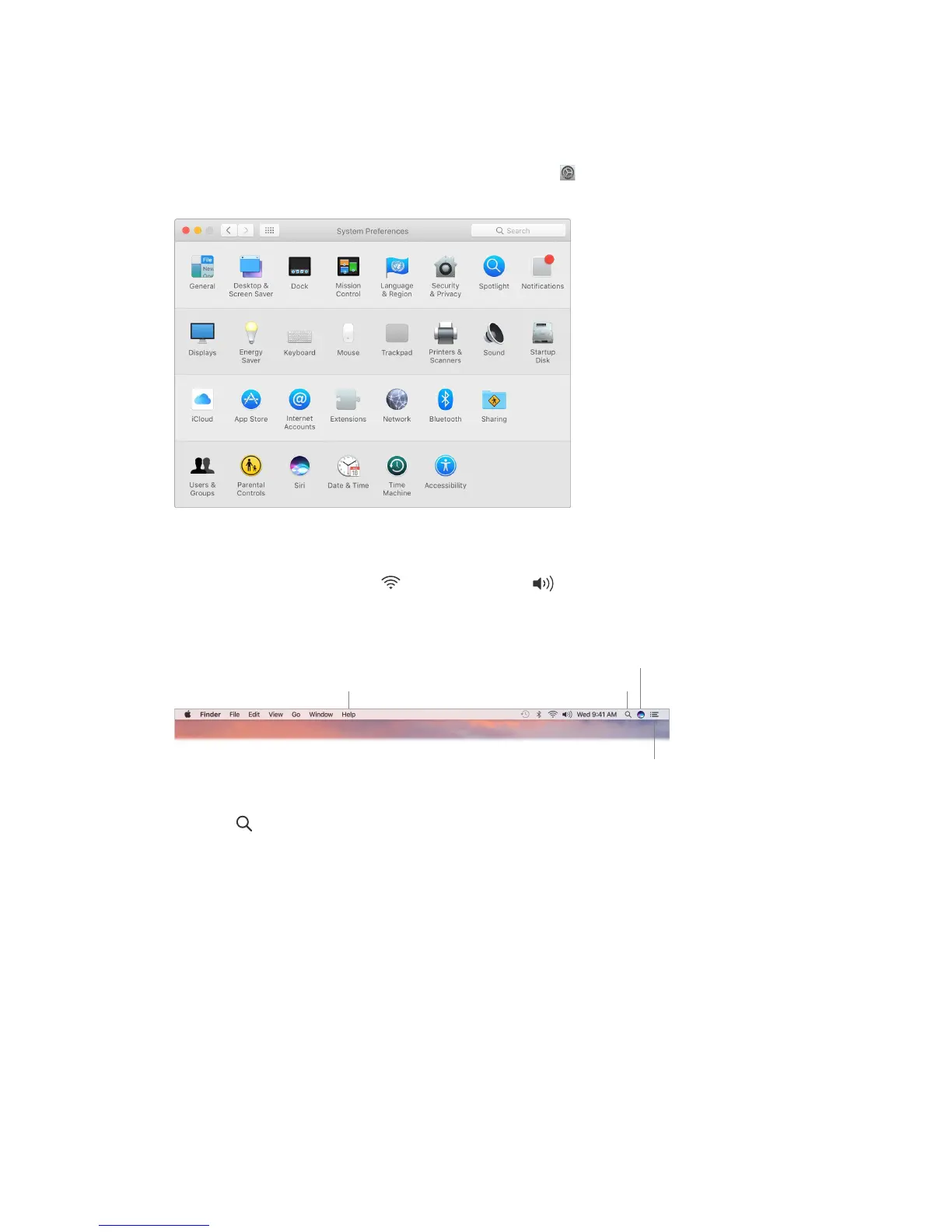
System Preferences is where you personalize your Mac mini settings. For example, use Energy
Saver preferences to change sleep settings. Or use Desktop & Screen Saver preferences to add a
desktop background or choose a screen saver.
Customize your Mac mini. Click the System Preferences icon in the Dock, or choose Apple
menu > System Preferences. Then click the type of preference you want to set.
Menu bar
Use the menus and icons along the top of the screen to open new windows, connect to a Wi-Fi
network, check your Wi-Fi status , change the volume , query Siri, and more. The menu
items change, depending on which app you’re using.
For more information about using Siri, see Siri.
Search Mac Help.
Open Spotlight.
View Notifications.
Spotlight
Spotlight is an easy way to nd anything on your Mac mini, such as documents, contacts,
calendar events, and email messages. Spotlight Suggestions oer info from Wikipedia articles,
Bing search results, news, sports, weather, stocks, movies, and other sources.
When you search with Spotlight, the preview area on the right provides search results you can
interact with—make a call, send an email message, play a song, get directions, even convert
currencies. Spotlight can provide answers to math questions or dene words, all on your desktop.
74% resize factor


 To Next Page
 Loading...