Chapter 2 Get started 9
Finder
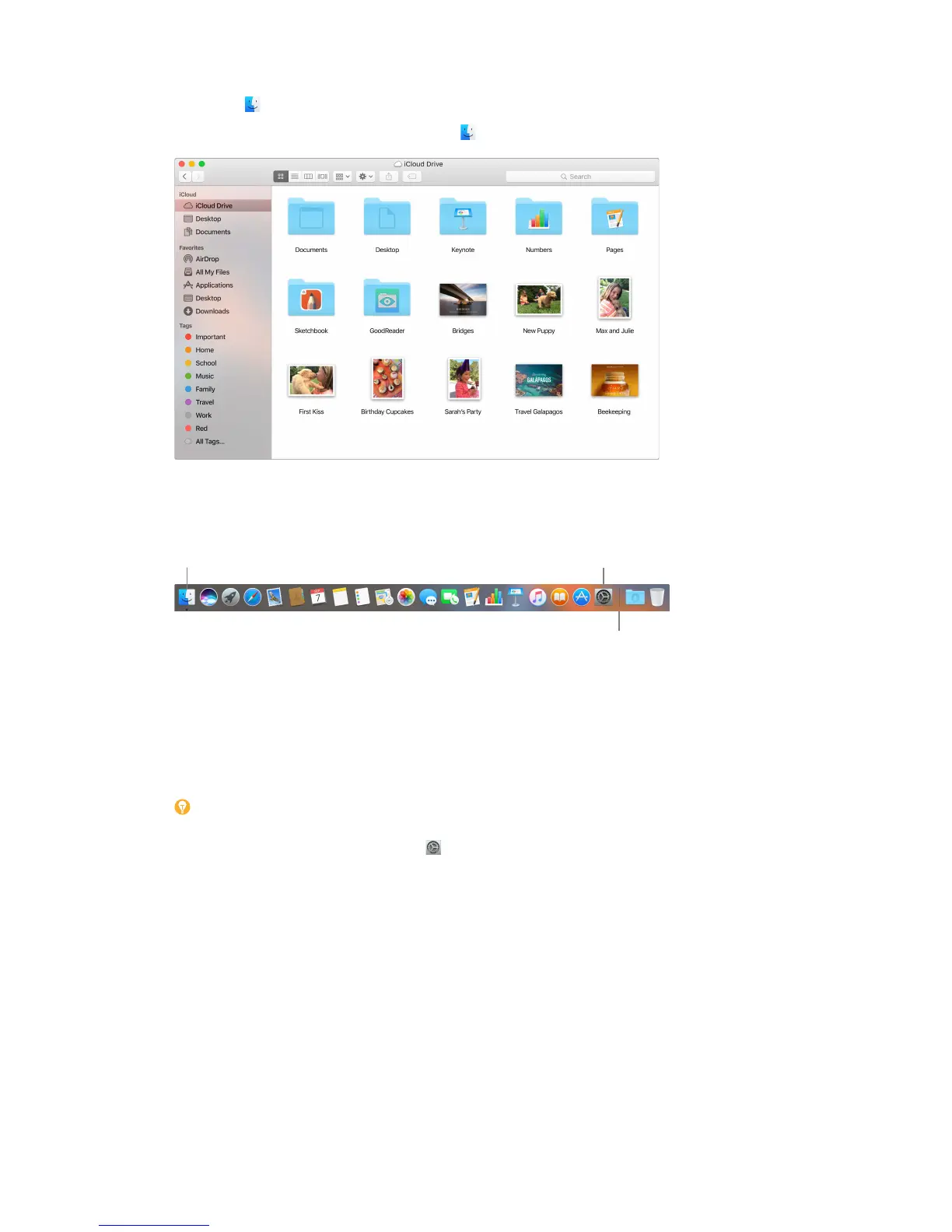
The Finder is an app that’s always open. Use the Finder to organize and locate your les.
Open a Finder window. Click the Finder icon in the Dock at the bottom of the screen.
The Dock
The Dock, at the bottom of the screen, is a convenient place to keep the apps and documents
you use frequently.
Apps go on the left side of the line;
files and folders go on the right.
Open an app or le. Click its icon in the Dock.
Add an item to the Dock. Drag the item and drop it where you want it. Place apps to the left of
the line in the Dock, and les or folders to the right.
Remove an item from the Dock. Drag it out of the Dock. The item isn’t removed from your
Mac mini—just from the Dock.
Tip: You can make the Dock larger or smaller, add or remove items, move it to the left or right
side of your screen, or even set it to hide when you’re not using it. To change how the Dock
looks, click the System Preferences icon in the Dock, then click Dock.
74% resize factor


 To Next Page
 Loading...