Chapter 2 Get started 24
Migrate your data
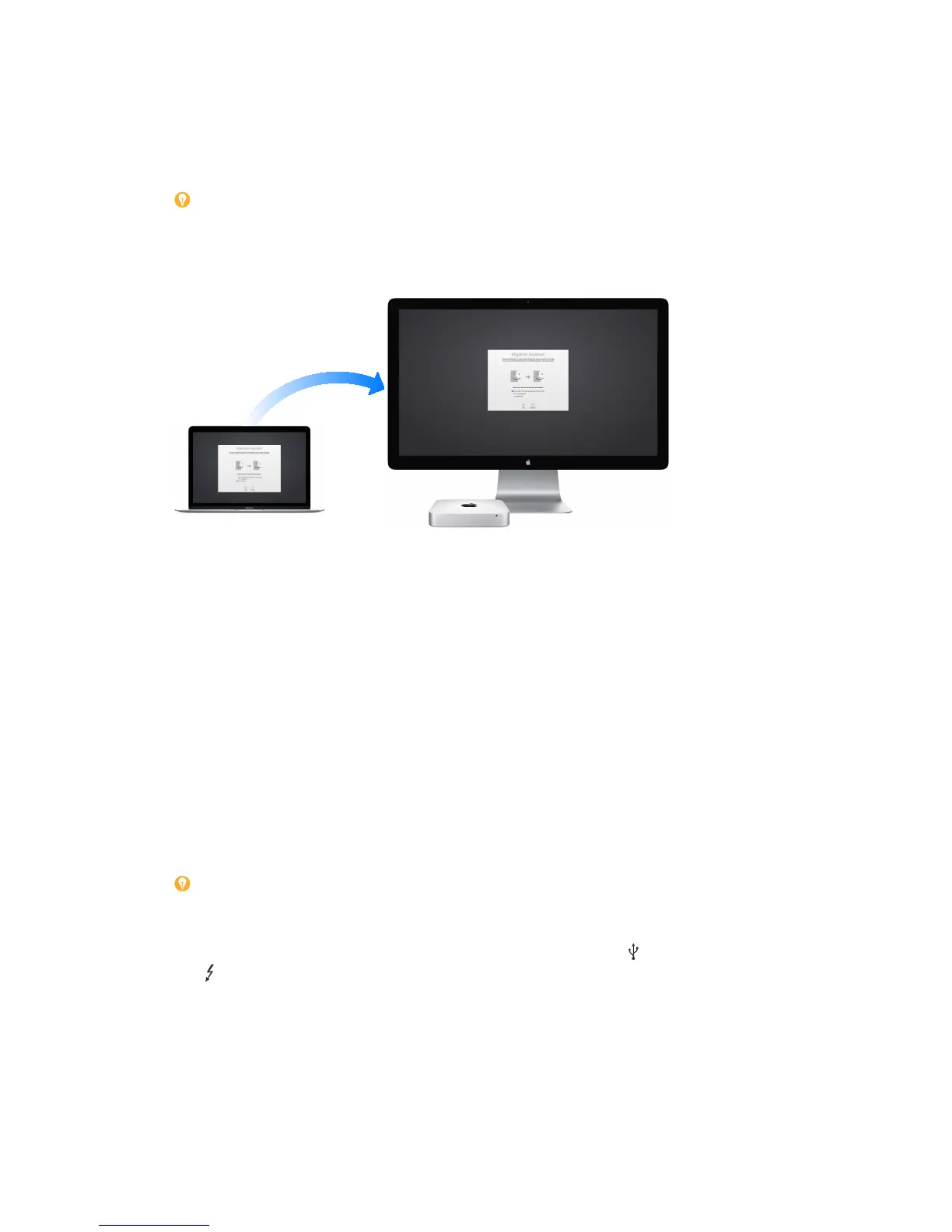
It’s easy to move your les and settings from another Mac or PC to your Mac mini. To transfer the
data when you rst set up your Mac mini, use Setup Assistant. To transfer data later, you can use
Migration Assistant. If both computers are connected to the same Wi-Fi network, you can transfer
the data wirelessly.
Tip: For best results, make sure your Mac mini is running the latest version of macOS. To check
for software updates, choose Apple Menu > App Store, then click Updates.
If you used Time Machine to back up your les from another Mac to a storage device (such as an
AirPort Time Capsule or external disk), you can copy the les from the device to your Mac mini.
Use Migration Assistant. Open a Finder window, go to Applications > Utilities, then double-
click Migration Assistant. Follow the onscreen instructions. For more information, see
Move your content to a new Mac or Move your data from a Windows PC to a Mac.
You can transfer data from a Thunderbolt-equipped Mac to your new Mac mini using a
Thunderbolt cable. Put the Mac you want to migrate data from in Target Disk Mode by restarting
it while holding down the T key. Then connect the two computers using a Thunderbolt cable,
and open Migration Assistant on your Mac mini. Select “From a Mac, Time Machine backup, or
startup disk” when asked how you want to transfer your information, click Continue, then select
the disk you want to transfer information from.
Use Target Disk Mode. You can transfer data from a Thunderbolt-equipped Mac to your new
Mac mini using a Thunderbolt cable. Put the Mac you want to migrate data from in Target Disk
Mode by restarting it while holding down the T key. Then connect the two computers using a
Thunderbolt cable, and open Migration Assistant on your Mac mini. Select “From a Mac, Time
Machine backup, or startup disk” when asked how you want to transfer your information, click
Continue, then select the disk you want to transfer information from.
Tip: For fastest migration, connect your old computer to Mac mini with a Thunderbolt cable.
If you migrate wirelessly, you’ll get the best results if you keep both computers near each other
throughout the migration process.
Copy les from a storage device. Connect the device to the USB 3 port or Thunderbolt 2
port on your Mac mini, then manually drag les to your Mac mini.
74% resize factor


 To Next Page
 Loading...