Chapter 3 Apps 37
iBooks
Use iBooks to read and organize your library of books, and to purchase new books on your Mac.
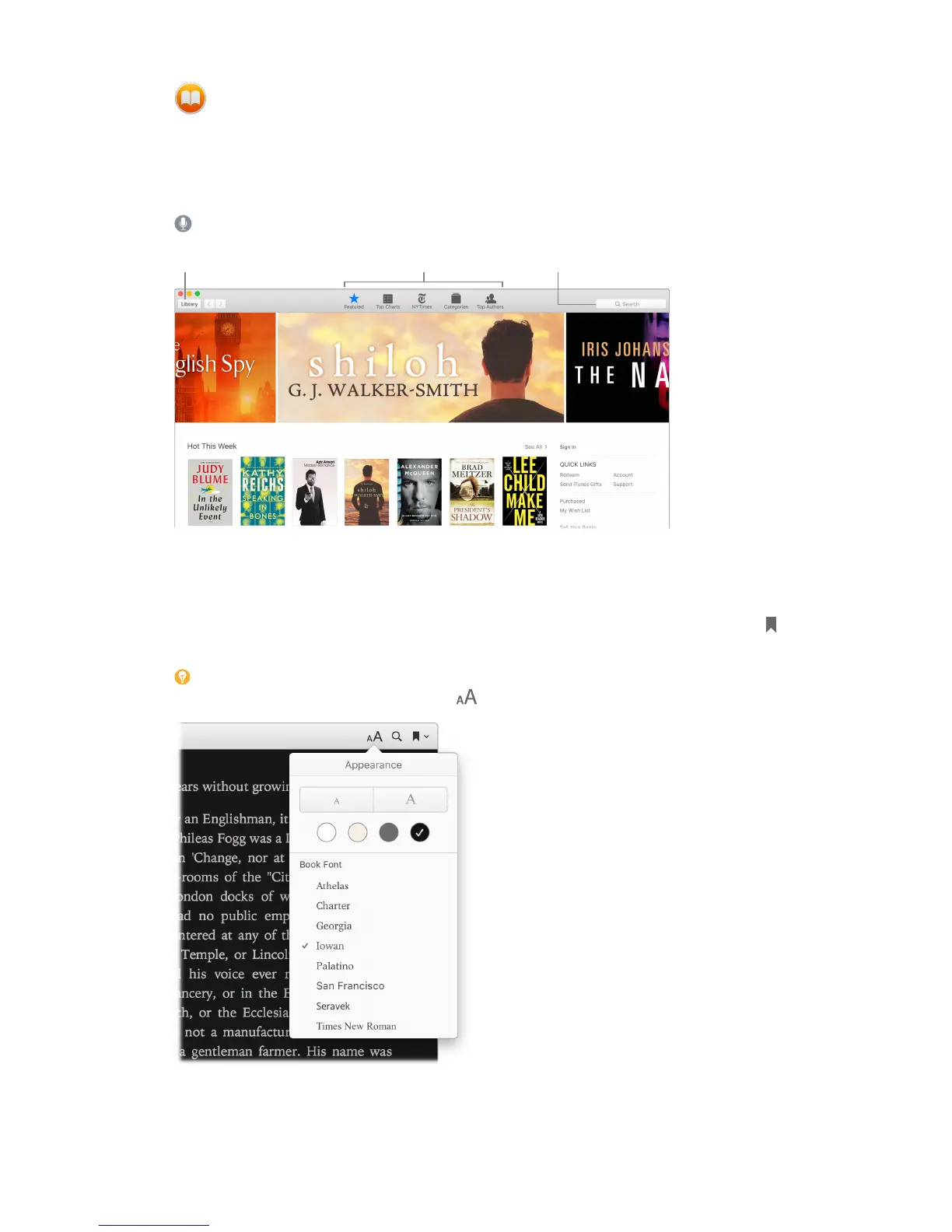
A bookshelf right on your Mac. Browse or search all the items in your library—or click iBooks
Store to nd new books and other publications. To buy, just sign in with your Apple ID: Choose
Store > Sign in.
Ask Siri. Say something like: “Find books by Jane Austen.”
content.
Never lose your place or your markups. Your purchased books, collections, highlights, notes,
bookmarks, and the page you’re currently reading are available automatically on your Mac and
iOS devices, if you’re signed in on them with the same Apple ID.
Find your way back. You can quickly go to pages you’ve bookmarked. Click the arrow next to
to view your list of bookmarks.
Tip: Change to Night mode to read more easily in low-light situations. Choose View > Theme,
then choose Night, or click the Fonts button , then click the black circle.
74% resize factor


 To Next Page
 Loading...