DL806 and DL1608 Owner’s Manual
5
Chapter 2 : Mixer Hardware – DL Series : Front Panel
Introduction
We’re going to start things o with a look at the front panel of the mixer: its features, how and where
to make connections and signal ow. Let’s kick o our front panel hardware discussion with the iPad
dock connector.
iPad Dock Connector
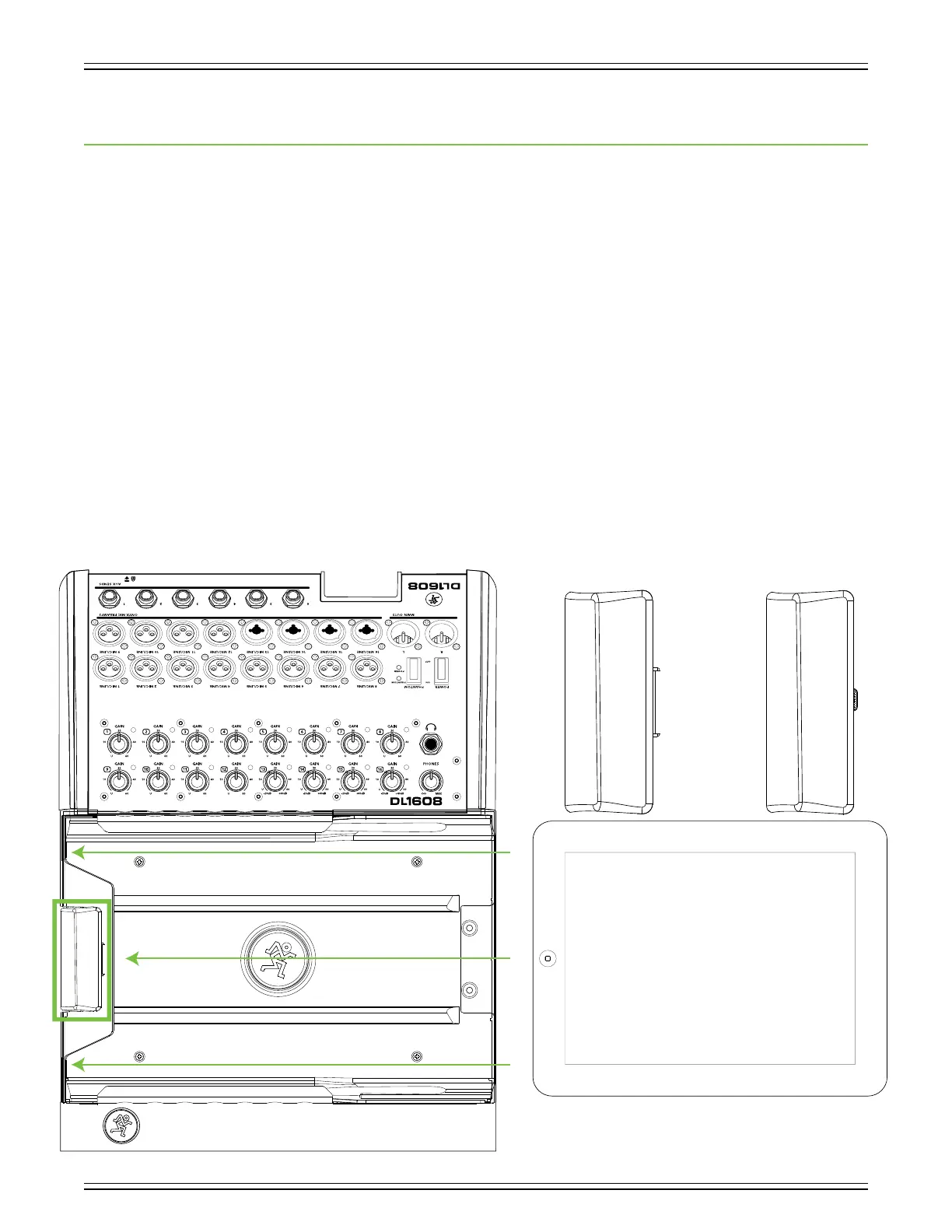
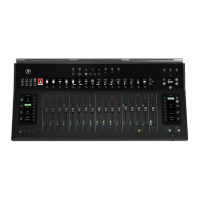
On the far left of the mixer (outlined by the vertical green rectangle below) is the iPad dock connector.
DL series mixers with Lightning dock support wired control from iPad (4th generation), iPad mini (requires
optional iPad mini tray accessory) and iPad Air (requires optional iPad Air tray accessory). DL series mixers
with 30-pin dock support wired control from iPad 2 and iPad (3rd generation).
If using an iPad 2, iPad (3rd generation) or iPad (4th generation), slide the iPad right to left, face up, home
button on the left until it mates with the iPad dock connector. If using a mini iPad or iPad Air, the tray insert
will need to be removed rst. See the next three pages which explain the iPad tray and tray inserts.
This connection serves multiple purposes. For one, recording and playback are possible when an iPad is
connected to the mixer. [Recording and playback are detailed in the software (Master Fader / My Fader)
Reference Guide]. For another, as long as the mixer is plugged in and turned on, the iPad will charge.
And most importantly, Master Fader works sans wireless router when docked. Plus, it just looks cool
when the two are married together, connected as one. Perfection. Bliss. Do it and you’ll see what we mean.
30-pin Dock Connector Lightning Dock Connector



 To Next Page