MAINSTREAM COMPLETE LIVE STREAMING & VIDEO CAPTURE INTERFACE WITH PROGRAMMABLE CONTROL KEYS
7
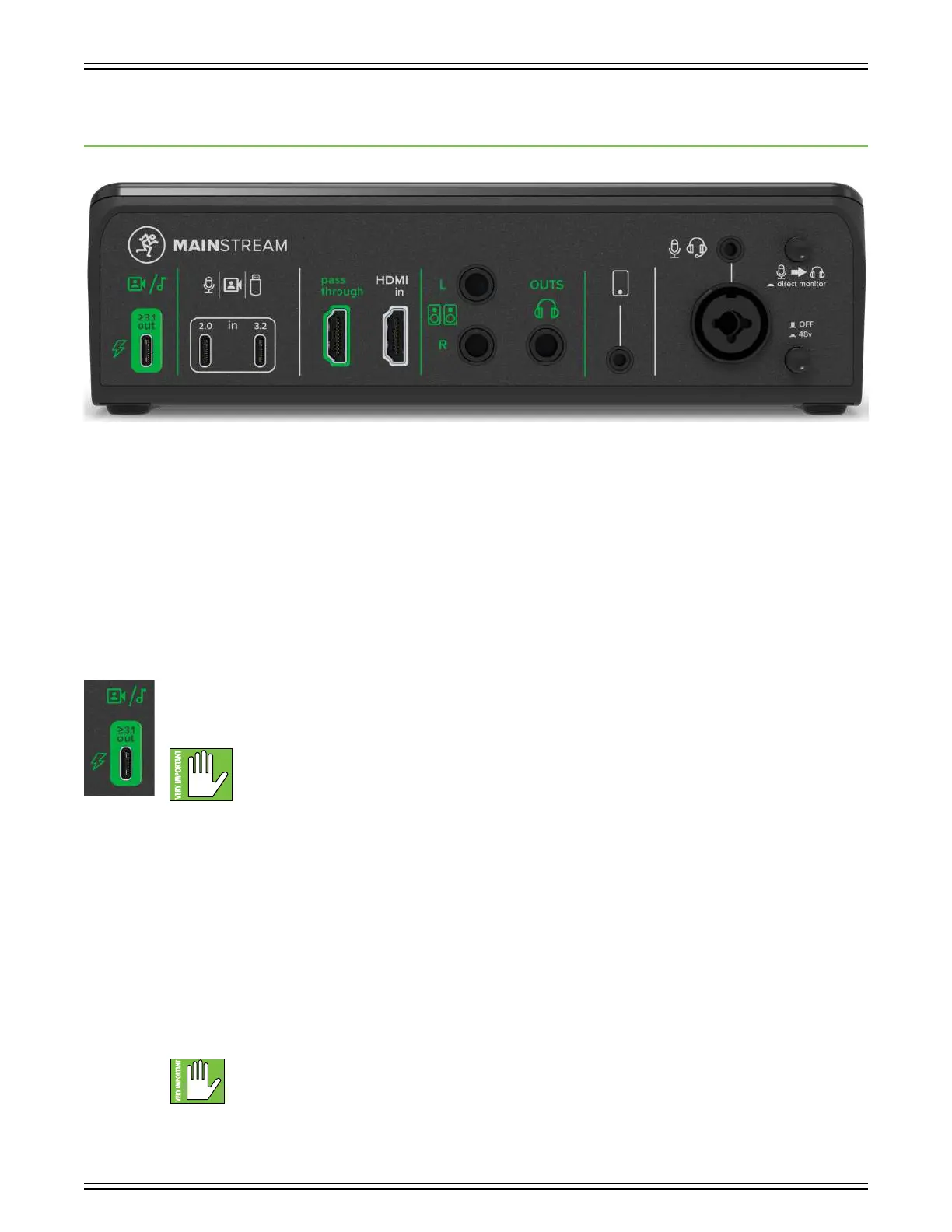
Chapter 2 : MainStream Rear Panel Features
Introduction
The top panel of MainStream may be where all the magic happens, but nothing will happen if it can’t be powered up,
and a mic, headphones, studio monitors, and other things aren’t connected to it, so let’s start there! Let’s take a look
at each of these features, starting with the USB-C power connector located near the bottom-lef of MainStream,
followed by a look at the input and output jacks, then working our way around.
Audio/Video Interface and Power Connector
This 2x2 USB-C port is MainStream’s only source of power... but it does oh so much more than that! That said, we’ll start there.
Simply connect one end of the included cable to this MainStream USB-C port and the other end to a computer’s USB-C port.
If the computer is powered, then so is the MainStream.
NOTE: As seen on the silkscreen, this connector only accepts certified USB-C ≥3. cables.
In addition to supplying the power to MainStream, this port also sends all audio, video, and data independently; this includes
HDMI, USB, and the analog inputs. This allows each video feed, audio source and USB device to appear as its own independent
source (when plugged into a computer). As you’ll see later, there are also independent volume controls for each of these.
This port delivers a resolution of 4Kp60 (Ultra HD). The maximum capture resolution is 080p60 (Full HD) for the HDMI input.
The USB audio format is 24-bits and 48 kHz.
Additionally, this port receives a stereo audio signal from the computer and sends it to the headphones, monitors, and mix
minus. The level is controlled via the PC audio return level control knob, located on the front of MainStream. [It’s the small
one located in the upper-lef-hand side of MainStream; for reference, the silkscreen printed underneath the knob displays
a computer.].
Last, but not least, the USB-C port is also utilized for conducting firmware updates, function keys, and middleware.
Please download the firmware updating sofware from the product page to make sure you have the latest.
Don’t forget to change the input and output to ‘MainStream’ (or ‘MainStream HDMI’) via Settings.




 To Next Page