You can test that the probe is working by
clicking on the OK button and then clicking
on CONNECT button.
You should see some data messages from
the probe appear in the window.
One problem with Mac OSX is that it does not easily list the available serial ports to the user or
applications the way that Windows does. To identify the correct serial port in Mac, the easiest way is to
follow the below procedure.
Download a small free application from
or
Run this application and in the top menu Bar, click on Connection/Options
http://download.cnet.com/CoolTerm/3000-2383_4-
10915190.html http://freeware.the-meiers.org/
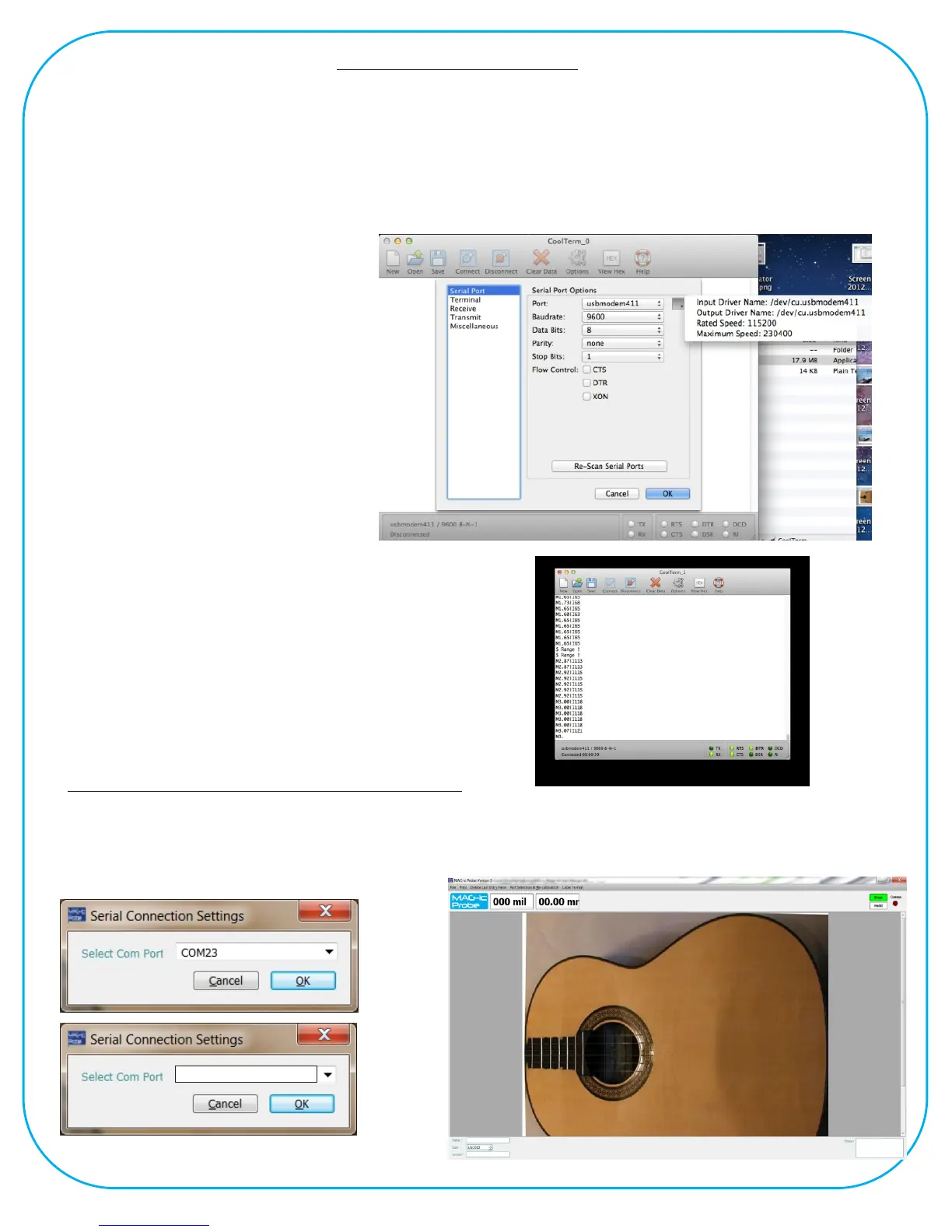
Click on the <Port> button to see the
available ports. The Serial port should
be identified as something like
USBmodem or USBSerial etc. Pick
this option and then click on the small
box to the right of this line. This box
will provide the full detail of the Port
Name.
In this example it is Usbmodem411 but
each computer will be different.
The full name is
/dev/cu.usbmodem411.
Make a note of this full name as you
will need it in the MAG-ic probe
Software.
MAC Serial Connection
Connecting to MAG-ic Probe Software
/dev/cu.usbmodem411
Start the MAG-ic Probe Software and click on the PortSelection and Calibration menu and select
Serial Port. In the Settings box, either select the correct Com Port from the drop-down box or manually
type in the Com Port information from above. If connection is successful, a green light should turn on
in the top right corner.



 To Next Page