EasyManua.ls Logo

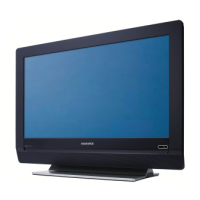
Magnavox 26MF/32MF231D - User Manual

Magnavox 26MF/32MF231D
38 pages
Print Icon
To Next Page IconTo Next Page
Loading...
3138 155 24272
S M A R T. V E R Y S M A R T.
User Manual
26MF/32MF231D
LCD TV
Read your user Manual and/or
Quick-Use Guide first for quick tips
that make using your Magnavox
product more enjoyable.
If you have read your instructions and
still need assistance,
you may access our online help at:
www.usasupport.magnavox.com
or call
1-800-705-2000
while with your product
(and Model / Serial number)
Thank you for choosing Magnavox.
Need help fast?
Model No: Serial No:

Questions and Answers

  • S
    Steven Ramos MDAug 16, 2025
    Why Magnavox 26MF/32MF231D has no power?
    • J
      Joshua WolfeAug 16, 2025
      First, ensure the AC power cord of your Magnavox LCD TV is securely plugged into the mains socket. If it is, unplug the TV, wait for 60 seconds, then plug it back in and try turning it on again.
  • L
    leonard92Aug 19, 2025
    Why is my Magnavox LCD TV television not responding to remote control?
    • D
      Debra HurstAug 19, 2025
      If your Magnavox LCD TV isn't responding to the remote, first check the batteries and replace them if necessary. Then, clean the remote control sensor lens on the monitor. Remember that the operating range between the TV and remote should be approximately twenty feet. Also, check if the remote control is in the correct mode. If all else fails, you can use the buttons on the right side of your TV.
  • S
    Steven SmallAug 22, 2025
    What to do if Magnavox LCD TV has no picture?
    • D
      Douglas GallegosAug 22, 2025
      If your Magnavox LCD TV shows no picture, start by checking the antenna connections at the bottom of the TV to ensure they are properly connected. If the connections are fine, try switching to another channel, as there might be an issue with the broadcast station. Also, adjust the contrast and brightness settings or try a different auto picture setting. Check the Closed Captions control, as some TEXT modes could block the screen. Finally, verify that you've selected the correct AV source.
  • C
    Christine WadeAug 26, 2025
    What to do if my Magnavox 26MF/32MF231D has good sound but poor color or no picture?
    • S
      Sherry HensonAug 26, 2025
      If your Magnavox LCD TV has sound but the color is poor or there's no picture, try adjusting the contrast, color, tint, and brightness settings. Alternatively, try selecting a different auto picture setting.
  • K
    katrina31Aug 28, 2025
    What to do if my Magnavox 26MF/32MF231D LCD TV has no sound?
    • L
      lisanealAug 28, 2025
      If your Magnavox LCD TV has no sound, first increase the volume. Also, check that the TV is not muted by pressing the MUTE button on the remote control. Note that the TV automatically switches off the sound when no signal is detected, which is normal.
  • B
    Brent TrevinoAug 31, 2025
    What to do if my Magnavox 26MF/32MF231D LCD TV shows snowish picture and noise?
    • A
      Alice HarrisAug 31, 2025
      If your Magnavox LCD TV displays a snowish picture with noise, check the antenna connection to ensure it's properly connected.
  • P
    phamiltonSep 3, 2025
    What to do if my Magnavox LCD TV has no picture and power switched on?
    • M
      martin13Sep 3, 2025
      If your Magnavox LCD TV has no picture but the power is on, it might be in protective mode due to heat build-up. Check the clearance around the vents of the device to ensure there are no obstructions like walls or cabinets limiting airflow.
  • M
    Mary KingSep 6, 2025
    How to resolve ghost or double images on Magnavox 26MF/32MF231D LCD TV?
    • T
      Tyler TurnerSep 6, 2025
      Ghost or double images on your Magnavox LCD TV may be due to obstructions like high-rise buildings or hills affecting the antenna signal. Using a highly directional antenna might improve the picture quality.
  • P
    Patrick SmithSep 9, 2025
    Why Magnavox 26MF/32MF231D LCD TV has control of accessory devices issues?
    • J
      John WilcoxSep 9, 2025
      If your Magnavox LCD TV is affecting the control of accessory devices, it could be due to the infrared signals from the screen interfering with the reception of other peripherals. Try replacing the batteries in the remote controls of the other devices. Also, keep any wireless headphones at least four feet away from the TV.
  • R
    Robert SmithSep 12, 2025
    What to do if Magnavox 26MF/32MF231D has no photo, music or video play or in poor quality only?
    • M
      Mark CurtisSep 12, 2025
      Check if the source complies with a supported code.

Summary

Important Safety Instructions

Damage Requiring Service

Specifies conditions under which the appliance needs qualified service personnel for repair.

Tilt and Stability Precautions

Adherence to global safety standards for cabinet design to prevent tipping and injury.

Wall or Ceiling Mounting Guidelines

Guidelines for secure and safe mounting of the appliance to walls or ceilings.

Precaution

Additional Safety Precautions

Extra safety measures for TV setup, handling, and cleaning to prevent hazards.

Preparation

Mounting the TV on the Wall

Instructions and cautions for securely mounting the TV to a wall by qualified personnel.

Use of the Remote Control

Volume and Channel Control

Functions for adjusting volume and navigating channels using remote control buttons.

Menu Navigation and Settings

How to access menus, select settings, and use color buttons for various functions.

Picture and Sound Adjustments

Using Smart Picture and Smart Sound buttons for predefined audio-visual settings.

To Use the Menus

Navigating the Settings Menu

Step-by-step guide to accessing and changing TV settings via the menu system.

Installation

Select Menu Language

Procedure for choosing the display language for the TV menus.

Store TV Channels (Autoprogram)

How to automatically scan and store available Antenna or Cable TV channels.

Software Upgrade

Information on upgrading the TV's software using a USB device for improved performance.

Setup Menu

Preferences and Sound Settings

Adjusting preferences like sound modes (Auto surround) and related settings.

TV Menu

Picture Menu Overview

Accessing and adjusting picture settings like Smart Picture, Contrast, and Brightness.

Sound Menu

Smart Sound and Volume Control

Applying predefined sound profiles and adjusting the overall audio output level.

Channels Menu

Channel Lock and TV Ratings Lock

Locking specific channels or programs based on age/content ratings using V-chip.

Movie Ratings Lock

Controlling access to movies based on MPAA content ratings using a PIN.

Connect Accessory Devices

HDMI Connectors

Connecting digital video and audio sources via HDMI for high-definition output.

Trouble Shooting Tips

Annex I - Software Upgrade

Automatic Software Upgrade Procedure

Steps for performing an automatic software update using a USB portable memory.

Manual Software Upgrade Procedure

Steps for performing a manual software update by copying files to a 'Upgrades' directory.

MAGNAVOX LIMITED WARRANTY

Warranty Coverage Details

Specifies the duration and terms for labor, parts, and display coverage against defects.

Obtaining Warranty Service

Contact information and procedures for requesting warranty service in the US and Canada.

Magnavox 26MF/32MF231D Specifications

General IconGeneral
Display TypeLCD
Aspect Ratio16:9
HDMI Ports2
USB Ports1
Resolution1366 x 768
Response Time8 ms
InputsComponent, Composite
Screen Size26-inch (26MF231D) / 32-inch (32MF231D)

Related product manuals