EasyManua.ls Logo

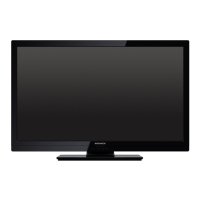
Magnavox 37MF337B - User Manual

Magnavox 37MF337B
43 pages
Print Icon
To Next Page IconTo Next Page
Loading...
P41TL013-813-1A
English
Español
User Manual
Manuel de l’utilisateur
Guía del usuario
37MF337B/37MF437B
42MF337B/42MF437B
LCD TV
Quick Use Guide Inside!
Guide d’usage Rapide Incluse!
Guía de Uso Rápido Incluida!
For Customer Use / À l’usage du client /
Para Uso del Cliente
Model/Modle/ModeloNo. :
Serial/Srie/Serie No. :

Other manuals for Magnavox 37MF337B

Questions and Answers

  • D
    Denise LeeAug 17, 2025
    Why is my Magnavox 37MF337B LCD TV not responding to the remote control?
    • E
      Edward BennettAug 17, 2025
      If your Magnavox LCD TV isn't responding to the remote control, try the following: Check the batteries and replace them if needed. Clean the remote control sensor lens on the TV. Ensure you're within the operating range of approximately twenty feet. You can also use the buttons on top of the TV. Lastly, check if the remote control is in the correct mode.
  • M
    mooreleahAug 20, 2025
    How to fix a Magnavox LCD TV that won't turn on?
    • P
      piercedeannaAug 20, 2025
      If your Magnavox LCD TV isn't powering on, ensure the AC power cord is securely plugged into the mains socket. If it's still not working, unplug the TV, wait 60 seconds, then plug it back in and try turning it on again.
  • S
    Sabrina SullivanAug 22, 2025
    Why is there no sound on my Magnavox LCD TV?
    • D
      dianeariasAug 23, 2025
      If you're experiencing a lack of sound on your Magnavox LCD TV, there could be a few reasons. First, make sure to increase the volume. Second, check that the TV is not muted by pressing the MUTE button on the remote control. Also, when no signal is detected, the TV automatically switches off the sound, which is normal.
  • T
    tamara10Aug 26, 2025
    What to do if there is no picture on my Magnavox LCD TV?
    • L
      logan14Aug 26, 2025
      If your Magnavox LCD TV shows no picture, try these steps: Check the antenna connections at the bottom of the TV to ensure they are properly connected. It could also be a broadcast station issue, so try another channel. Adjust the contrast and brightness settings, or try a different auto picture setting. Also, check the Closed Captions control, as some TEXT modes might block the screen. Finally, ensure you've selected the correct AV source.
  • B
    Brian PierceAug 28, 2025
    What to do if my Magnavox 37MF337B LCD TV has sound but poor color or no picture?
    • K
      Kirsten JamesAug 28, 2025
      If your Magnavox LCD TV has good sound but poor color or no picture, try adjusting the contrast, color, tint, and brightness settings. You might also want to try another auto picture setting.
  • T
    Tanya JonesAug 31, 2025
    How to resolve snowish picture and noise on Magnavox 37MF337B?
    • N
      nicholasfisherAug 31, 2025
      To resolve a snowish picture and noise on your Magnavox LCD TV, check the antenna connection.
  • W
    Wendy SmithSep 2, 2025
    How to fix ghost or double images on Magnavox LCD TV?
    • Y
      ysolomonSep 3, 2025
      Ghost or double images on your Magnavox LCD TV may be caused by obstructions to the antenna, such as high-rise buildings or hills. Using a highly directional antenna may improve the picture.
  • S
    sharon81Sep 5, 2025
    Why PC modes do not work on Magnavox 37MF337B LCD TV?
    • B
      Brad GarrisonSep 5, 2025
      If PC modes aren't working on your Magnavox LCD TV, first check that all connections are correct. Then, ensure the source is correctly selected by pressing the SOURCE button. Finally, verify that your computer is configured to use a compatible display resolution.
  • D
    Derrick TaylorSep 8, 2025
    How to prevent Magnavox 37MF337B from interfering with accessory devices?
    • A
      Amber NelsonSep 8, 2025
      To prevent your Magnavox LCD TV from interfering with accessory devices, be aware that the screen's infrared signals might affect the reception of other peripherals. Try replacing the batteries in the remote controls of other devices. Also, keep wireless headphones at least four feet away from the TV.
  • D
    dadkinsSep 12, 2025
    What to do if photo, music, or video won't play or are poor quality on Magnavox 37MF337B LCD TV?
    • M
      mary43Sep 12, 2025
      If photos, music, or videos won't play or are of poor quality on your Magnavox LCD TV, check if the source complies with a supported code.

Summary

Connection Types

High-Definition Multimedia Interface (HDMI)

High-Definition Multimedia Interface for uncompressed digital audio/video.

Component Video Input

Superior picture quality by separating luminance signals, used with red/white audio.

Connecting External Devices

Set-Top Box to TV

Illustrates HDMI and RF connections for Set-Top Boxes.

DVD Player;Recorder to TV

Illustrates HDMI connections and remote usage for DVD players.

Product Registration and Safety

Important Safety Instructions

General Safety Precautions

Read, keep, follow all instructions and warnings for safe operation.

Installation and Usage Safety

Avoid water, heat, protect cords; ensure proper installation.

Servicing and Damage Safety

Refer servicing to qualified personnel; safety concerning damage.

Stability and Mounting Safety

Comply with standards for tilt, stability, and wall mounting.

Additional Precautions

Preparation and Setup

Cable TV Setup

Remote Control Operation

Basic Navigation and Control

POWER, VOLUME, CHANNEL, MENU, OK, EXIT buttons for TV operation.

Navigating TV Menus

TV Menu: Installation

Selecting Menu Language

Choose preferred language for on-screen menus.

Storing TV Channels (Autoprogram)

Automatically scans and stores available TV channels.

Channel Tuning and Software

Source and Audio Settings

TV Menu: Features

Digital Captioning Options

TV Menu: Picture Settings

Picture Menu Overview

Access and adjust picture settings for optimal viewing.

Smart Picture Modes

Select predefined picture settings for different viewing conditions.

Basic Picture Adjustments

Adjust contrast, brightness, and color saturation.

Advanced Picture Settings

TV Menu: Sound Settings

Sound Mode and Volume Control

TV Menu: Parental Control

Parental Control Functions

Control special functions for TV channels and programs.

Channel Lock Feature

Lock specific TV channels or external sources.

TV Ratings Lock (V-Chip)

Control access to programs based on movie/TV ratings using V-chip.

TV Rating Categories Explained

Parental Control: Movie Ratings

Movie Ratings Lock

Control access to movies based on MPAA ratings.

Parental Control: Region and PIN

PC Menu: Installation and Setup

PC Menu Language Selection

Choose preferred language for PC menu.

PC Source and Picture Adjustment

Set PC as source and adjust picture automatically or manually.

PC Menu: Picture Settings

Picture Adjustments (Contrast, Brightness)

Adjust picture intensity and light output for PC display.

Color Temperature and Format

Adjust color tint and picture aspect ratio for PC mode.

PC Menu: Sound Settings

Sound Menu Overview

Access and adjust PC sound settings.

Recording and Device Selection

Troubleshooting Common Issues

Picture and Signal Problems

Solutions for ghost images, no picture, poor color, snowish picture.

Power, System, and Remote Issues

Solutions for no power, improper shutdown, remote control problems.

PC Mode and Software Issues

Solutions for PC mode not working and software installation problems.

Care and Cleaning of the TV

Technical Specifications

Magnavox Limited Warranty

Warranty Coverage Details

Covers defects in materials/workmanship for original purchaser.

Warranty Exclusions and Limitations

Lists items not covered by the limited warranty.

Obtaining Warranty Service

Contact information for warranty service in the US and Canada.

Magnavox 37MF337B Specifications

General IconGeneral
Screen Size37 inches
Display TypeLCD
Resolution1366 x 768
Aspect Ratio16:9
Brightness500 cd/m²
Response Time8 ms
HDMI Ports2
Component Video Inputs1
Composite Video Inputs1
Audio Output10W x 2
InputsHDMI, Component, Composite
Viewing Angle178° (H) / 178° (V)
Speakers2 x 10W

Related product manuals