EasyManua.ls Logo

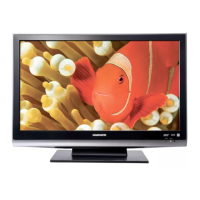
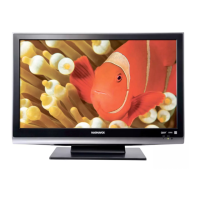
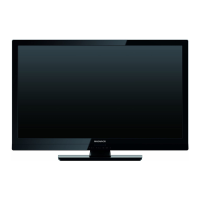
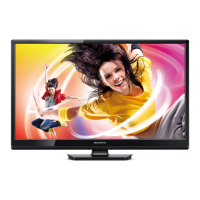
Magnavox 32MF301B - User Manual

Magnavox 32MF301B
33 pages
Print Icon
To Next Page IconTo Next Page
Loading...
32MF301B
19MF301B
/CD TV
Thank youfor choosing
Magnavox
Need help fast?
Read your Owner's Manual first for
quick tips that make using your
Magnavox product more enjoyable.
If you have read your instructions
and still need assistance,
you may access our online help at
www.magnavox.comlsupport
or call
1=866-341-3738
while with your product
(and Model I Serial number)
votreconfiance.
aide
rapide?
Manuel du Propri_talre regorgent
d'astuces destin6es _ simphfier
l_utihsation de votre produit Magnavox.
Toutefois, si vous ne parvenez
pas _ r_soudre votre probt_me,
vous pouvez acceder
notre aide en tigne i_ I'adresse
www.magnavox.com lsupport
ou formez le
1-866-341-3738
Veillez _ avoir votre produit
pottle de main
(et model I serial nombre)
Gradas pot escoger Magnavox.
Necesita ayuda
inmediata?
Lea primero el Manual del Propietario,
en donde encontrar6 consejos que
le ayudargn a disfrutar plenamente
de su producto Magnavox.
Si despu6s de leerlo a6n necesita ayuda,
consulte nuestro servtcio de
asistencia en linea en
www.magnavox.comlsupport
o Ilame al tel_fono
1-866-341-3738
y tenga a mano el producto
(y n_mero de model / serial)
m DOLBY
DIGITAL I
NODEL NUNBER SERIAL NUNBER

Other manuals for Magnavox 32MF301B

Questions and Answers

  • M
    Monique AcevedoAug 20, 2025
    How to fix Magnavox 32MF301B LCD TV when it has no power?
    • R
      Ryan GonzalezAug 20, 2025
      If your Magnavox LCD TV has no power, ensure the AC outlet is providing the correct voltage by plugging another electrical appliance into it to check if the outlet operates normally. Also, if there was a power failure, unplug the AC power cord for 1 minute to allow the TV to reset.
  • D
    David DodsonAug 22, 2025
    How to fix Magnavox 32MF301B LCD TV remote control when buttons do not work?
    • F
      fostertonyaAug 22, 2025
      If the remote control buttons on your Magnavox LCD TV aren't working, first, ensure the batteries are correctly inserted with the polarities (+/- signs) as indicated. Secondly, check for infrared-equipped devices nearby, such as a PC, as they may interfere with the remote control signal.
  • T
    tracyturnerAug 25, 2025
    What to do if my Magnavox 32MF301B has no picture or sound?
    • H
      Hector PaulAug 25, 2025
      If your Magnavox LCD TV has no picture or sound, try these steps: * Check other TV channels to rule out broadcasting issues or weak signal strength. * Unplug the AC power cord, wait about 1 minute, then plug it back in and turn the unit on again. * Ensure Autoprogram is completed, especially after the initial setup or moving to a new location. * Verify that the selected channel isn't restricted by Child and ratings lock settings. * Confirm the unit has an input signal from an indoor/outdoor antenna or a cable/satellite box.
  • D
    Darlene BradleyAug 26, 2025
    Why is my Magnavox 32MF301B on but there is no screen image?
    • A
      Andrew BrownAug 26, 2025
      If your Magnavox LCD TV has power but no screen image, verify the following: 1. The antenna, cable receiver, or satellite box is correctly connected. 2. All cables are connected to the correct output jack of your Blu-ray or DVD recorder. 3. If in PC mode, your computer is not in sleep mode; tap a key to wake it. 4. The correct input mode is selected using the SOURCE button or CH +/-.
  • M
    Mario GilbertAug 27, 2025
    Why does my Magnavox LCD TV have sound but poor picture quality?
    • E
      Eric BoyleAug 28, 2025
      If the sound is OK but the picture quality is poor on your Magnavox LCD TV, electrical interference from nearby appliances might be the cause. Try adjusting the Contrast and Brightness in the Picture settings. For the best picture quality, watch 'High Definition' wide screen programs, or 'Standard Definition' programs if HD content isn't available.
  • M
    Marcus LongAug 29, 2025
    What causes a distorted picture or unusual sound on my Magnavox 32MF301B?
    • M
      Margaret McdonaldAug 29, 2025
      If you are experiencing a distorted picture or unusual sound on your Magnavox LCD TV, it may be due to NTSC TV signal interference from electrical appliances, automobiles, motorcycles, or fluorescent lights. Try moving the unit to another location to see if this resolves the problem.
  • D
    Daniel BrownAug 31, 2025
    Why are my Magnavox 32MF301B picture and sound settings not saving?
    • D
      dawn31Aug 31, 2025
      If adjusted picture or sound settings on your Magnavox LCD TV aren't effective each time the unit is turned on, ensure that the Location is set to Home. Otherwise, the settings you adjusted won't be saved after the unit enters Standby mode.
  • C
    Caitlyn WilsonSep 2, 2025
    Why does the volume change when I switch inputs on my Magnavox 32MF301B?
    • S
      Sarah SmithSep 2, 2025
      When you switch to a different input on your Magnavox LCD TV and the volume changes, it's because the unit memorizes the volume level from the last time you adjusted it. If the sound volume from another device is higher or lower, the loudness will change accordingly.
  • M
    Megan FoxSep 4, 2025
    How to adjust screen size on Magnavox LCD TV so the image covers the entire screen?
    • S
      Shane MillerSep 4, 2025
      If the display image on your Magnavox LCD TV does not cover the entire screen, and you are using it as a PC monitor, ensure that the Horizontal position and Vertical position in PC settings are set correctly. If you are watching TV or using Composite Video, Component Video, or HDMI with 480i Input, press FORMAT repeatedly to switch between various screen modes.
  • T
    Timothy KellySep 6, 2025
    How to fix no color on Magnavox 32MF301B?
    • R
      rachelmirandaSep 6, 2025
      If your Magnavox LCD TV has no color, adjust the Color setting in the Picture settings menu.

Summary

Safety and Installation Information

Product Safety Notification

Notification about recalls or safety defects.

Important Safety Instructions

Regulatory and Handling Information

FCC Warnings and Interference

Information on radio frequency energy and interference.

Child Safety Guidelines

Safe Usage Practices

Tips to prevent injury from climbing or tipping.

Wall Mounting Safety

Specific advice for wall-mounting the display safely.

Initial Setup and Assembly

Remote Control and Batteries

Remote Control Functions

Detailed explanation of each button on the remote control.

Control Panel and Connections

Terminal Ports Explained

Describes all input/output jacks on the TV for connecting devices.

PREPARATION

Antenna and Cable;Satellite Connection

How to connect TV antenna or cable/satellite box.

Connecting to Cable;Satellite Box

Details on using HDMI or Component Video for connection.

Initial Setup Procedure

On-Screen Setup Guide

Step-by-step process for initial configuration.

Autoprogram for Channel Scanning

Automatic channel search and memorization process.

Basic TV Operation

Picture and Sound Adjustments

Information and Power Saving

fun-Link Options Setup

Configuration for controlling connected devices via HDMI.

Main Menu Navigation

Accessing the Main Menu

How to open and navigate the primary settings menu.

Picture and Sound Settings

Adjusting Picture Quality

Customizing visual settings like brightness, contrast, and color.

Configuring Sound Options

Adjusting audio settings like smart sound and equalizer.

Audio Output and Setup

Setup Menu Options

Overview of Setup functions like Autoprogram and Channel List.

Channel Management and Features

Accessing Features Menu

Overview of features like Closed Caption and Child Lock.

Closed Caption Settings

Caption Service Options

Enabling and selecting basic closed caption services.

Parental Controls

Configuring Child Lock

Blocking programs based on rating levels.

Rating Locks and PIN Management

USB Media Playback

CONNECTING DEVICES

Video and Audio Connections

PC and USB Connectivity

Troubleshooting and Support

Frequently Asked Questions (FAQ)

Answers to common user queries about operation.

Troubleshooting Guide

Solutions for common operational problems and symptoms.

Advanced Troubleshooting

Picture and Sound Issues

Diagnosing and resolving common problems with image and audio.

Technical Specifications

Limited Warranty Information

Warranty Coverage Details

Explains what the 90-day labor/1-year parts warranty covers.

Warranty Exclusions and Limitations

Lists items and conditions not covered by the warranty.

Obtaining Warranty Assistance

How to contact customer support for warranty claims.

Magnavox 32MF301B Specifications

General IconGeneral
Screen Size32 inches
Display TechnologyLCD
Resolution1366 x 768
Aspect Ratio16:9
Refresh Rate60 Hz
HDMI Ports2
USB Ports1
InputsHDMI, USB, Composite, RF

Related product manuals