PRECAUTIONSSETUP
DVD FUNCTIONS
INFORMATIONEspañol
INSTRUCCIONES EN
ESPAÑOL INCLUIDAS.
If you need additional operating assistance after
reading this owner’s manual, please call
TOLL FREE : 1-800-605-8610
or visit our web site at
http://www.magnavox.com/support
remote control
(NA475UD)
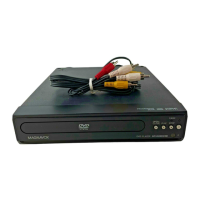
RCA audio/video cables
(WPZ0102TM018 /
WPZ0102LTE01)
batteries
(AAA x 2)
owner’s manual
(1VMN27233)
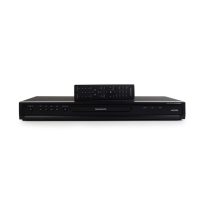
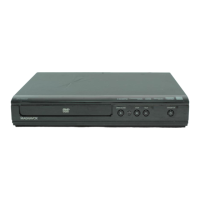
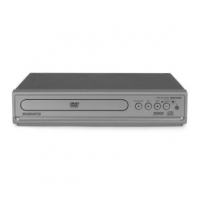
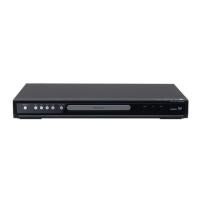
DVD/CD Player
DP170MW8B
Owner’s Manual
Please read before using this unit.
Owner’s Manual
PRECAUTIONS
Laser Safety ...............................................................................................2
Important Safeguards .............................................................. 3
Location and Handling .........................................................................4
Avoid the Hazards of Electrical Shock and Fire ...........................4
Moisture Condensation Warning ......................................................4
About Copyright......................................................................................4
Notice for Progressive Scan Outputs ...............................................4
Symbols Used in this Manual .............................................................4
Maintenance ............................................................................................. 4
About the Discs ......................................................................... 5
Playable Discs ...........................................................................................5
Unplayable Discs .....................................................................................5
SETUP
Connections .............................................................................. 6
Connection to a TV .................................................................................6
Connection to a TV with an HDMI Compatible Port ..................7
Connection to an Audio System .......................................................8
Function Overview ................................................................... 9
Rear Terminals ..........................................................................................9
Front Panel Indicator .............................................................................9
HDMI Setup ...............................................................................................9
Remote Control ......................................................................................10
Installing the Batteries for the Remote Control ..........................10
DVD FUNCTIONS
Playback .................................................................................. 11
JPEG Playback ......................................................................... 12
Kodak Picture CD ..................................................................... 12
Transition Mode ...................................................................... 13
Adjustment of Picture Size ...................................................... 13
On-Screen Display ................................................................... 14
Search Functions ..................................................................... 15
Using Track Search ................................................................................15
Using Title / Chapter Search ..............................................................15
Using Time Search .................................................................................15
Marker Setting .........................................................................................15
Repeat / Random / Programmed Playback ............................ 16
Repeat Playback .....................................................................................16
Repeat A-B Playback .............................................................................16
Random Playback ..................................................................................16
Programmed Playback .........................................................................16
Special Settings ....................................................................... 17
Subtitle Language..................................................................................17
Audio Language .....................................................................................17
Camera Angles ........................................................................................17
Black Level Setting.................................................................................17
Stereo Sound Mode ..............................................................................17
Virtual Surround .....................................................................................17
DVD Setting ............................................................................. 18
LANGUAGE Setting ................................................................................18
DISPLAY Setting ......................................................................................19
AUDIO Setting .........................................................................................20
PARENTAL Setting .................................................................................21
OTHERS Setting.......................................................................................22
Reset to the Default Setting (Except for PARENTAL Setting) 23
INFORMATION
Troubleshooting Guide ........................................................... 23
Specifications .......................................................................... 24
Language Code List ................................................................. 24
LIMITED WARRANTY ................................................................ 24
Español .................................................................................... 27
Quick Use Guide............................................................ Back Cover
If your TV has antenna in jack only, it is still possible to
connect this unit to your TV by using an RF modulator. In
this case, follow the instructions below.
1) Disconnect the power cords of the devices from the AC
outlet.
2) Make the connection as illustrated below.
3) Set your RF modulator’s channel 3/4 switch to either
3 or 4, whichever the TV channel is least used in your
area. If your RF modulator has a modulator/antenna
switch, set it according to the manual supplied with the
RF modulator.
4) Plug in the power cords of the devices to the AC outlet.
5) Turn on your TV and choose the same channel as
you set the RF modulator’s channel 3/4 switch to. For
more details, follow the manual supplied with the RF
modulator.
rear of TV
rear of your RF
modulator
AUDIO IN TO TVANT. IN
LR
CHANNEL
43
VIDEO IN
ANT. IN
Set channel 3 or 4
rear of this unit
RF coaxial cable
RF coaxial
cable
VHF / UHF
antenna
cable TV
company
or
RCA video cable
RCA audio cable
AUD IO
OUT
VIDEO
OUT
R
L
AUDIO
OUT
VIDEO
OUT
COAXIAL
R
L
Y
COMPONENT VIDEO OUT
C
R
/P
R
DIGITAL
AUDIO OUT
C
B
/P
B
HDMI OUT
Connecting to RF Modulator (Not Supplied)
Note:
• RF modulator is not supplied with this unit. You need to
purchase it at your local store.
• The quality of picture may become poor if this unit is
connected to an RF modulator.
Supplied Accessories Contents
© 2009 Funai Electric Co., Ltd.
E6E75UD_DP170MW8B_EN_v1.indd 1E6E75UD_DP170MW8B_EN_v1.indd 1 2009/02/04 10:45:042009/02/04 10:45:04


 To Next Page
 General