EasyManua.ls Logo

MAHLE TechPRO VCI1000 - User Manual

MAHLE TechPRO VCI1000
2 pages
Print Icon
To Next Page IconTo Next Page
Loading...
Congratulations! The TechPRO diagnostic tool is now ready to use
TechPRO
®
Diagnostic Scan Tool
Quick Start Guide
A
UNPACK
(If you purchased TechPRO with a tablet with
preloaded TechPRO software, connect to the internet and proceed to step 3 to check for and install updates.)
B
INSTALL SOFTWARE
6
1. Connect to the internet (preferably without a proxy server or rewall) and open the
following address in your internet browser: https://www.mahletechpro.com/
2. Download and run the .exe le. Follow the prompts to install the software.
The Application will start automatically once the install is nished.
3. Once running, the system will check for and install updates.
n
Quick Start Guide
n
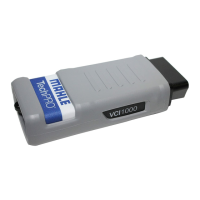
VCI (Vehicle Communication Interface)
n
USB Cable*
n
USB Micro Cable Adapter
n
VCI Storage Holster
n
VCI Docking Station (if purchased with a tablet)
* USB cable is used for VCI activation. USB cable is no longer needed unless
your computer is not Bluetooth enabled.
Thank you for joining the group of MAHLE Service Solutions’ TechPRO scan tool users. We look forward
to receiving your input and using it to improve our products.
The TechPRO scan tool is the latest technology for the professional tecnician, a versatile windows-based tool that will help
you analyze, diagnose, and repair today’s vehicles. Getting started is as easy as ABCDE.
Service Solutions
D EC
ACTIVATE VCI DIAGNOSECONNECT VCI
1. Connect your computer
to the internet.
2. Open the TechPRO application if it isn’t already open.
3. Connect the VCI via USB cable to the computer.
4. Wait for Windows to nish the USB device driver
install (this process could take a few minutes).
5. When the device has been installed you will see
“USB Connection” in the top right.
6. Click the Activate Subscription button on
the home screen.
7. At the activation warning screen choose
“Activate Subscription”.
8. Fill in the registration form and submit
(every entry line needs to be completed).
9. Check your email for the PIN.
10. Enter PIN and submit.
11. Wait for PIN acceptance and VCI activation message.
12. Activation is now complete **after three unsuccessful PIN
attempts you can click “Start Evaluation” and you will have 30 days
to use the tool before you need to activate. Please contact MAHLE
Tech Support if this occurs**
13. Disconnect VCI from computer.
1. Plug the VCI into the
vehicle’s diagnostic port.
2. Bluetooth connect will
be automatic.
3. If USB connection is
desired, connect USB
cable to computer.
4. Click Diagnose for OE
Enhanced diagnostics.
5. Click OBDII for
Generic OBD.
1. Open the TechPRO application
if it isn’t already open.
2. Determine connection type you
wish to use (USB or Bluetooth)
3. If Bluetooth connection is desired, ensure
that your computer’s Bluetooth radio is
turned on and make that selection. If USB
only was selected then connect the VCI to
computer via USB cable.
4. Plug the VCI into the vehicle’s diagnostic
port with ignition in the on position.
5. Click Continue.
6. Follow the prompts and Bluetooth
discovery will begin. Your VCI will be
shown in the list after a short search
(note serial number). Select your VCI
and it will be paired to your computer.
(Ignore Windows Bluetooth pairing
prompt if it appears. The VCI will be paired
automatically).
7. Disconnect VCI from vehicle.
Question and Answer IconNeed help?

Do you have a question about the MAHLE TechPRO VCI1000 and is the answer not in the manual?

Summary

Unpack TechPRO Diagnostic Tool

Install TechPRO Software

Connect Vehicle Communication Interface (VCI)

Activate Vehicle Communication Interface (VCI)

Diagnose Vehicle with TechPRO

Start Using the TechPRO Tool

Launch the Application

Guide to launching the TechPRO application and selecting diagnostic categories like Diagnose, OBD II, or Snapshot Replay.

Explore TechPRO Sections

Overview of subsections for in-depth information on fault codes, PIDs, and live data streaming within the TechPRO tool.

Access Tech Support

Information on contacting MAHLE Tech Support via phone, chat, or email for assistance with TechPRO tools.

Participate in Surveys

Encouragement for users to provide feedback on the TechPRO tool to help improve product functionality.

Overview

The MAHLE TechPRO® Diagnostic Scan Tool is a sophisticated, Windows-based device designed to assist professional technicians in analyzing, diagnosing, and repairing modern vehicles efficiently. It provides fast diagnosis, real-time data updates, and precise information to streamline the repair process.

Function Description:

The TechPRO tool serves as a comprehensive diagnostic solution, enabling users to:

  • Diagnose Vehicle Issues: Access vehicle-specific menus for in-depth diagnostics.
  • Perform Standard OBD II Diagnostics: Utilize standard SAE diagnostics for generic fault code retrieval and analysis.
  • Review Snapshot Replays: View a synopsis of each diagnostic section, providing a quick overview of vehicle status.
  • Access Detailed Information: Explore various subsections within each diagnostic area, including:
    • Fault Codes: Retrieve and understand fault codes, their descriptions, and corresponding numbers, indicating specific system failures.
    • PIDs (Parameter IDs): Monitor live data streams from various vehicle systems, with the capability to graph different functions for visual analysis.
    • Live Streaming Data: Observe real-time data from the vehicle's sensors and modules.
  • Activate and Update Software: The tool requires internet connectivity for initial software installation, activation, and subsequent updates, ensuring it always has the latest diagnostic capabilities.

Important Technical Specifications:

While specific hardware specifications are not detailed in the provided manual, the system operates on a Windows-based platform, indicating compatibility with standard PC environments. Key components include:

  • VCI (Vehicle Communication Interface): This is the primary interface that connects to the vehicle's diagnostic port. It supports both USB and Bluetooth connections for flexibility.
  • USB Cable: Used for initial VCI activation and for connecting the VCI to the computer if Bluetooth is not enabled or preferred.
  • USB Micro Cable Adapter: Likely for connecting the VCI to the computer or for charging, though its specific use is not fully detailed.
  • VCI Storage Holster: For secure storage of the VCI when not in use.
  • VCI Docking Station: An optional component, typically purchased with a tablet, for convenient housing and connectivity of the VCI.

Usage Features:

The TechPRO tool is designed for ease of use, following a clear ABCDE setup and operation process:

A. Unpack:

The package includes the Quick Start Guide, VCI, USB Cable, USB Micro Cable Adapter, VCI Storage Holster, and optionally a VCI Docking Station.

B. Install Software:

  1. Connect the computer (or tablet) to the internet.
  2. Navigate to https://www.mahletechpro.com/ in a web browser.
  3. Download and run the .exe file to install the software, following the on-screen prompts. The application will launch automatically upon completion.
  4. The system will automatically check for and install updates once running.
    • Note: If the TechPRO is purchased with a preloaded tablet, users connect to the internet and proceed directly to step 3 to check for updates.

C. Connect VCI:

  1. Open the TechPRO application.
  2. Select the desired connection type: USB or Bluetooth.
  3. For Bluetooth: Ensure the computer's Bluetooth radio is on and selected. The VCI will be paired automatically after discovery.
  4. For USB: Connect the VCI to the computer via the USB cable.
  5. Plug the VCI into the vehicle's diagnostic port with the ignition on.
  6. Click "Continue" in the application.
  7. Follow prompts for Bluetooth discovery; select your VCI from the list (identified by serial number) for automatic pairing. Ignore Windows Bluetooth pairing prompts.
  8. Disconnect the VCI from the vehicle after setup.

D. Activate VCI:

  1. Connect the computer to the internet.
  2. Open the TechPRO application.
  3. Connect the VCI to the computer via the USB cable.
  4. Wait for Windows to install the USB device driver (this may take a few minutes).
  5. Once installed, "USB Connection" will appear in the top right of the application.
  6. Click the "Activate Subscription" button on the home screen.
  7. At the activation warning, choose "Activate Subscription."
  8. Complete the registration form, ensuring all entry lines are filled.
  9. Check email for the PIN.
  10. Enter the PIN and submit.
  11. Wait for PIN acceptance and a VCI activation message.
  12. Activation is now complete.
    • Note: After three unsuccessful PIN attempts, users can click "Start Evaluation" for a 30-day trial period before needing to activate. MAHLE Tech Support should be contacted if this occurs.
  13. Disconnect the VCI from the computer.

E. Diagnose:

  1. Plug the VCI into the vehicle's diagnostic port.
  2. Bluetooth connection will be automatic if previously set up.
  3. If USB connection is desired, connect the USB cable to the computer.
  4. Click "Diagnose" for OE Enhanced diagnostics.
  5. Click "OBDII" for Generic OBD.

Launching the Application:

From the home screen, users can choose from:

  • Diagnose: Leads to the vehicle menu for specific diagnostics.
  • OBD II: Provides access to standard SAE diagnostics.
  • Snapshot Replay: Shows a synopsis of each diagnostic section.

Exploring Sections:

Within each section, subsections offer more in-depth information, including:

  • Fault codes with descriptions and numbers.
  • PIDs with graphing capabilities for system functions.
  • Live streaming of data.

Maintenance Features:

  • Software Updates: The system automatically checks for and installs updates, ensuring the tool remains current with the latest vehicle data and diagnostic protocols. This is crucial for maintaining compatibility with new vehicle models and technologies.
  • Tech Support: MAHLE TechPRO tools are backed by a comprehensive Tech Support program, offering:
    • Phone Support: Call 800-468-2321 (8 AM - 5 PM ET).
    • Chat Support: Click the MAHLE Chat button on the TechPRO home screen.
    • Email Support: techpro.support@us.mahle.com.
  • Feedback Mechanism: Users are encouraged to participate in surveys and provide feedback directly through the "Feedback" button on the home screen. This input helps MAHLE improve the product, indicating a commitment to continuous development and user satisfaction. This also serves as a form of "maintenance" by ensuring the software evolves to meet user needs.

MAHLE TechPRO VCI1000 Specifications

General IconGeneral
BrandMAHLE
ModelTechPRO VCI1000
CategoryDiagnostic Equipment
LanguageEnglish