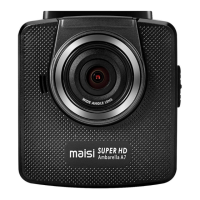
1. Press to start/stop recording;
2. Press to take pictures;
3. Press to confirm the setting you modified.
When the battery is charging, this indicator will
blink red light.
When the camcorder is recording, this indicator will
blink blue light.
The camera lens is fixed and provide a viewing
angle of approx. 150°
For light compensation in dark/dim environment
For HDMI connection to TV etc.
Press to reset the camcorder in abnormal
situations.
Please insert the SD card with the gold plate facing
the back of the camera; Press to eject the SD card
Note:
* Power Button: Press it once to turn on the camera, long press (2-3s) to turn off the camera.
Press it once when recording to turn the camera into screen saver mode.
* To go to Menu, make sure the camera is not recording. If the camera is recording, press OK
button to stop the recording first, then press Menu button to go to Menu.
* Same rules apply (stop recording first) if you want to change the camera from recording
mode to Picture Mode or Playback Mode.
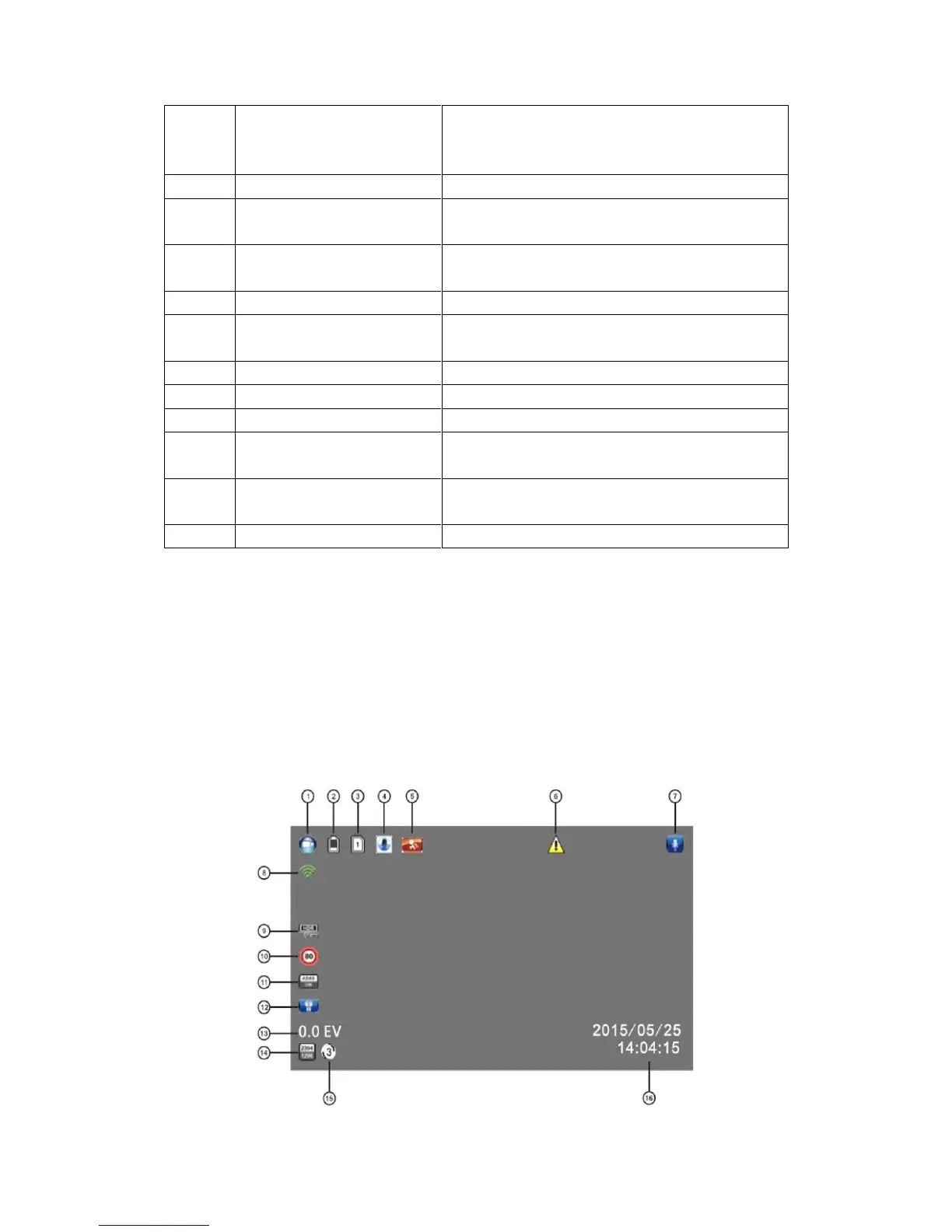
1.4 Screen Interface Illustration


 To Next Page
 Loading...