3
Features
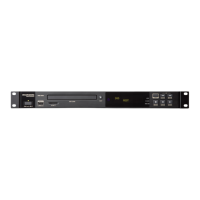
Front Panel
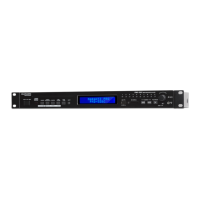
1. Power Button: Press this button to turn the unit on or off. Make sure the AC In is properly connected to a power
outlet. Do not turn the unit off during media playback—doing so could damage your media.
2. Aux In: Connect an optional device to this input using a 1/8” (3.5 mm) TRS cable. See Operation > Playing
Audio from an External Device for more information.
3. USB Port: Connect a mass-storage-class USB device to this port to play audio files. You can also connect your
device's charging cable here to charge it.
4. CD Slot: Insert a CD into this slot. See Operation > Playing Audio CDs for more information.
5. CD/AUX/USB/BT/SD Button: Press this to enter Media Selection screen. See Operation > Selecting Media
Playback Mode for more information.
6. Repeat Button: In CD, USB and SD Modes, press this button to cycle through Repeat Playback modes: Repeat
One
, Repeat Folder, Repeat All , and Repeat Off. See Operation > Playing Audio CDs for more
information.
Power-On Play Button: Press and hold this button to turn Power-On Play on or off. See Operation > Additional
Functions > Power-On Play for more information.
Device Select: When in Bluetooth mode, press the Device Sel. button. The screen will show “BT Device List”.
Use |<</<< and >>/>>| to navigate through the list of Bluetooth devices. When you find one you want to pair to,
select it by pressing the Jog Dial.
7. Random Button: In CD, USB and SD Modes, press this button to cycle through Random Play Mode
,
Random Folder Mode and Single Play Mode ().
Pairing: When Bluetooth mode is selected, the device will automatically enter pairing mode. To disconnect from
a paired Bluetooth device, press and hold the Pairing button for 1.5 seconds. If you have set a custom Bluetooth
pairing password, it is required to input this password before pairing. If a custom password was not set, (factory
default: 0000) it is not required to input the password.
8. Time Button: In CD, USB, or SD mode, press this button to switch the Time Mode in the display. See
Operation > Playing Audio CDs for more information.
Folder: When in USB or SD mode, hold this button to switch to Folder View.
Clear: In Bluetooth mode, press and hold the Clear button to remove all paired devices from the unit’s memory
(and also unpair from a currently paired device). After the devices have been cleared from the unit’s memory, to
connect again to the same device, go to your Bluetooth device and select “Unpair” or “Forget the Device”,
depending on the type of device that you have. You can then select PMD-526C from your list of Bluetooth
devices and connect.
9. Text Button: In CD, USB and SD Modes, press this button to cycle through the track information on the display:
file (USB Mode only), title, album and artist.
Lock Button
: Press and hold this button to turn Panel Lock on and off. See Operation > Additional Functions
> Panel Lock for more information.
10. Eject Button: Press this to eject the CD in the CD slot. To force-eject a CD, power off the unit, then press and
hold the eject button while powering the unit back on. To exit force-eject mode, turn the unit off.
11. Display: This screen indicates the unit’s current operation. See Display for more information.
1
2
3
5
6
8
10
12
13
1415
11
16
4
7
9
17


 To Next Page
 Loading...