EasyManua.ls Logo

Marantz SR1010 - Page 11

Marantz SR1010
27 pages
Print Icon
To Next Page IconTo Next Page
To Previous Page IconTo Previous Page
Loading...
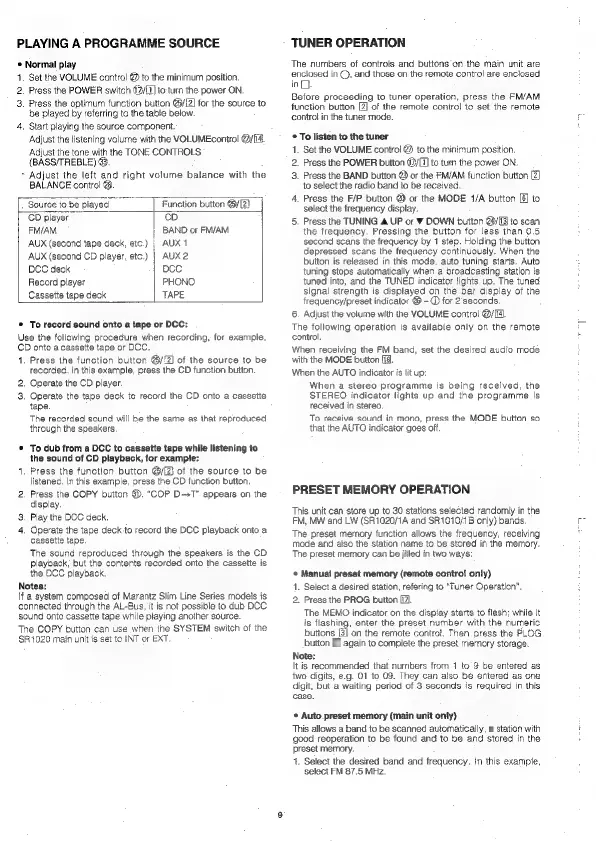
PLAYING
A
PROGRAMME
SOURCE
®
Normal
play
4
2.
3.
4.
Set
the
VOLUME
control
@
to
the
minimum
position.
Press
the
POWER
switch
@2/[1]
to
turn
the
power
ON.
Press
the
optimum
function
button
@/[Z]
for
the
source
to
be
played
by
referring
to
the
table
below.
Start
playing
the
source
component,
Adjust
the
listening
volurne
with
the
VOLUMEcontrol
@/[4.
Adjust
the
tone
with
the
TONE
CONTROLS
(BASS/TREBLE)
&.
Adjust
the
left
and
right
volume
balance
with
the
BALANCE
control
@.
Function
button
@y[2]
Source
to
be
played
CD
player
cD
FM/AM
'
BAND
or
FM/AM
AUX
(second
tape
deck,
etc.)
|
AUX
1
AUX
(second
CD
player,
etc.)
|
AUX
2
DCC
deck
DCC
Record
player
PHONO
Cassette
tape
deck
TAPE
To
record
sound
onto
a
tape
or
DCC:
Use
the
following
procedure
when
recording,
for
example,
CD
onto
a
cassette
tape
or
DCC.
1.
2.
3.
Press
the
function
button
@/{2]
of
the
source
to
be
recorded.
In
this
example,
press
the
CD
function
button.
Operate
the
CD
player.
Operate
the
tape
deck
to
record
the
CD
onto
a
cassette
tape.
The
recorded
sound
will
be
the
sarne
as
that
reproduced
through
the
speakers.
To
dub
from
a
DCC
to
cassette
tape
while
listening
to
the
sound
of
CD
playback,
for
example:
.
Press
the
function
button
@/[Z)
of
the
source
to
be
listened.
In
this
example,
press
the
CD
function
button,
.
Press
the
COPY
button
@).
“COP
D-sT”
appears
on
the
display.
.
Play
the
DCC
deck.
.
Operate
the
tape
deck
to
record
the
DCC
playback
onto
a
cassette
tape.
The
sound
reproduced
through
the
speakers
is
the
CD
playback,
but
the
contents
recorded
onto
the
cassette
is
the
DCC
playback.
Notes:
If
a
system
composed
of
Marantz
Slim
Line
Series
models
is
connected
through
the
AL-Bus,
it
is
not
possible
to
dub
DCC
sound
onto
cassette
tape
while
playing
another
source.
The
COPY
button
can
use
when
the
SYSTEM
switch
of
the
SR
1020
main
unit
is
set
to
INT
or
EXT.
TUNER
OPERATION
The
numbers
of
controls
and
buttons
on
the
main
unit
are
enclosed
in
©,
and
those
on
the
remote
control
are
enclosed
inQD.
Before
proceeding
to
tuner
operation,
press
the
FM/AM
function
button
[2]
of
the
remote
contro!
to
set
the
remote
contro!
in
the
tuner
mode.
*
To
listen
to
the
tuner
1.
Set
the
VOLUME
control
@
to
the
minimum
position.
2.
Press
the
POWER
button
@/[]
to
tun
the
power
ON.
3.
Press
the
BAND
button
@
or
the
FM/AM
function
button
to
select
the
radio
band
to
be
received.
4.
Press
the
F/P
button
@
or
the
MODE
1/A
button
[6]
to
select
the
frequency
display.
5.
Press
the
TUNING
&
UP
or
¥
DOWN
button
24/113
to
scan
the
frequency.
Pressing
the
button
for
less
than
0.5
second
scans
the
frequency
by
1
step.
Holding
the
button
depressed
scans
the
frequency
continuously.
When
the
button
is
released
in
this
mode,
auto
tuning
starts.
Auto
tuning
stops
automatically
when
a
broadcasting
station
is
tuned
into,
and
the
TUNED
indicator
lights
up.
The
tuned
signal
strength
is
displayed
on
the
bar
display
of
the
frequency/preset
indicator
@
-
@
for
2
seconds
6.
Adjust
the
volume
with
the
VOLUME
contro!
@/().
The
following
operation
is
available
only
on
the
remote
control.
When
receiving
the
FM
band,
set
the
desired
audio
mode
with
the
MODE
button
[ig
When
the
AUTO
indicator
is
lit
up:
When
a
stereo
programme
is
being
received,
the
STEREO
indicator
lights
up
and
the
programme
is
received
in
stereo.
To
receive
sound
in
mono,
press
the
MODE
button
so
that
the
AUTO
indicator
goes
off.
PRESET
MEMORY
OPERATION
This
unit
can
store
up
to
30
stations
selected
randomly
in
the
FM,
MW
and
LW
(SR1020/1A
and
SR1010/1B
only)
bands.
The
preset
memory
function
allows
the
frequency,
receiving
mode
and
also
the
station
name
to
be
stored
in
the
memory.
The
preset
memory
can
be
jilled
in
two
ways:
*
Manuai
preset
memory
(remote
control
only)
1.
Select
a
desired
station,
refering
to
“Tuner
Operation”,
2.
Press
the
PROG
button
[7].
The
MEMO
indicator
on
the
display
starts
to
flash;
while
it
is
flashing,
enter
the
preset
number
with
the
numeric
buttons
[3]
on
the
remote
control.
Then
press
the
PLOG
button
[I
again
to
complete
the
preset
memory
storage.
Note:
It
is
recommended
that
numbers
from
1
to
9
be
entered
as
two
digits,
e.g.
01
to
0S.
They
can
also
be
entered
as
one
digit,
but
a
waiting
period
of
3
seconds
fs
required
in
this
case.
*
Auto
preset
memory
(main
unit
only)
This
allows
a
band
to
be
scanned
automatically,
a
station
with
good
reoperation
to
be
found
and
to
be
and
stored
in
the
preset
memory.
‘tL.
Select
the
desired
band
and
frequency.
In
this
example,
select
FM
87.5
MHz.

Related product manuals