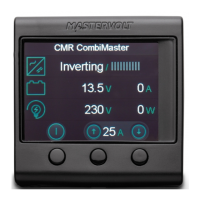
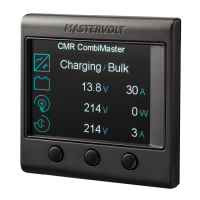
The Mastervolt SmartRemote is a control and monitoring device designed to interact with various Mastervolt products, including Mastershunt, CombiMaster, and MLI Ultra. It provides a user-friendly interface for managing power systems, displaying real-time status, and configuring settings.
Function Description
The SmartRemote serves as a central hub for monitoring and controlling compatible Mastervolt devices within a network. Its primary functions include:
- Device Discovery and Connection: Upon startup, the SmartRemote scans the MasterBus network to identify and list all compatible Mastervolt devices. Users can then select a specific device to monitor and control.
- Real-time Status Display: For connected devices, the SmartRemote displays essential operational parameters. For example, when connected to a CombiMaster, it shows charging/bulk status, voltage, current, and power. For an MLI Ultra, it displays battery state of charge (%), remaining time, voltage, and current.
- Operational Control: The SmartRemote allows users to control certain functions of connected devices. For a CombiMaster, it can toggle the inverter ON/OFF. For a ChargeMaster, it can turn the charger ON/OFF. It also enables adjustment of the AC IN limit.
- Menu Navigation and Configuration: The device features a main menu that provides access to various settings and information. Users can navigate through options such as "Enter standby," "Brightness," "Auto shutdown," "Language," "Paired language," "Unpair device," and "About."
- Standby Mode: The SmartRemote can be put into standby mode, which helps conserve power. It can be reactivated by pressing any button.
- Brightness Adjustment: Users can adjust the display brightness to suit their preferences and ambient lighting conditions.
- Auto Shutdown Configuration: The SmartRemote can be configured to automatically shut down after a specified period of inactivity, further optimizing power consumption.
- Language Selection: The device supports multiple languages for its interface, enhancing usability for a diverse range of users.
- Device Unpairing: The SmartRemote allows users to unpair from a connected device, which can be useful when reconfiguring the system or troubleshooting.
- Information Display: The "About" section provides details about the SmartRemote's firmware version, revision, bootloader version, and bus voltage, which can be helpful for support and maintenance.
Usage Features
The SmartRemote is designed for intuitive operation with a combination of physical buttons and an on-screen interface.
- Initial Setup:
- To begin, connect the SmartRemote to the MasterBus network.
- Press "Start" on the SmartRemote. It will then scan the MasterBus for compatible devices.
- Once devices are listed, select the desired device (e.g., Mastershunt, CombiMaster, MLI Ultra) to connect.
- Main Menu Access:
- To enter the main menu, press both the left and right buttons simultaneously for less than 3 seconds.
- Use the up and down buttons to navigate through the menu items.
- Press the checkmark button to select a menu item.
- The SmartRemote will automatically exit the main menu if no button is pressed within 10 seconds or if "Exit menu" is selected.
- Device Control and Monitoring:
- From the main display for a connected device, a short press of any button will typically bring up a slide-out menu or allow for quick adjustments.
- For example, when connected to a CombiMaster, a short press might allow toggling the inverter ON/OFF or adjusting the AC IN limit using the up/down buttons.
- Standby Mode:
- To enter standby, press the left and right buttons for 3 seconds.
- To exit standby, press any button.
- Brightness Adjustment:
- Navigate to "Brightness" in the main menu.
- Use the up and down buttons to increase or decrease the brightness in 5% increments.
- Press the checkmark button to confirm the choice and return to the main menu.
- Auto Shutdown Configuration:
- Navigate to "Auto standby" in the main menu.
- Options include "Never" (default), "2 minutes," "5 minutes," or "10 minutes."
- Press the checkmark button to confirm the choice and return to the main menu.
- Language Selection:
- Navigate to "(Paired) Language" in the main menu.
- Select the desired language (e.g., English, Nederlands, Deutsch).
- Press the checkmark button to confirm the choice and return to the main menu.
- Unpairing a Device:
- Navigate to "Unpair device" in the main menu.
- Confirm the action by pressing the checkmark button to unpair the device immediately.
- Press the 'X' button to cancel and return to the main menu.
- Information Retrieval:
- Navigate to "About" in the main menu to view device information.
- Press the checkmark button to return to the main menu.
Maintenance Features
While the SmartRemote itself requires minimal maintenance, its features contribute to the overall maintenance and troubleshooting of the connected Mastervolt power system.
- Firmware Information: The "About" section provides critical information about the SmartRemote's software and bootloader versions. This is valuable for diagnosing issues, ensuring compatibility with other Mastervolt devices, and determining if a firmware update is necessary.
- Bus Voltage Monitoring: The displayed bus voltage in the "About" section can be a quick indicator of the health of the MasterBus network. Deviations from expected voltage levels could signal a wiring issue or a problem with a connected device.
- Device Unpairing for Troubleshooting: The ability to unpair a device can be useful when troubleshooting network communication issues. By unpairing and then re-pairing, users can often re-establish a stable connection.
- Error Indication: Although not explicitly detailed, Mastervolt devices typically communicate error codes or warnings through their display interfaces. The SmartRemote, as a central display, would likely show these indicators, aiding in the early detection and diagnosis of system faults.
- Standby for Power Conservation: Utilizing the standby and auto-shutdown features helps conserve power, which is a form of preventative maintenance for the overall battery system, especially in off-grid or limited power scenarios.
- Clear Interface for Diagnostics: The clear and organized display of operational parameters (voltage, current, state of charge) allows users to quickly assess the performance and health of their connected Mastervolt devices, facilitating proactive maintenance and preventing potential issues from escalating.


 To Next Page
 Need help?
 General