EasyManua.ls Logo

Matrix Audio Element Series - User Manual

Matrix Audio Element Series
3 pages
Print Icon
To Next Page IconTo Next Page
Loading...
Wi-Fi Connection Issues Guide
Q: Element X/P/M cannot enter Wi-Fi Connection Mode.
A: - Please check whether the voltage switch is set to the correct position. If the input voltage
is too low, the device will not work properly. If the input voltage is much higher than the
voltage set on the unit, the device may be damaged.
- Please check if the "Network Type" option in the settings menu is set to "Wi-Fi".
- Be sure to press the knob for more than 5 seconds to enter Wi-Fi Connection Mode.
Q: The device cannot connect to the wireless network.
A: - Please check if the "Network Type" option in the settings menu is set to "Wi-Fi".
- Please confirm that the access password of the wireless network is correct and try again.
- Please check the signal strength of the wireless network where the device is located.
Please place the device as close as possible to the Wi-Fi router or reduce wall blocking.
Q: When configuring the wireless connection, the element device has connected to
the network successfully, but the MA Remote app shows that the device was not
found.
Question and Answer IconNeed help?

Do you have a question about the Matrix Audio Element Series and is the answer not in the manual?

Summary

Element X;P;M Wi-Fi Connection Mode Issues

Check Voltage Switch Setting

Verify the voltage switch is set correctly to prevent damage or malfunction.

Verify Network Type Setting

Ensure the 'Network Type' option in settings is set to 'Wi-Fi' for wireless connection.

Activate Wi-Fi Connection Mode

Press the knob for more than 5 seconds to enter Wi-Fi Connection Mode.

Wireless Network Connection Failure

Confirm Network Type Setting

Ensure the 'Network Type' option in settings is set to 'Wi-Fi' for wireless connection.

Validate Wireless Password

Ensure the correct access password for the wireless network is entered.

Optimize Wi-Fi Signal Strength

Evaluate signal strength and place device near router or reduce obstructions.

Device Not Found in MA Remote App

Add Device Automatically

Use 'Add Device Automatically' in MA Remote Wizard after network connection.

Add Device Manually via IP

Enter the device's IP address manually in MA Remote's Network Connection Wizard.

Manual Device Addition to MA Remote

Confirm Network Connectivity

Ensure the element device is connected to LAN via Wi-Fi or cable before manual addition.

View Device IP Address

Access 'Product Info' in settings to find the device's IP address for manual addition.

Smartphone Wi-Fi Connection Issues

Handle No Internet Access Prompt

Select 'Connect' on prompts like 'This WLAN network has no Internet access' to proceed.

Wait for Network Status Update

Allow time for the phone's network status to show Wi-Fi icon before continuing.

MA Remote Location Permission

Enable Location Services

Grant location permission for MA Remote to obtain the Wi-Fi SSID list.

Confirm Phone Location is On

Ensure the mobile phone's location function is enabled for app operation.

Overview

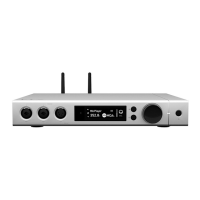
The provided manual outlines troubleshooting steps for Wi-Fi connection issues with Element X/P/M devices, which appear to be audio or network-connected components, possibly related to a "Matrix Audio" brand given the app and hotspot names. The device integrates with a "MA Remote" app for configuration and control.

Function Description:

The Element X/P/M device is designed to connect to a wireless network (Wi-Fi) or a wired LAN, enabling remote control and configuration via the MA Remote application. It features a "Network Type" setting that allows users to switch between different connection modes, presumably including Wi-Fi and Ethernet. The device seems to have a display or interface where network status icons are shown and settings can be accessed, including "Product Info" to view its IP address. A voltage switch is present, indicating it's a power-sensitive electronic device that requires correct voltage configuration for proper operation. The MA Remote app facilitates adding the device to a user's network, either automatically by scanning for devices on the LAN or manually by entering the device's IP address.

Important Technical Specifications (Inferred):

  • Power Input: Features a voltage switch (e.g., 230V is visible in an image), requiring users to set the correct input voltage. Incorrect voltage can lead to malfunction or damage.
  • Network Connectivity: Supports Wi-Fi and wired LAN connections.
  • Wireless Standards: Connects to wireless networks, likely supporting common Wi-Fi standards. The MA Remote app interacts with the device's Wi-Fi hotspot (e.g., "Matrix_Audio_Config") during initial setup.
  • IP Addressing: Utilizes IP addresses for network identification and communication, viewable in the device's settings menu ("Product Info").
  • Control Interface: Controlled via the "MA Remote" mobile application, which is available on platforms like iOS (indicated by iPhone screenshots).
  • Display: Features a display screen to show settings, network status, and other information (e.g., "check IP in setting menu" image).

Usage Features:

  • Wi-Fi Connection Mode: The device can be put into Wi-Fi Connection Mode by pressing a knob for more than 5 seconds. This mode is crucial for initial wireless setup.
  • Network Type Selection: Users can select "Wi-Fi" as the "Network Type" in the device's settings menu to enable wireless connectivity.
  • Automatic Device Discovery: The MA Remote app can automatically scan the local area network (LAN) to discover and add Element devices. This simplifies the setup process for users whose devices are already connected to the network.
  • Manual Device Addition: For situations where automatic discovery fails, users can manually add the device to the MA Remote app by entering its IP address. This requires checking the device's IP address in its settings menu.
  • Voltage Configuration: Before powering on, users must ensure the voltage switch on the device is set to the correct position corresponding to the local power supply.
  • Network Status Indicators: The device likely displays network status icons (e.g., in the upper left corner of the screen) to indicate successful network connection.
  • Troubleshooting Guidance: The manual provides clear steps for common connection issues, including verifying network type settings, confirming Wi-Fi passwords, checking signal strength, and ensuring proper app permissions.
  • App-Based Configuration: The MA Remote app is central to configuring the device, including setting up Wi-Fi connections.
  • Hotspot for Setup: During initial Wi-Fi configuration, the device creates a temporary Wi-Fi hotspot (e.g., "Matrix_Audio_Config") that the smartphone connects to for setup.

Maintenance Features (Inferred from troubleshooting):

  • Voltage Setting: Users are advised to unplug the power cord before setting the voltage, indicating a safety precaution for a user-configurable power input. This is a critical "maintenance" step to prevent damage.
  • Firmware/Software Updates (Implied): While not explicitly stated as a "maintenance feature," the reliance on an app and network connectivity suggests that the device's firmware or the app itself may receive updates to improve functionality or address bugs.
  • Network Diagnostics: The troubleshooting steps guide users through checking network settings on both the device and the controlling smartphone, which can be considered a form of user-level diagnostic maintenance.
  • Environmental Considerations: Recommendations to place the device closer to the Wi-Fi router or reduce wall blocking imply that maintaining a good signal environment is important for optimal performance.
  • App Permission Management: Users are guided to manage location permissions for the MA Remote app, which is essential for the app to function correctly, particularly for scanning Wi-Fi networks. This is a software maintenance task for the controlling device.

Matrix Audio Element Series Specifications

General IconGeneral
BrandMatrix Audio
ModelElement Series
CategoryMusic Equipment
LanguageEnglish

Related product manuals