32 Matrox M-Series – User Guide
2
Cause
Audio cables may be loose or incorrectly wired.
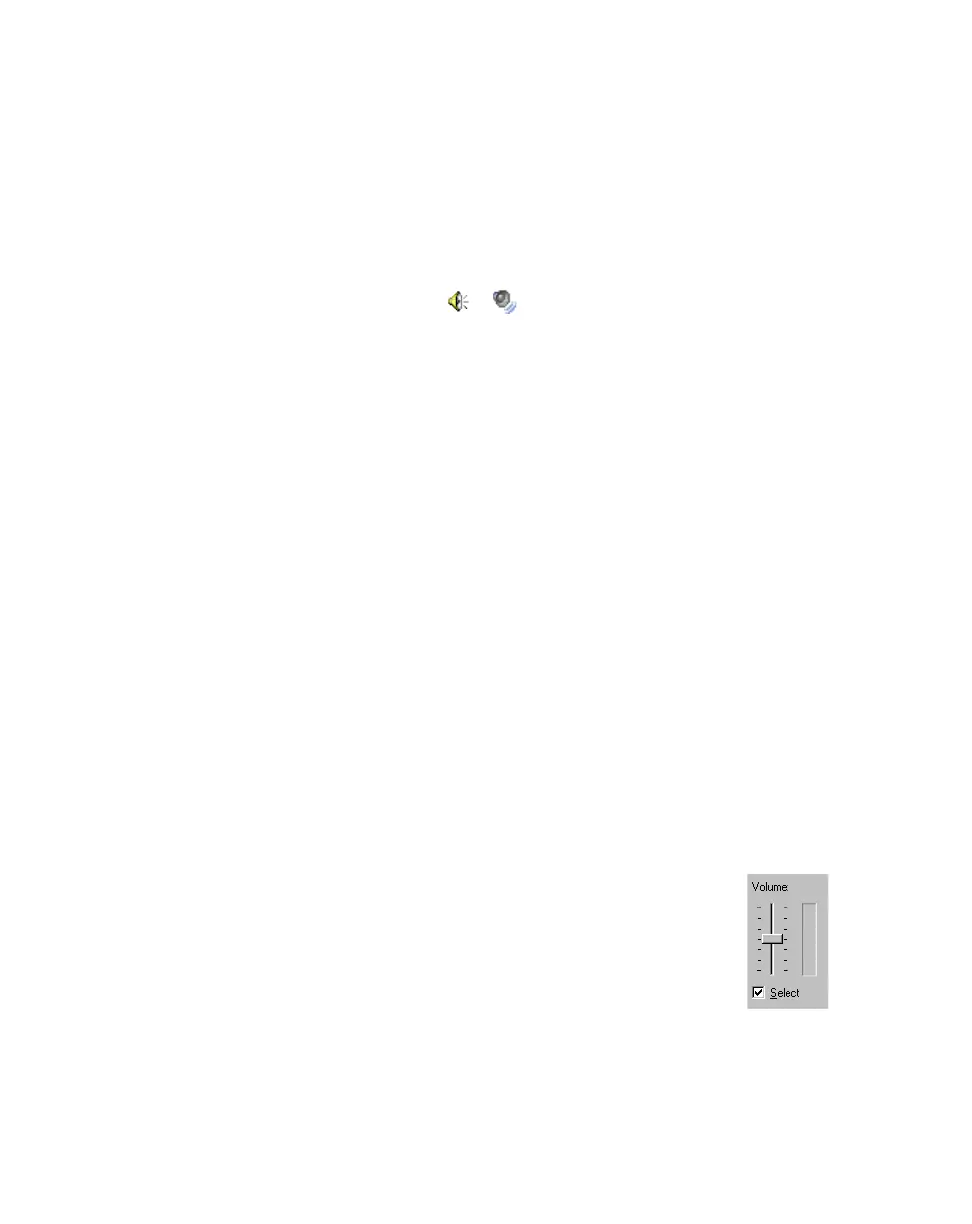
1
Solution
Make sure your sound card cables are properly connected .
3
Cause
Your sound card’s Windows software settings may be incorrect. Specifically, input or output
may be disabled, or volume levels may be too low or too high.
1
Solution
Make sure your sound card’s Windows software settings are correct.
Windows 2000/XP
–
1
Double-click the speaker icon ( or ) on the Windows taskbar.
If you
don’t
see the speaker icon:
Windows 2000
–
a
Click
Start
Æ
Settings
Æ
Control Panel
.
b
Double-click the
Multimedia
or
Sounds and Multimedia
icon.
c
Enable “
Show volume control on the taskbar
”.
d
Click
OK
.
e
Double-click the speaker icon on the taskbar.
Windows XP
–
a
Click
Start
Æ
Settings
*
Æ
Control Panel
Æ
Sound, Speech, and Audio Devices
*
Æ
Sounds and Audio Devices
(double-click*). (* Depending on your configuration of
Windows, this part of the step may not be necessary.)
b
Enable “
Place volume icon in the taskbar
”.
c
Click
OK
.
d
Double-click the speaker icon on the taskbar.
2
Click
Options
Æ
Properties
.
3
Click the
Recording
button, enable all check boxes in the list box, then click
OK
.
4
For the
Line In
and/or
Microphone
controls, make sure the
Volume
slider
levels are okay (if you’re not sure, try half level), and the appropriate
Select
check box is enabled.
5
Click
Options
Æ
Properties
.
6
Click the
Playback
button, enable all check boxes in the list box, then click
OK
.











 To Next Page