Step 2 : Set the Non-Maxto intercom function Bluetooth
device into pairing mobile phone status.
Step 3 : Follow step 8.1, M2 enters pairing status.
Step 4 : Quickly press M2 on/off button, then it will search
for the device for pairing, the “intercom connected” sound
prompt means the connection is successful.
Note 1: In step 4, the intercom connection must be initiated
by M2.
Note 2: When intercom, press M2 on/off button to
disconnect the intercom, then press again to reconnect.
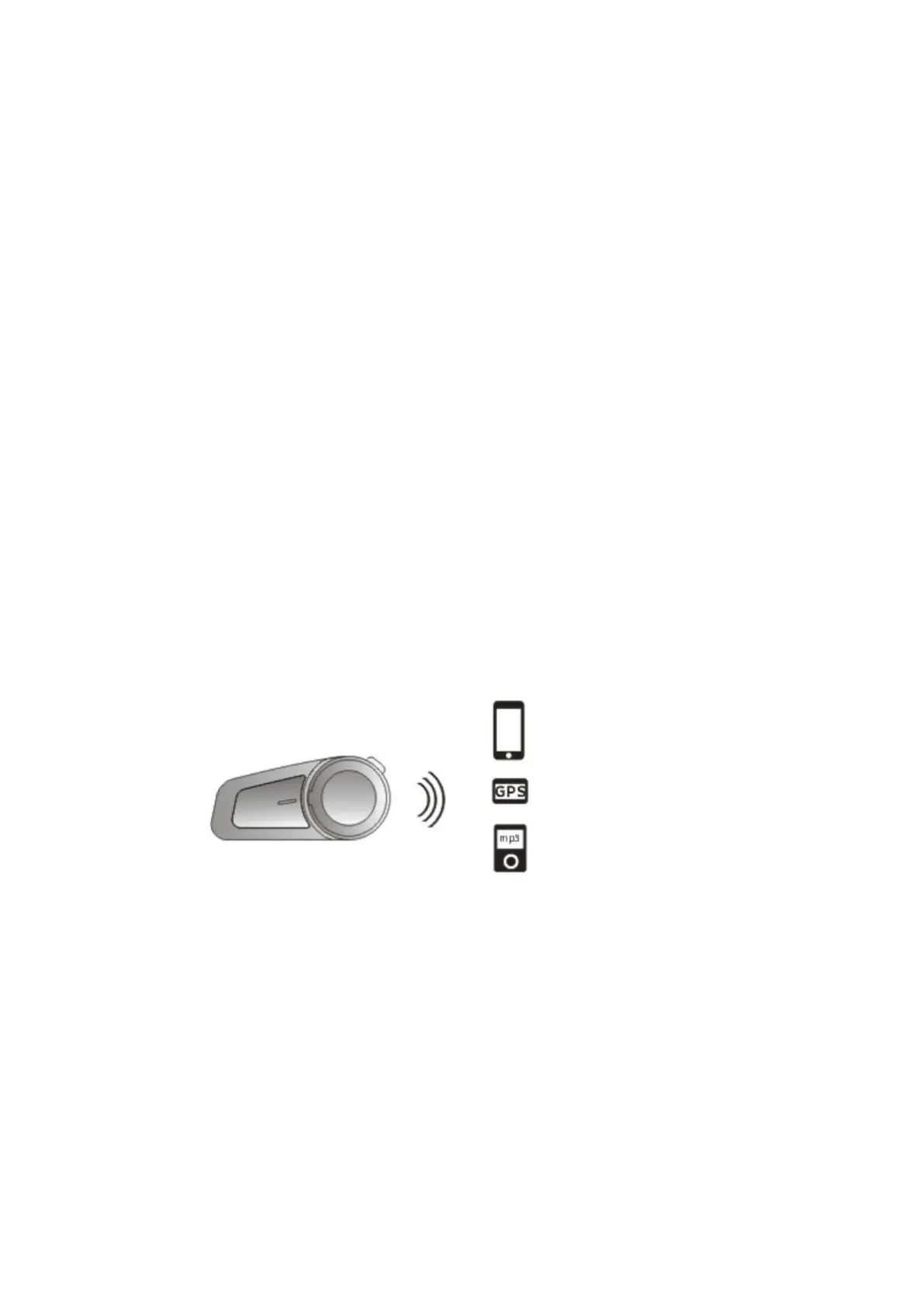
8.3 Pairing with Mobile, GPS and MP3
Step 1 : Place the M2 and the device within a visible range
of 1 meter. Step 2 : Follow step 8.1, M2 enters pairing
status.
Step 3 : Turn on the device bluetooth, search M2 and
connect. The “connected” sound prompt means the
connection is successful.


 To Next Page
 Loading...