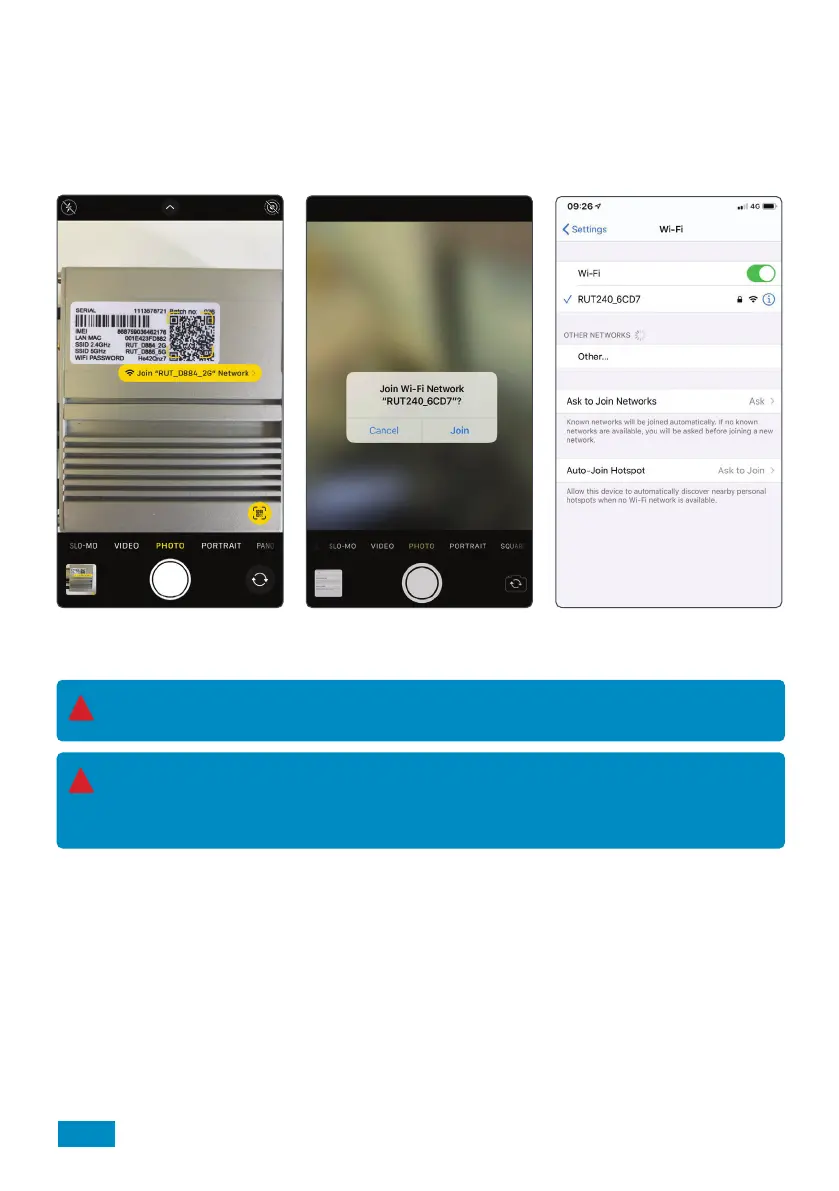
Option B: QR Code
1. If your device is able to read QR codes (Android 9 or newer and IOS 11 or newer), simply point your device
camera at the QR code on the back on the router. When prompted, select ‘join’. Your device will automatically
connect to the Roam X Router.
That’s it! You are now connected to the secure Wi-Fi hotspot of your Roam X Router.
The Wi-Fi network name and password will remain the same as those listed on the back of the router.
The above processes can be repeated to connect up to 100 devices to the same network simultaneously.
!
14
Please note:
With the QR code on the back of the router, it is only possible to connect to the 2.4GHz network.
To connect to the 5GHz network, you must enter the WiFi password on the back of the router using the
keypad of your device.
!


 To Next Page