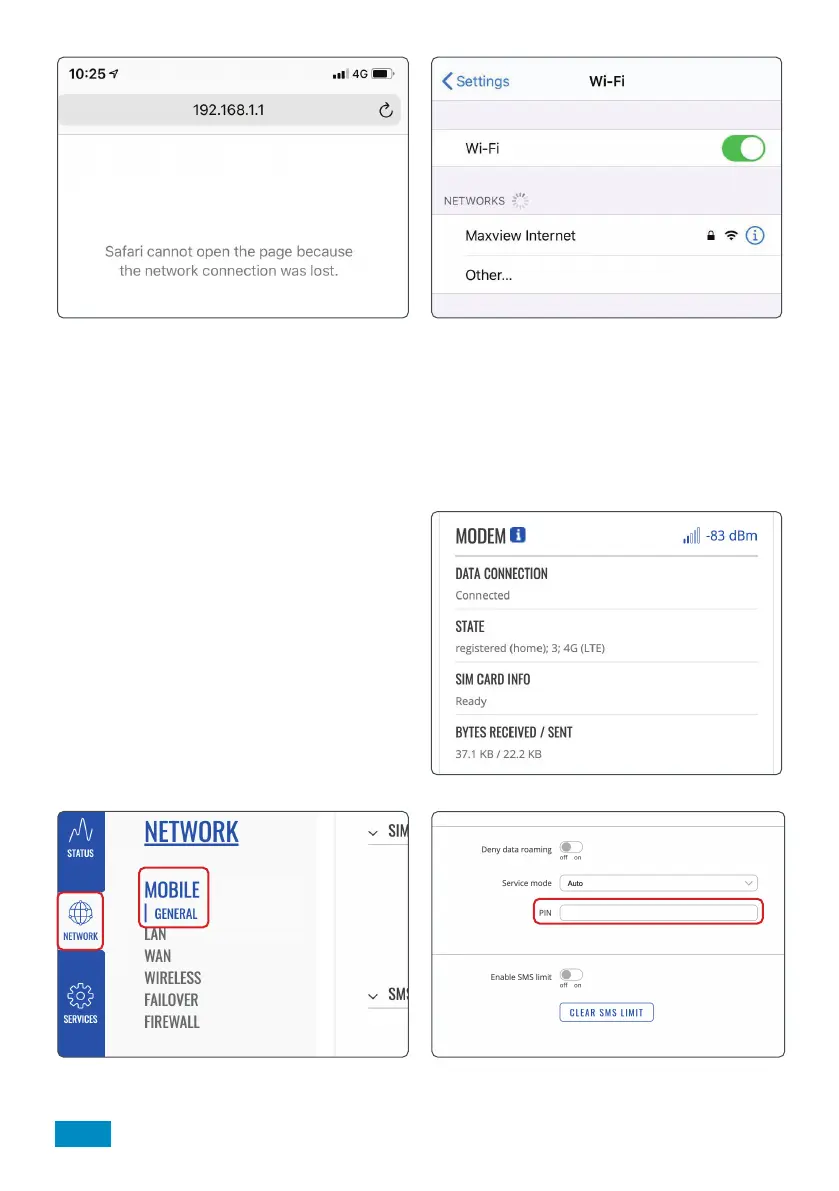
6. When the changes are complete, you will see
a web browser error page and your device will no
longer be connected to the router. Because the Wi-Fi
network has changed, the router will automatically
remove all devices, including the one you are
currently with.
Your new hotspot name and password is now set up.
7. You can now navigate to your device’s Wi-Fi
settings and view available Wi-Fi networks. The Roam
router hotspot will be displayed as your chosen name.
Select this network and enter the new password.
This step should be repeated for any device you wish
to connect.
28
Entering SIM PIN
For security, some SIM cards have a 4-8 digit PIN
activated. If your SIM is PIN protected, you will need
to input the PIN number into the Web User Interface
before it can be used.
Please note, if you enter the incorrect PIN 3 times,
your SIM card may be blocked. If this happens, you
will need to contact your SIM card network provider.
If your SIM requires a PIN, the Web User Interface will
display SIM (locked). If it does not require a PIN it will
display SIM (ready).
1. From the Web User Interface, select ‘Network’ and
then ‘Mobile General’ from the top menu.
2. In the ‘General’ tab, insert the PIN in ‘PIN’ box.
Once entered, select save.
To enter the PIN, follow the below steps


 To Next Page