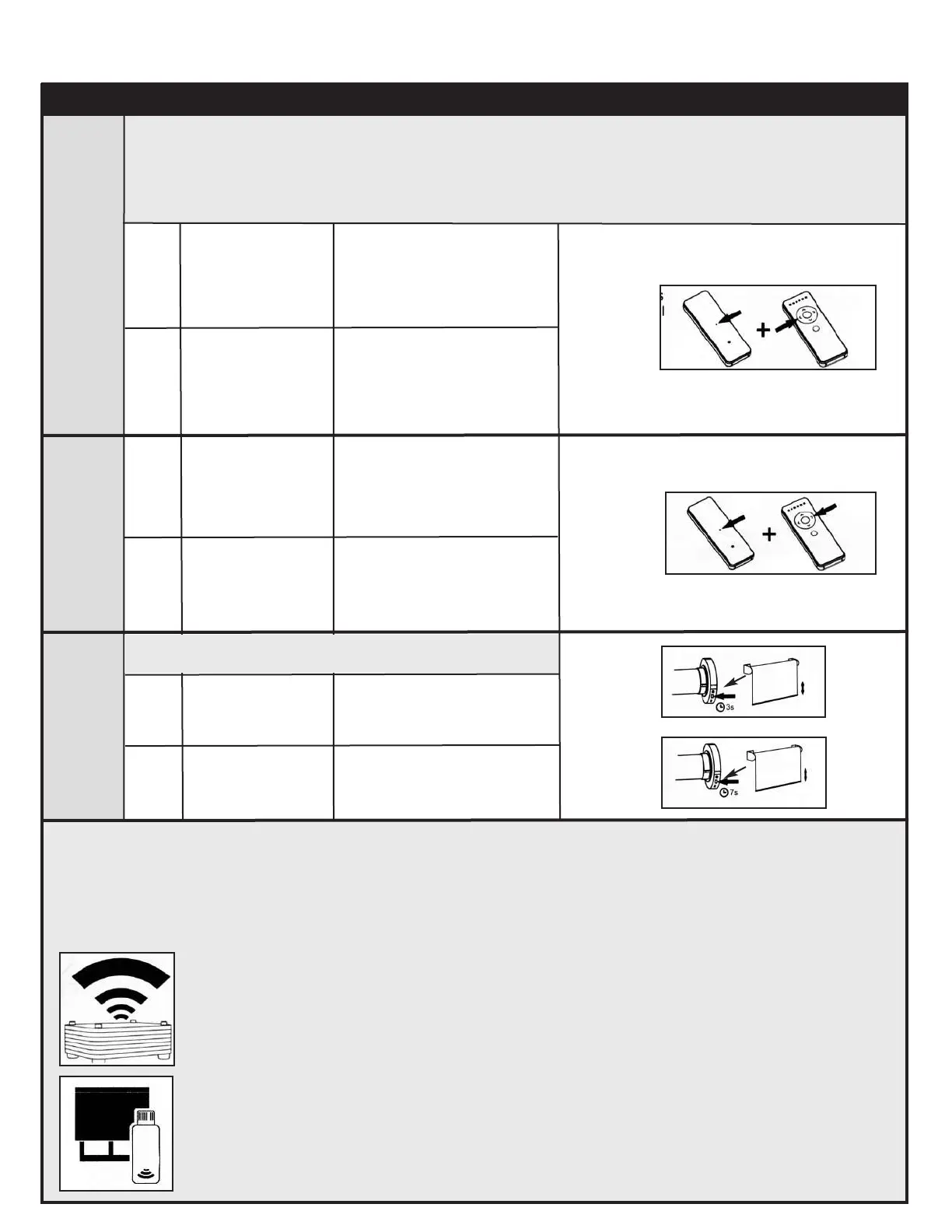
Command
Item
Key Combination
Description
Illustration
Setting
Favourite
Position 1
Setting
Favourite
Position 2
Delete all
Remote
Controls
1
2
Use UP, STOP and
DOWN buttons
The motor will move
up, down or stop accordingly
to go to desired favourite
Position 1
Press the SET +
LEFT buttons at the
same time for 3
seconds
2
The motor will move up and
down to confirm the favourite
Position 1 was saved
Basic Operation - 1 and 5 Channel Remote Controls Continued
Note:
Once the upper and lower limits are set, the motor can store two favourite positions. After setting the
favourite positions, hold the LEFT or RIGHT button to send the motor to favourite position 1 or 2.
If you also use the Neo Smart Blinds app or the Neo Smart Blinds Blue app to control your blinds,
please read the related topic in the bottom of this page first.
2
1
1
2
Use UP, STOP and
DOWN buttons
Hold the HEAD
button for
3 seconds
Hold the HEAD
button for
7 seconds
The motor will move
up, down or stop accordingly
to go to desired favourite
Position 2
The motor will move up and
down
The motor will move up and
down
Press the SET +
RIGHT buttons at
the same time for 3
seconds
2
The motor will move up and
down to confirm the favourite
Position 2 was saved
Favourite Position in the MaxxLink and Bluetooth
Only the favorite position 1(left button) is accessible to the Smart Controller app. None of the favorite positions set via
remote control are accessible to the Blue Link app, however, you can easily set up a favorite position in the app.
Compatible Products to Automate your Home
MaxxLink
Control your blinds from anywhere using your phone or tablet. Voice commands are available if
integrated with Amazon Alexa or Google Home (Google Assistant).
Bluetooth
Local control of your motorized blinds using your phone or tablet. Set schedules to auto mate
your home. No need to connect to your Wi-fi or router.
For more information about our motors, remote controls and compatible products please visit our
website: neosmartblinds.com
To buy one of these products, please contact your dealer.
1
2
Attention: this procedure does not delete upper and lower
limits or the favourite Positions 1 and 2.



 To Next Page