EasyManua.ls Logo

Mediacom Xtream Xplorer Box - User Manual

Mediacom Xtream Xplorer Box
10 pages
Print Icon
To Next Page IconTo Next Page
Loading...
Installation and Activation Guide
1
Find the device that does not have a TiVo Menu
as this will be the one to replace.
2
Turn off your television and old cable box.
3
Disconnect the power cord from the back
of the old unit and remove it from the power
outlet to which it is connected.
(Your new Xplorer box comes with a different power cord.
Please do not use the old power cord with the new box.)
4
Unscrew the coaxial cable from both
the wall outlet and old cable box.
5
Remove any additional cables connected from
the old cable box to your TV (this could be a coaxial
cable, HDMI, or component/composite cables).
6
Set the old cable box, power cord, cables
and remote aside. Well return to these items
in Step 6 – Returning Your Previous Cable Box.
If you are replacing an existing cable box begin
with STEP 1, otherwise proceed to STEP 2.
1
Locate the HDMI cable and connect it from the HDMI
Out on the Xplorer box to HDMI Input* on your TV.
2
Connect the power cord to the Xplorer box
and plug it into a power outlet.
3
Connect the ethernet cord to the Xplorer box or plan
to use your home wi-connection when prompted.
4
Turn on TV and tune to appropriate HDMI Input.
*Please make note of the HDMI input used on the TV as you will
need to tune your television to this input once you turn it on.
STEP 2
Connecting the
Xplorer Box
STEP 1
Disconnecting Your
Previous Cable Box
1
2
M731-44149
Xplorer Box Xtream Voice Remote
Welcome Letter
HDMI Cable Power Cable
REQUIRED FOR INSTALLATION
Included in This Kit
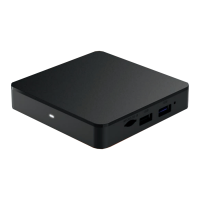
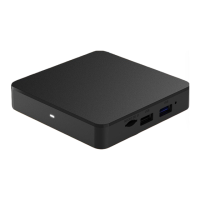
Xplorer Box
Instructions
Once the Xplorer box powers on it will display
Pair Your Remote instructions.
1
Place the remote within 3 feet
of the front of the Xplorer box.
2
Insert the batteries into the remote.
3
Follow the on-screen instructions.
STEP 3
Setup the Xtream
Voice Remote
Once the remote is paired, you can now nish activating
the Xplorer box by following the on-screen instructions.
STEP 4
Setup the Xplorer Box
Now that youve completed the setup, we need to nish
activation. Please call 844-581-0933 and our automated
system will complete this step.
STEP 5
Activate Service
Question and Answer IconNeed help?

Do you have a question about the Mediacom Xtream Xplorer Box and is the answer not in the manual?

Overview

The Xplorer Box is a digital cable box designed for use with Mediacom's Xtream service, offering a comprehensive entertainment experience with advanced features. This device serves as a central hub for accessing television channels, on-demand content, and streaming services, integrating seamlessly with your home entertainment system.

Function Description:

The primary function of the Xplorer Box is to deliver television programming and digital media content to your TV. It acts as a receiver for Mediacom's cable service, allowing you to watch live TV, access a wide range of channels, and enjoy on-demand movies and shows. The box supports high-definition video output, ensuring a clear and vibrant viewing experience.

Beyond traditional cable TV, the Xplorer Box is equipped with smart features that enhance its utility. It integrates with Google Assistant, enabling voice control for various functions, such as changing channels, searching for content, and controlling smart home devices. The device also supports streaming applications like Netflix and YouTube, providing access to a vast library of online content. Chromecast built-in functionality allows users to cast photos, videos, and music from their smartphones or other compatible devices directly to their TV, expanding the entertainment possibilities.

Important Technical Specifications:

While specific processor, RAM, or storage details are not provided in the manual, the Xplorer Box is designed to handle modern digital media.

  • Connectivity:
    • HDMI Output: The primary connection to your TV for high-definition video and audio.
    • Power Input: Connects to the included power adapter.
    • Ethernet Port: For wired internet connection, though Wi-Fi is also an option.
    • Coaxial Cable Input: For receiving the cable signal from the wall outlet.
    • Wi-Fi: Supports wireless internet connectivity for streaming and smart features.
  • Remote Control: The Xtream Voice Remote is a key component, featuring:
    • Voice Control: Utilizes Google Assistant for hands-free operation.
    • Dedicated Buttons: Includes buttons for power, volume, mute, input, guide, channel up/down, TiVo menu, back, exit, VOD (Video On Demand), Netflix, and a numeric keypad.
    • Navigation: A central directional pad for menu navigation.
  • Power Supply: Comes with a distinct power cord, emphasizing that the new power cord should be used with the Xplorer Box, not an old one.

Usage Features:

The Xplorer Box is designed for user-friendly operation, offering a variety of features to enhance the viewing experience:

  • Easy Setup: The installation process is straightforward, involving disconnecting the old cable box, connecting the Xplorer Box via HDMI and power, and then setting up the remote.
  • Voice Control with Google Assistant: The Xtream Voice Remote allows users to control the TV and search for content using voice commands. This includes changing channels, adjusting volume, and launching applications.
  • Integrated Streaming Services: Direct access to popular streaming platforms like Netflix and YouTube is available through dedicated buttons on the remote and the device's interface.
  • Chromecast Built-in: This feature allows for seamless casting of content from mobile devices to the TV, providing flexibility in how media is consumed.
  • TiVo Menu: The remote includes a TiVo button, suggesting integration with TiVo's user interface for program guides and recording functionalities (though specific recording features are not detailed).
  • Program Guide: A dedicated "Guide" button on the remote provides access to the program guide, allowing users to browse upcoming shows and schedule viewing.
  • On-Demand Content: The "VOD" button provides quick access to Video On Demand services, offering a selection of movies and shows to watch at your convenience.
  • App & Games Access: Users can download additional applications from the Google Play Store, expanding the functionality of the Xplorer Box beyond its pre-installed apps. This allows for customization and access to a wider range of entertainment and utility apps.
  • Home Screen Navigation: The remote's "Back" button allows users to return to the home screen or previous screens, facilitating easy navigation through menus and applications.
  • Input Selection: The "Input" button on the remote allows users to switch between different video sources on their TV, useful for managing multiple connected devices.
  • Parental Control: The numeric buttons can be used for parental control, allowing users to manage access to certain channels or content.

Maintenance Features:

The manual primarily focuses on initial setup and usage, with limited explicit maintenance features. However, some aspects can be inferred:

  • Software Updates: As a smart device with app integration, it is highly likely that the Xplorer Box receives over-the-air software updates to improve performance, add new features, and address security vulnerabilities.
  • Troubleshooting: While not detailed, the support contact information provided (customer support website, social media, phone number, and text support) indicates resources are available for troubleshooting any issues that may arise.
  • Return Process: For users replacing an existing cable box, the manual outlines a clear process for returning the old equipment, including packaging instructions and FedEx shipping options. This ensures proper handling and prevents unreturned equipment charges.
  • Data Usage Monitoring: The note about third-party apps like Netflix and YouTube counting towards monthly data allowance implies that users should be mindful of their internet usage, which can be a form of self-maintenance for managing internet plans.

In summary, the Xplorer Box is a modern, feature-rich cable box designed to be the centerpiece of a home entertainment system, offering a blend of traditional cable TV, smart streaming capabilities, and voice control for a convenient and comprehensive media experience.

Mediacom Xtream Xplorer Box Specifications

General IconGeneral
BrandMediacom
ModelXtream Xplorer Box
CategorySet-top boxes
LanguageEnglish

Related product manuals