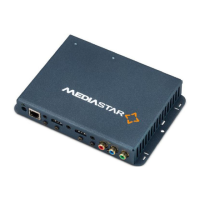
Quick Start Guide - 782-AV 4K UHD IPTV and Media Player
7. Once the 782 is connected on the network, its advanced
configuration options may be setup using a networked
computer running a standard web-browser. In the web
browser (Internet Explorer, Chrome, Firefox, Safari) enter the
IP address of the 782 into the navigation address bar. The
browser will then show the configuration web pages from
the 782 unit, starting with the specification page. The main
configuration web pages can be accessed by clicking on the
menu link on the left hand side of the screen. Context sensitive
help is shown on the right hand side in case further help is
required with setup.
It is recommended that the following (minimum) settings are
configured at time of installation:
a) Unit name (in Operating Mode menu) – This should reflect
the physical location of the unit, preferably in line with a
system wide naming convention. This name of the unit will
be shown in the Media Manager software.
b) Date/Time – For most accurate timekeeping, configure
the unit to use a corporate or internet NTP time server (a
commonly used internet time server is pool.ntp.org). If this
is not available, set the date and time manually. The date/
time will be retained and updated throughout a power
outage of up to 3 days.
8. The media accessible on the display is controlled from the
Media Manager software. When the Media Manager server
software is installed and running, it should automatically
detect a new 782 unit and create a new ‘icon’ for it. Media can
then be assigned to the 782 by ‘dragging and dropping’ live
streams, stored files etc. onto the 782 icon. The 782 will then
be instructed to download or access the specified media and
start showing it on the display as requested by the user.
If the 782 is not automatically recognised by the Media
manager software, then:
a) Use a browser to go onto the 782’s web page menus, and
enter <MM server IP address>/MediaManagerUpdates/config
(without < or >) into the Config File Location field and click on
Apply. Creating this direct connection to the Media Manager
server should cause the 782’s icon to be created. The network
connectivity from the 782 to the Media Manager server can
be checked by checking the ‘Check update locations’ tick box
and pressing the apply button.
b) In Media Manager, manually create a 782 icon, by
right-clicking on the workspace and selecting the Create/
Endpoint/782 option. This allows the IP address of the 782 to
be manually specified, so Media Manager can then try and
connect directly to the 782 unit.
It is essential for the 782 to be able to communicate with a Media
Manager server to be able to initially configure or then change
the user selectable media.


 To Next Page
 Loading...